Windows එකේ Hard Drive එකක් Show නොවෙනවා නම් Fix කරන්නේ කොහොමද (Internal හෝ External)
Missing internal හෝ external drive එකක් connection, Disk Management, සහ driver fixes එක්ක recover කරගන්න.
Overview
Show නොවෙන drive එකක් සාමාන්යයෙන් dead disk එකකට වඩා connection, drive-letter, initialization, හෝ driver issue එකක්. මේ guide එකෙන් internal සහ external drives දෙකම cover කරනවා, physical checks වල ඉඳන් Disk Management දක්වා.
Windows එකේ show නොවෙන drive එකක්.
Warning: ඔයාට ඕන data තියෙන drive එකක් initialize හෝ format කරන්න එපා — ඒකෙන් ඒ data මැකෙනවා. Drive එකේ important files තිබුණා නම් මුලින්ම data recovery කරන්න.
Key Takeaways
- මුලින්ම connections/USB ports සහ BIOS detection check කරන්න.
- Letter එකක් නැති හෝ uninitialized drives Disk Management එකෙන් පේනවා.
- Healthy volume එකක් visible කරන්න drive letter එකක් assign කරන්න.
- Detected-but-inaccessible drives සඳහා drivers update කරලා CHKDSK run කරන්න.
Fix 1: Check Connections
1. External: වෙනස් USB port එකක් සහ cable එකක් try කරන්න; කෙලින්ම connect කරන්න (hub එකක් හරහා නෙවෙයි).
2. Internal: power down කරලා SATA/power (හෝ M.2) connections reseat කරන්න.
3. Drive එක BIOS/UEFI එකේ detect වෙනවද කියලා confirm කරන්න.
Fix 2: Assign a Drive Letter / Initialize
1. Disk Management (diskmgmt.msc) open කරන්න.
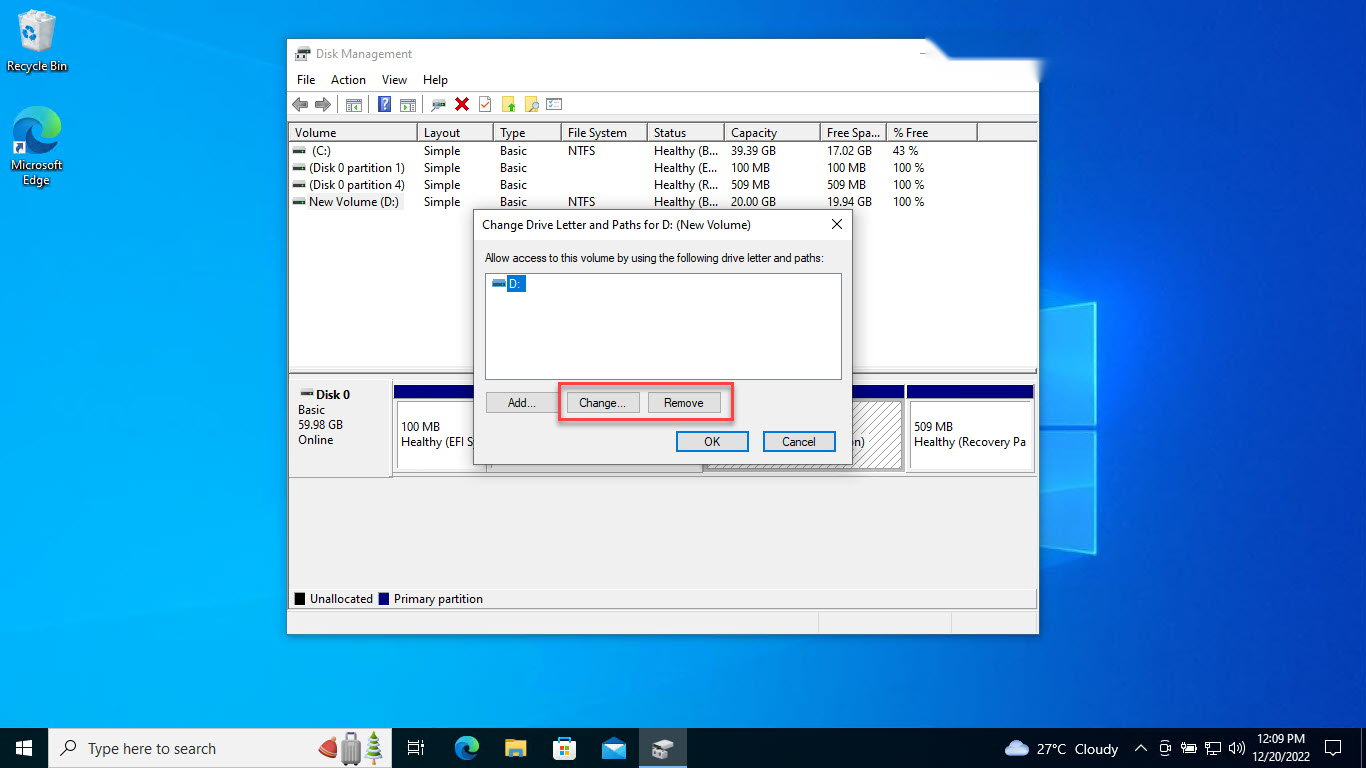
2. Volume එකට letter එකක් නැත්නම්: ඒකට right-click කරන්න > Change Drive Letter and Paths > Add.
3. Disk එක "Not Initialized" පෙන්නනවා නම් සහ ඒක new/empty නම්: right-click කරන්න > Initialize Disk (GPT).
4. New disk එකක unallocated space එකක් සඳහා: New Simple Volume එකක් හදලා format කරන්න.
Fix 3: Power and USB Settings
1. USB selective suspend disable කරන්න: Power Options > Change plan settings > Advanced > USB settings.
2. මේකෙන් Windows එක external drives power down කරන එක නවතිනවා.
Fix 4: Driver, CHKDSK, Malware
1. Device Manager > Disk drives එකේ disk driver එක update හෝ reinstall කරන්න.
2. Detected-but-inaccessible drive එකක chkdsk X: /f /r run කරන්න.
3. Drive එක අමුතු විදිහට හැසිරෙනවා නම් malware scan කරන්න.
Troubleshooting
Problem: Drive එක RAW විදිහට පෙන්නනවා.
Solution: File system එක damaged — මුලින්ම data recover කරලා, එතකොට repair කරන්න format (හෝ chkdsk run) කරන්න.
Problem: Disk Management හෝ BIOS එකේ නෑ.
Solution: බොහෝ විට connection/power හෝ hardware fault එකක් — cables reseat කරන්න, වෙන port එකක්/PC එකක් try කරන්න.
Problem: External drive එක spin වෙනවා ඒත් letter එකක් නෑ.
Solution: Disk Management එකේ drive letter එකක් assign කරන්න; USB selective suspend disable කරන්න.
Problem: Detect වෙනවා ඒත් "inaccessible".
Solution: chkdsk run කරලා storage driver එක update කරන්න; file-system corruption එකක් තියෙනවද check කරන්න.
Conclusion
Missing drive එකක් සාමාන්යයෙන් data loss එකක් නැතුව fix කරන්න පුළුවන්: connections සහ BIOS check කරලා, එතකොට Disk Management එකෙන් letter එකක් assign කරන්න හෝ ඇත්තටම empty disk එකක් initialize කරන්න. පේනවා ඒත් open නොවෙන drives සඳහා drivers update කරලා CHKDSK run කරන්න — files තිබුණු මුකුත් format කරන්න කලින් data recover කරන්න.