Overview
Error 0x80072F8F – 0x20000 appears when the Media Creation Tool can’t connect to Microsoft’s servers — usually due to a TLS setting, incorrect date/time, network problem, or low disk space. This guide walks through the fixes in order.
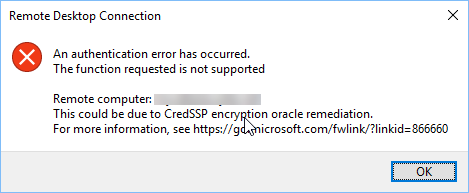
Media Creation Tool error 0x80072F8F – 0x20000.
Key Takeaways
- The error is usually a TLS or connectivity problem.
- Run the tool as administrator and verify date/time.
- Enable TLS 1.1/1.2 and ensure a stable connection.
- Free disk space and clear SoftwareDistribution if needed.
Fix 1: Run as Administrator
1. Right-click MediaCreationTool.exe.
2. Choose "Run as administrator".
3. Accept the UAC prompt and retry.

Run the Media Creation Tool as administrator.
Fix 2: Check Date, Time, and Requirements
1. Open Settings > Time & language > Date & time and enable "Set time automatically".
2. Confirm the PC meets the target Windows version’s requirements.
Fix 3: Confirm a Stable Internet Connection
1. Switch to a wired connection if possible.
2. Temporarily disable VPNs/proxies that can block Microsoft servers.
3. Retry the download.
Fix 4: End Conflicting Apps
1. Open Task Manager (Ctrl + Shift + Esc).
2. End background apps that may interfere (download managers, aggressive security tools).
3. Run the tool again.
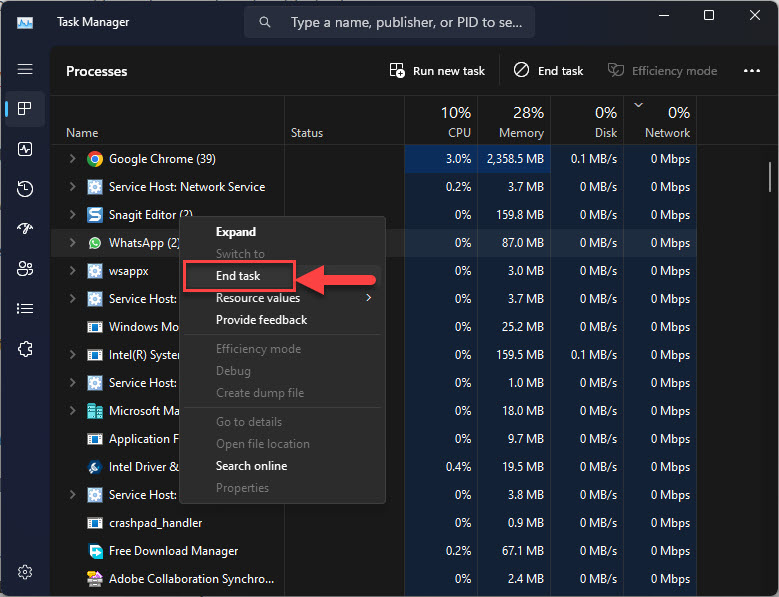
End conflicting tasks in Task Manager.
Fix 5: Enable TLS 1.1 and 1.2
1. Open Internet Options (inetcpl.cpl) > Advanced.
2. Under Security, tick "Use TLS 1.1" and "Use TLS 1.2".
3. Click Apply, then retry the tool.
Fix 6: Free Disk Space and Clear SoftwareDistribution
1. Free up space on the system drive (Disk Cleanup or Storage Sense).
2. Stop the Windows Update service, delete the contents of C:\Windows\SoftwareDistribution\Download, then restart the service.
3. Retry the Media Creation Tool.
Fix 7: Clean Boot
1. Run msconfig, choose Selective startup, and disable non-Microsoft services and startup apps.
2. Restart and run the tool in the clean environment.
3. Revert to normal startup afterward.
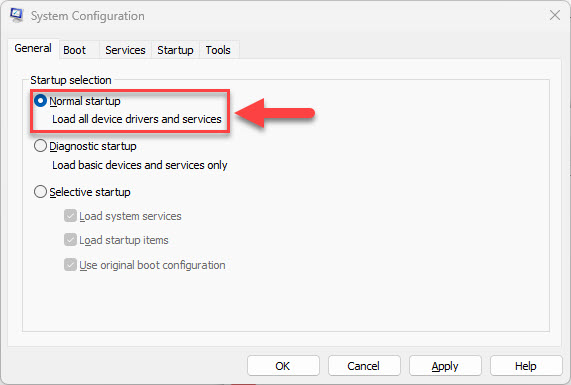
Revert to normal startup after testing.
Troubleshooting
Problem: Error persists after all steps.
Solution: Download the ISO directly from Microsoft’s official site instead of using the Media Creation Tool.
Problem: Tool can’t reach the servers.
Solution: Disable VPN/proxy and confirm date/time are correct — a wrong clock breaks TLS certificate validation.
Problem: Fails partway through.
Solution: Free more disk space and clear the SoftwareDistribution download cache, then retry.
Problem: TLS options are greyed out.
Solution: A group policy may control them; on managed PCs ask your administrator to enable TLS 1.2.
Conclusion
Error 0x80072F8F – 0x20000 almost always comes down to TLS, clock, or connectivity. Run the tool as admin, fix date/time, enable TLS 1.2, and free disk space — or download the ISO directly from Microsoft if the tool still won’t cooperate.
</w:pBdr><w:spacing w:before="220" w:after="40"/></w:pPr><w:r><w:rPr><w:b/><w:bCs/><w:color w:val="0B5394"/><w:sz w:val="21"/><w:szCs w:val="21"/><w:rFonts w:ascii="Calibri" w:cs="Calibri" w:eastAsia="Calibri" w:hAnsi="Calibri"/></w:rPr><w:t xml:space="preserve">About TechHub
This guide is part of the TechHub Knowledge Base. For more step-by-step IT guides and support, visit techhub.com.lk.