Overview
When a program won’t install or refuses to uninstall, Microsoft’s "Program Install and Uninstall" Troubleshooter can fix the underlying issue — often a corrupt registry key blocking the operation. This guide explains what it does and how to run it safely.
The Program Install and Uninstall Troubleshooter.
Key Takeaways
- Repairs blocked installs and stuck uninstalls.
- Fixes corrupt registry keys that prevent updates.
- Download it only from Microsoft’s official site.
- It guides you step by step and applies fixes automatically.
What the Troubleshooter Does
- Resolves problems that prevent programs from being installed.
- Resolves problems that prevent programs from being uninstalled.
- Repairs corrupted registry keys on 64-bit systems.
- Clears issues left by partially removed software.
Download and Run It
Warning: Download the troubleshooter only from Microsoft’s official support site (support.microsoft.com). Avoid third-party "fixer" downloads.
1. Go to Microsoft’s official support page and download the "Program Install and Uninstall Troubleshooter" (MicrosoftProgram_Install_and_Uninstall.meta.diagcab).
2. Run the downloaded .diagcab file and click Next.
3. Choose whether you’re having trouble Installing or Uninstalling.
4. Select the affected program from the list.
5. Let the troubleshooter detect and apply fixes, then follow the prompts.
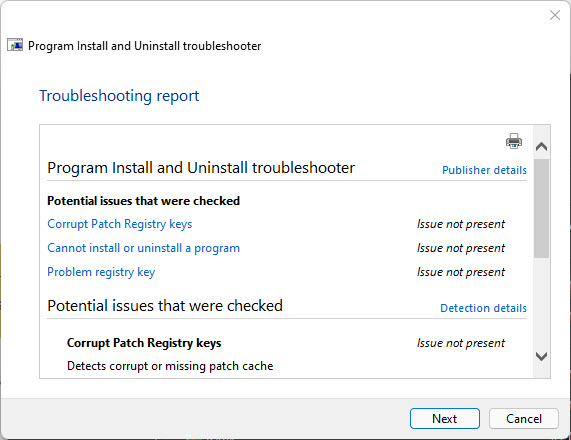
Review the detailed troubleshooting information.
Troubleshooting
Problem: The program isn’t in the list.
Solution: Choose "Not Listed" and browse to the program’s product code or installer; some apps register differently.
Problem: The troubleshooter says it fixed it but the issue remains.
Solution: Restart the PC and try the install/uninstall again; reboot finalizes registry repairs.
Problem: The .diagcab won’t open.
Solution: Right-click and Run as administrator; ensure the Troubleshooting/Diagnostics service is enabled.
Problem: Uninstall still fails.
Solution: Use the app’s own repair option first, or remove leftover files manually after the troubleshooter clears the registry entry.
Conclusion
The Program Install and Uninstall Troubleshooter is a quick, official fix for stubborn software that won’t install or remove. Download it from Microsoft, point it at the problem app, and let it repair the registry entries blocking the operation.
</w:pBdr><w:spacing w:before="220" w:after="40"/></w:pPr><w:r><w:rPr><w:b/><w:bCs/><w:color w:val="0B5394"/><w:sz w:val="21"/><w:szCs w:val="21"/><w:rFonts w:ascii="Calibri" w:cs="Calibri" w:eastAsia="Calibri" w:hAnsi="Calibri"/></w:rPr><w:t xml:space="preserve">About TechHub
This guide is part of the TechHub Knowledge Base. For more step-by-step IT guides and support, visit techhub.com.lk.