Overview
"Microsoft Outlook requires an update before it can start" error එක එන්නේ Microsoft ඔබේ specific, outdated Outlook build එක block කරපු වෙලාවට (බොහෝවිට security හේතූන් නිසා). Fix එක තමයි Office update කරන එක. මේ guide එකෙන් automatically update කරන ආකාරය, manually update install කරන ආකාරය සහ ඇතුළට යන්න safe mode පාවිච්චි කරන ආකාරය පෙන්නනවා.
Required update එකක් install කරනකම් Outlook start වෙන්න refuse කරන්න පුළුවන්.
Key Takeaways
- Error එකෙන් කියන්නේ ඔබේ Office/Outlook build එක block වෙලා update කරන්න ඕන කියලා.
- Office update කරන්න: File > Account > Update Options > Update Now.
- Office 2016/2013 වලට, update එක Microsoft වෙතින් manually download කරන්න පුළුවන්.
- Update කරන්න තරම් වෙලාවකට Outlook open කරගන්න safe mode එකට පුළුවන්.
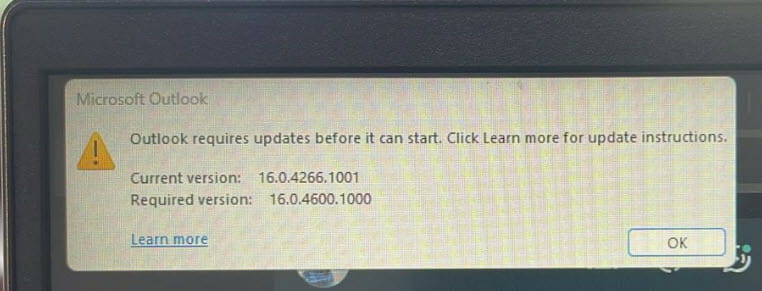
"Outlook requires updates before it can start" message එක.
Method 1 — Office App එකක් ඇතුළෙන් Office Update කරන්න
1. තාම වැඩ කරන වෙන Office app එකක් open කරන්න — Word හෝ Excel වගේ.
2. File > Account (හෝ Office Account) වලට යන්න.
3. Update Options > Update Now click කරන්න.
4. Update එක install වෙන්න දීලා, Outlook ආපහු open කරන්න.
Method 2 — Microsoft 365 / Office Installer එකෙන් Update කරන්න
1. Office app එකක් open නොවෙනවා නම්, Office repair කරන්න: Settings > Apps > Installed apps > Microsoft 365/Office > Modify > Quick Repair (ඊට පස්සේ Online Repair).
2. මේකෙන් installation එක update කරලා repair කරනවා.
3. Repair එක ඉවර වුණාට පස්සේ Outlook ආපහු open කරන්න.
Method 3 — Manually Updates Install කරන්න (Office 2016/2013)
1. වෙන Office app එකක Account page එකෙන් ඔබේ Office version එකයි bitness (32/64-bit) එකයි identify කරන්න.
2. ඔබේ Office version එකට latest cumulative update එක Microsoft Update Catalog එකෙන් හෝ Office update page එකෙන් download කරන්න.
3. Update installer එක run කරලා restart කරලා, Outlook open කරන්න.
Method 4 — Outlook Safe Mode එකේ Open කරන්න
1. Windows key + R press කරලා outlook /safe type කරලා Enter කරන්න.
2. Outlook safe mode එකේ open වුණොත්, File > Office Account > Update Options > Update Now පාවිච්චි කරන්න.
3. Update කළාට පස්සේ Outlook normal විදිහට restart කරන්න.
Troubleshooting
Problem: Update Now නෑ, නැත්නම් greyed out වෙලා.
Solution: ඔබේ Office එක organisation එකෙන් manage කරනවා ඇති. IT එක්ක කතා කරන්න, නැත්නම් installation එක update කරන්න Quick/Online Repair පාවිච්චි කරන්න.
Problem: Update කළාට පස්සෙත් Outlook start වෙන්නේ නෑ.
Solution: Office එකේ Online Repair run කරන්න, pending Office updates වලට Windows Update බලන්න.
Problem: Volume-licensed Office 2016/2013 එකක් තියෙනවා.
Solution: ඔබේ exact version එකයි bitness එකයි වලට latest cumulative update එක Microsoft Update Catalog එකෙන් manually install කරන්න.
Problem: Safe mode එකත් fail වෙනවා.
Solution: Office repair කරන්න (Online Repair), නැත්නම් current Office/Microsoft 365 version එක uninstall කරලා reinstall කරන්න.
Conclusion
මේ error එකෙන් කියන්නේ Outlook වලට අලුත් build එකක් ඕන කියලා විතරයි. වැඩ කරන ඕනෑම Office app එකකින් Office update කරන්න, installation එක repair කරන්න, නැත්නම් update එක manually install කරන්න — එතකොට Outlook ආපහු normal විදිහට start වෙයි.
About TechHub
මේ guide එක TechHub Knowledge Base එකේ කොටසක්. තව step-by-step IT guides සහ support වලට techhub.com.lk එකට යන්න.