Overview
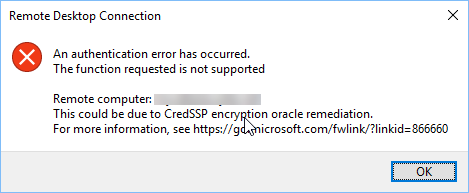
මේ Remote Desktop error එක එන්නේ client එකයි remote PC එකයි mismatched CredSSP (Credential Security Support Provider) patch levels තියෙනකොට — "Encryption Oracle Remediation" update එක. නිවැරදි fix එක machines දෙකම update කරන එක; registry/Group Policy workaround එකක් තියෙනවා, ඒත් ඒක security අඩු කරනවා. මේ guide එකෙන් දෙකම cover කරනවා.
CredSSP authentication error එකෙන් Remote Desktop connection එක block කරනවා.
Key Takeaways
- Error එක client එකයි host එකයි අතර CredSSP patch-level mismatch එකක්.
- Proper fix එක machines දෙකේම latest Windows updates install කරන එක.
- Group Policy/registry workaround එකෙන් Encryption Oracle Remediation එක Vulnerable කරනවා — temporary විතරයි.
- හැකි ඉක්මනට දෙපැත්තම ආපහු secure කරන්න.
Solution 1 — Computers දෙකම Update කරන්න (Recommended)
1. Client එකේයි remote PC එකේයි දෙකේම Settings > Windows Update open කරන්න.
2. Pending updates ඔක්කොම install කරලා restart කරන්න.
3. Remote Desktop connection එක ආපහු try කරන්න — matched patch levels error එක securely resolve කරනවා.
Solution 2 — Group Policy Workaround (Temporary)
Warning: මේකෙන් unpatched hosts වලට connections allow කරලා security අඩු කරනවා. Machines දෙකම update වෙනකම් temporary විතරයි පාවිච්චි කරන්න.
1. Client එකේ gpedit.msc open කරන්න.
2. Computer Configuration > Administrative Templates > System > Credentials Delegation වලට යන්න.
3. "Encryption Oracle Remediation" open කරලා, Enabled කරලා, Protection Level: Vulnerable තෝරන්න.
4. OK click කරලා gpupdate /force run කරන්න.
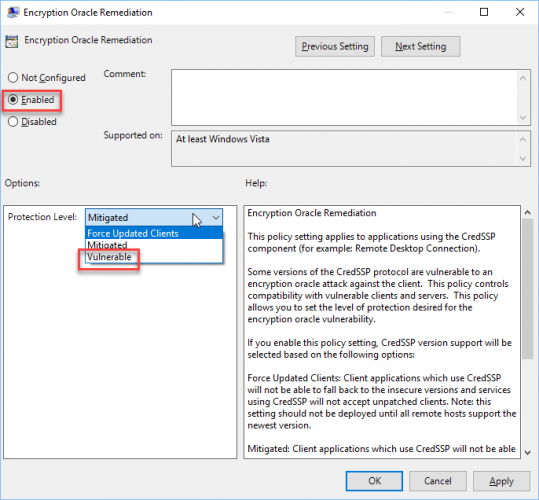
Encryption Oracle Remediation policy එක.
Solution 3 — Registry Workaround (Home Editions)
Warning: මුලින් registry එක backup කරන්න. මේක temporary, less-secure workaround එකක්.
1. Registry Editor open කරලා HKEY_LOCAL_MACHINE\SOFTWARE\Microsoft\Windows\CurrentVersion\Policies\System\CredSSP\Parameters වලට යන්න (keys නැත්නම් හදන්න).
2. AllowEncryptionOracle කියන DWORD එකක් හදලා 2 කරන්න.
3. Restart කරලා connection එක retry කරන්න.
4. Machines දෙකම update වුණාම ඒක ආපහු set කරන්න (හෝ delete කරන්න).
Solution 4 — Conflicting Update එක Uninstall කරන්න
1. Update එකකට පස්සේ ගමන් issue එක පටන්ගත්තා නම්, Settings > Windows Update > Update history > Uninstall updates open කරන්න.
2. Connect වෙන්න බැරි machine එකේ recent CredSSP-related update එක remove කරන්න (least preferred option).
3. ඒ වෙනුවට machines දෙකම update කරලා ආපහු secure කරන එක prefer කරන්න.
Troubleshooting
Problem: Update කළාට උදව් වුණේ නෑ.
Solution: Client එකයි host එකයි ඇත්තටම latest updates install කරලා reboot වුණාද බලන්න; එක unpatched පැත්තක් වුණත් error එක trigger කරනවා.
Problem: gpedit.msc නෑ.
Solution: ඒක Pro/Enterprise only. Home editions වල registry workaround (AllowEncryptionOracle) එක පාවිච්චි කරන්න.
Problem: Workaround එක තවම තියෙනවා.
Solution: Machines දෙකම patch වුණාට පස්සේ, security restore කරන්න Encryption Oracle Remediation එක Force Updated Clients වලට set කරන්න (හෝ registry value එක remove කරන්න).
Problem: Connect වෙනවා ඒත් security warning එකක් එනවා.
Solution: ඒ Vulnerable setting එක. දෙපැත්තම update කරලා හැකි ඉක්මනට workaround එක revert කරන්න.
Conclusion
මේ RDP error එක කියන්නේ CredSSP mismatch එකක්. Secure fix එක client එකයි remote PC එකයි fully update කරන එක. Group Policy හෝ registry "Vulnerable" workaround එක temporary measure එකක් විදිහට විතරයි පාවිච්චි කරලා, machines දෙකම patch වුණාම revert කරන්න.
About TechHub
මේ guide එක TechHub Knowledge Base එකේ කොටසක්. තව step-by-step IT guides සහ support වලට techhub.com.lk එකට යන්න.