













Overview
ඔබේ browser එකේ "security certificate is not trusted" හෝ "your connection is not private" warning එකක් පෙන්නනකොට, ඒකෙන් අදහස් වෙන්නේ browser එකට website එකේ SSL/TLS certificate එක verify කරන්න බැරි වුණා කියලා. බොහෝවිට හේතුව ඔබේම device එකේ — incorrect clock එකක් වගේ — safe වෙන්නත් පුළුවන්. මේ guide එකෙන් common causes සහ ඒවා resolve කරන ආකාරය පැහැදිලි කරනවා, warning එක ඔබව protect කරන්නේ කවදද කියලා පැහැදිලිව.
Certificate warning එකක් කියන්නේ browser එකට site එකේ SSL certificate එක verify කරන්න බැරි වුණා කියලා.
Warning: Banking, email, login, හෝ payment site එකක certificate warning එකක් කවදාවත් bypass කරන්න එපා. පහත fixes වලින් resolve නොවුණොත්, warning එක genuine වෙන්න පුළුවන් — sensitive information ඇතුළත් කරන්න එපා.
Key Takeaways
- ගොඩක් "not trusted" errors ඇති වෙන්නේ wrong system date/time එකකින් හෝ stale browser cache එකකින්.
- මුලින්ම clock එක fix කරන්න — incorrect date එකක් තමයි වඩාත්ම common single හේතුව.
- Cache clear කරලා browser reset කරන එකෙන් ඉතුරු ගොඩක් cases resolve වෙනවා.
- Certificate එක ඇත්තටම invalid හෝ expired නම්, warning එක ඔබව protect කරනවා — ඒක heed කරන්න.
Common Causes
- Incorrect system date/time, ඒ නිසා certificate එක expired හෝ not yet valid විදිහට පෙන්නනවා.
- Corrupted හෝ outdated browser cache එකක්.
- Misconfigured හෝ extension-modified browser එකක්.
- Website එකේම actually expired, misconfigured, හෝ untrusted certificate එකක්.

Browser එකේ පෙන්නන typical SSL certificate error එකක්.
Fix 1 — System Date සහ Time එක Correct කරන්න
1. Settings > Time & language > Date & time open කරන්න.
2. Set time automatically සහ Set time zone automatically on කරන්න.
3. Clock එක update කරන්න Sync now click කරන්න.
4. Website එක reload කරන්න — wrong clock එකක් තමයි certificate errors වල වඩාත්ම frequent හේතුව.
Fix 2 — Browser Cache එක Clear කරන්න
1. ඔබේ browser එකේ, Ctrl + Shift + Delete press කරලා clear-browsing-data dialog එක open කරන්න.
2. Cached images and files (ඕන නම් cookies ත්) select කරන්න.
3. Time range එක All time තෝරලා confirm කරන්න.
4. Browser එක restart කරලා site එකට ආපහු යන්න.
Fix 3 — Browser Configuration එක Reset කරන්න
1. ඔබේ browser එකේ Settings open කරලා Reset settings (restore defaults) option එක හොයන්න.
2. Reset එක confirm කරන්න — මේකෙන් bookmarks හෝ passwords delete නොකර extensions disable කරලා temporary settings clear කරනවා.
3. Browser එක restart කරලා website එක ආපහු test කරන්න.
4. Extension එකක් හේතුව නම්, culprit එක හොයන්න extensions එකක් බැගින් re-enable කරන්න.
Tip: Private/incognito window එකක (extensions off) site එක test කරන එකෙන් extension එකක්ද cached data ද වැරදි කියලා ඉක්මනට පෙන්නනවා.
Fix 4 — Website එකේ SSL Certificate එක Check කරන්න
1. Online SSL checker එකක් පාවිච්චි කරලා website address එක ඇතුළත් කරන්න.
2. Certificate එක valid, correctly installed, expired නැති කියලා review කරන්න.
3. Checker එක certificate එක expired හෝ invalid කියලා report කළොත්, problem එක website එකේ — site owner එකට කතා කරලා warning එක bypass කරන්න එපා.
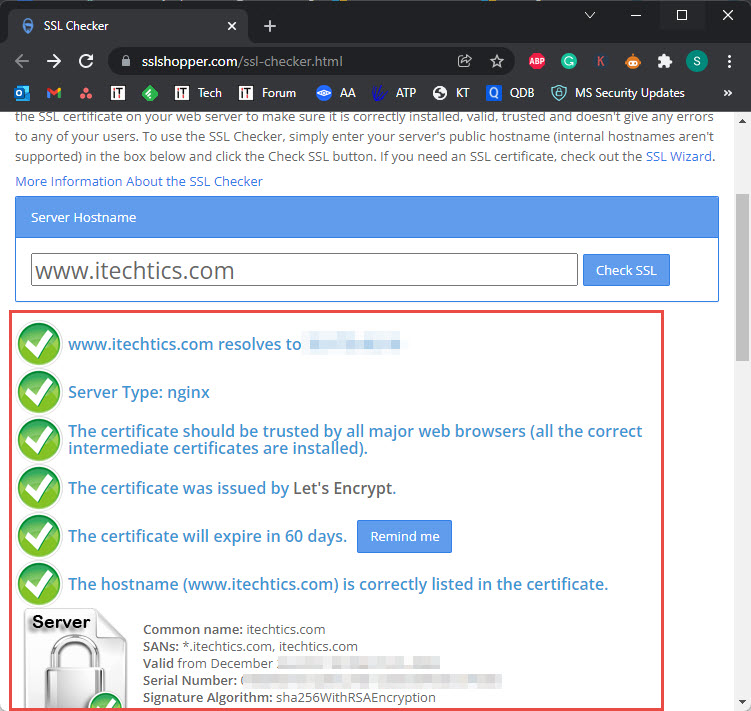
Online SSL checker එකෙන් site එකේ certificate එක valid ද කියලා පෙන්නනවා.
Troubleshooting
Problem: Error එක එන්නේ එක website එකකට විතරයි.
Solution: Issue එක බොහෝවිට site එකේම certificate එක. SSL checker එකකින් verify කරන්න; expired හෝ invalid නම්, sensitive data ඇතුළත් කරන එක avoid කරලා site owner එකට දැනුම් දෙන්න.
Problem: Error එක හැම website එකකම එනවා.
Solution: මේකෙන් ඔබේ device එක පෙන්නනවා — system date/time correct කරලා, cache clear කරලා, security software හෝ proxy එකක් connections intercept නොකරන බව බලන්න.
Problem: Clock එක fix කළාට උදව් වුණේ නෑ.
Solution: Cache clear කරලා browser reset කරන්න. HTTPS scan කරන installed antivirus එකකුත් බලන්න, ඒකෙන් certificate warnings ඇති කරන්න පුළුවන්.
Problem: Work හෝ school network එකක warning එක පෙන්නනවා.
Solution: Managed networks සමහරවිට ඒගොල්ලන්ගේම certificate එකකින් traffic inspect කරනවා. Warning එක override කරනවා වෙනුවට IT administrator එක්ක කතා කරන්න.
Conclusion
ගොඩක් certificate warnings එන්නේ wrong clock එකකින් හෝ stale cache එකකින්, ඉක්මනට fix වෙනවා. උඩ steps හරහා යන්න, ඒත් website එකේ certificate එක ඇත්තටම invalid නම්, warning එක protection එකක් විදිහට සලකලා ඔබේ data safe තියාගන්න.
About TechHub
මේ guide එක TechHub Knowledge Base එකේ කොටසක්. තව step-by-step IT guides සහ support වලට techhub.com.lk එකට යන්න.



