Overview
The "Steam needs to be online to update" error stops Steam launching even when your internet works. It is usually caused by a network block (firewall, antivirus, proxy, or DNS) or a corrupted Steam file. This guide works through the fixes.
Steam can wrongly report it is offline and refuse to update.
Key Takeaways
- The cause is usually a network block or a corrupted Steam file.
- Allow Steam through the firewall/antivirus and disable any proxy.
- Switching Steam to the TCP protocol fixes many cases.
- Refreshing Steam’s files (keeping your games) clears corruption.
Fix 1 — Disable Proxy and Check Network Software
1. Press Windows key + R, type inetcpl.cpl, open the Connections tab > LAN settings, and untick any proxy.
2. Temporarily disable third-party antivirus and the Windows Firewall to test.
3. If Steam works, add Steam as an allowed app rather than leaving security off.
Fix 2 — Run Steam as Administrator (and Compatibility Mode)
1. Right-click the Steam shortcut and choose Run as administrator.
2. If it persists, open Properties > Compatibility, tick "Run this program in compatibility mode for", and choose an earlier Windows version.
3. Also grant your account Full control of the Steam folder if needed.
Fix 3 — Switch Steam to the TCP Protocol
1. Right-click the Steam shortcut and choose Properties.
2. In the Target field, add a space and -tcp at the end (…\steam.exe" -tcp).
3. Click OK and launch Steam — TCP can succeed where UDP is blocked.
Fix 4 — Refresh Steam Files
1. Close Steam completely.
2. Open the Steam install folder (default C:\Program Files (x86)\Steam).
3. Delete everything except steam.exe and the steamapps folder (which holds your games).
4. Relaunch Steam — it re-downloads fresh client files.
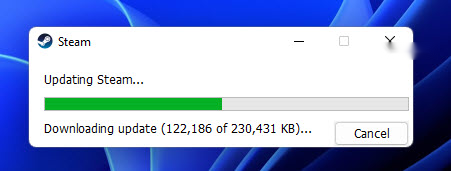
Steam re-downloading fresh client files.
Fix 5 — Switch DNS
1. Open Network Connections (ncpa.cpl) and open your adapter’s Properties.
2. Edit Internet Protocol Version 4 (TCP/IPv4) and set DNS to 8.8.8.8 and 8.8.4.4 (Google) or 1.1.1.1 (Cloudflare).
3. Apply, flush DNS (ipconfig /flushdns), and retry Steam.
Troubleshooting
Problem: Steam works with antivirus off.
Solution: Add steam.exe and the Steam folder as exclusions in your antivirus rather than leaving protection disabled.
Problem: -tcp did not help.
Solution: Remove it and try the DNS change and refreshing Steam files; also check no VPN is interfering.
Problem: It still says offline.
Solution: Verify the date/time is correct, reset Winsock (netsh winsock reset), and ensure no host file entry blocks Steam servers.
Problem: Worried about losing games.
Solution: Keep the steamapps folder — your installed games are stored there and are preserved when refreshing client files.
Conclusion
This error is almost always a network block or corrupted client file. Clear proxy/firewall/antivirus blocks, try the -tcp launch option, refresh Steam’s files, and switch DNS — one of these gets Steam back online and updating.
</w:pBdr><w:spacing w:before="220" w:after="40"/></w:pPr><w:r><w:rPr><w:b/><w:bCs/><w:color w:val="0B5394"/><w:sz w:val="21"/><w:szCs w:val="21"/><w:rFonts w:ascii="Calibri" w:cs="Calibri" w:eastAsia="Calibri" w:hAnsi="Calibri"/></w:rPr><w:t xml:space="preserve">About TechHub
This guide is part of the TechHub Knowledge Base. For more step-by-step IT guides and support, visit techhub.com.lk.