Error 0xC0000005 is an access violation: a program tried to use memory it isn't allowed to touch, so Windows stopped it. It appears when apps crash on launch, during installs, or as a blue-screen code. Causes range from a bad RAM stick to corrupted system files, broken drivers, malware or over-aggressive Data Execution Prevention (DEP). Work through these fixes in order — they run from fastest to most drastic.
1. Test your RAM (≈15 min)
Press Win+R, run mdsched.exe, choose Restart now and check for problems. If errors are reported, re-seat or replace the faulty module — no software fix helps while RAM is bad.
2. Repair system files — SFC & DISM (≈20 min)
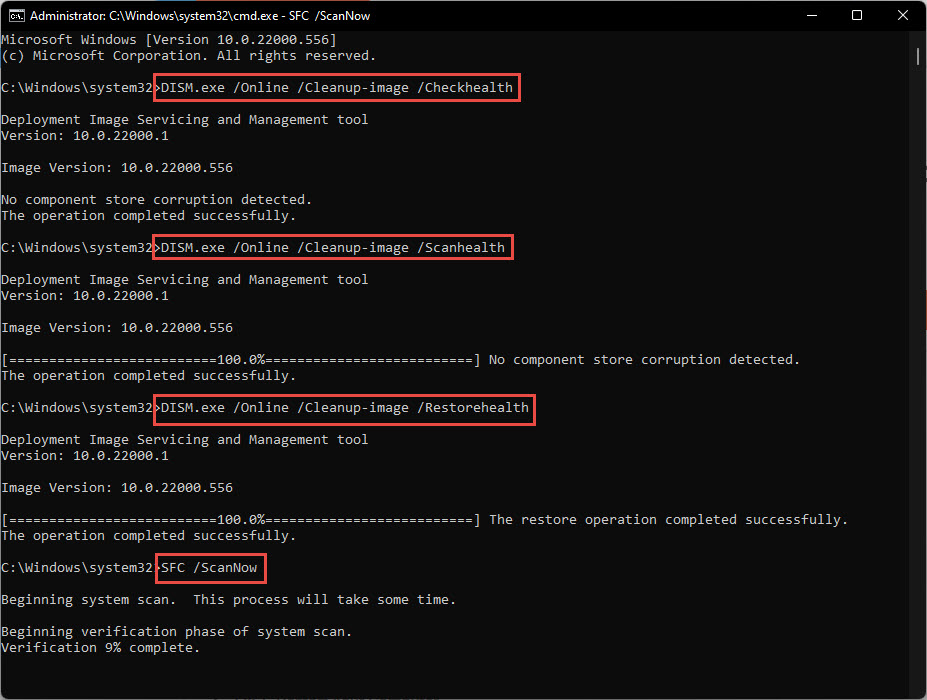
Open Command Prompt as administrator and run, in this order:
sfc /scannow
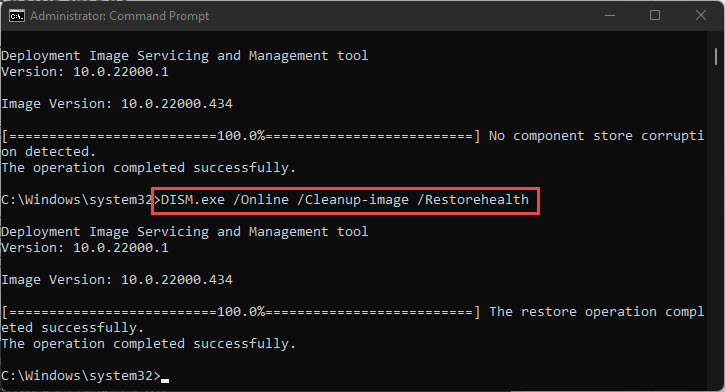
DISM /Online /Cleanup-Image /RestoreHealth
sfc /scannow
Restart afterwards. This fixes the corrupted-system-file cause, one of the most common.
3. Full malware scan (≈30 min)
Windows Security → Virus & threat protection → Scan options → Full scan (or Microsoft Defender Offline scan for stubborn infections). Malware injecting into processes is a classic 0xC0000005 source.
4. Update or roll back drivers (≈15 min)
In Device Manager, update the display adapter and any device with a warning icon. If the error started right after a driver update, use Roll Back Driver on that device instead.
5. Uninstall a problematic Windows update (≈10 min)
If the crashes began right after Patch Tuesday: Settings → Windows Update → Update history → Uninstall updates → remove the most recent quality update and test.
6. Exclude the app from DEP (≈5 min)
Data Execution Prevention sometimes blocks legitimate (usually older) apps. System → About → Advanced system settings → Performance Settings → Data Execution Prevention → "Turn on DEP for all programs except…" → add the crashing app. Only do this for software you trust.
7. Reset virtual memory (≈5 min)
Same Performance settings → Advanced → Virtual memory → Change → tick Automatically manage paging file size (or set a custom size of 1.5× your RAM), then restart.
8. Clean boot (≈15 min)
Run msconfig → Services → hide Microsoft services → Disable all → Task Manager → disable startup apps → restart. If the error is gone, re-enable services in halves until you find the conflicting one.
9. Reinstall the affected application (≈15 min)
If a single program throws the error, uninstall it, download a fresh installer, and — for many apps — install the latest Microsoft Visual C++ Redistributables too, since missing runtimes trigger this error.
10. System Restore or Reset (30–90 min)
Last resort: restore to a point before the problem began (search "Create a restore point" → System Restore), or Settings → System → Recovery → Reset this PC with Keep my files.
Bonus — check the disk
Bad sectors corrupt program files. In an admin Command Prompt: chkdsk C: /f /r and confirm the scan for the next restart.
Still stuck?
If 0xC0000005 appears while activating or installing Microsoft Office or Windows bought from TechHub, open a support ticket with a screenshot — our team resolves activation-related crashes free of charge.