Overview
Get-ADUser is the go-to PowerShell cmdlet for retrieving Active Directory user information. This guide shows how to install the AD PowerShell module on Windows and Server, then query and export user details.
Find Active Directory user info with PowerShell.
Key Takeaways
- Get-ADUser is part of the Active Directory PowerShell module (RSAT).
- Install RSAT on Windows or the AD role/feature on Server.
- Use -Filter and -Properties to target the data you need.
- Export results to CSV for reporting.
Install the AD PowerShell Module on Windows
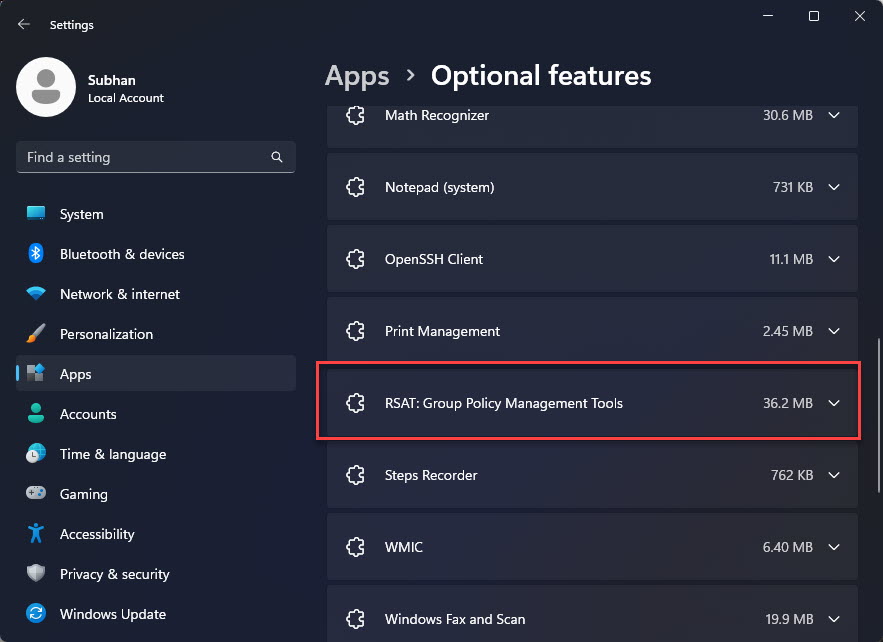
1. Open Settings > Apps > Optional features > Add an optional feature.
2. Search for "RSAT: Active Directory Domain Services and Lightweight Directory Services Tools" and install it.
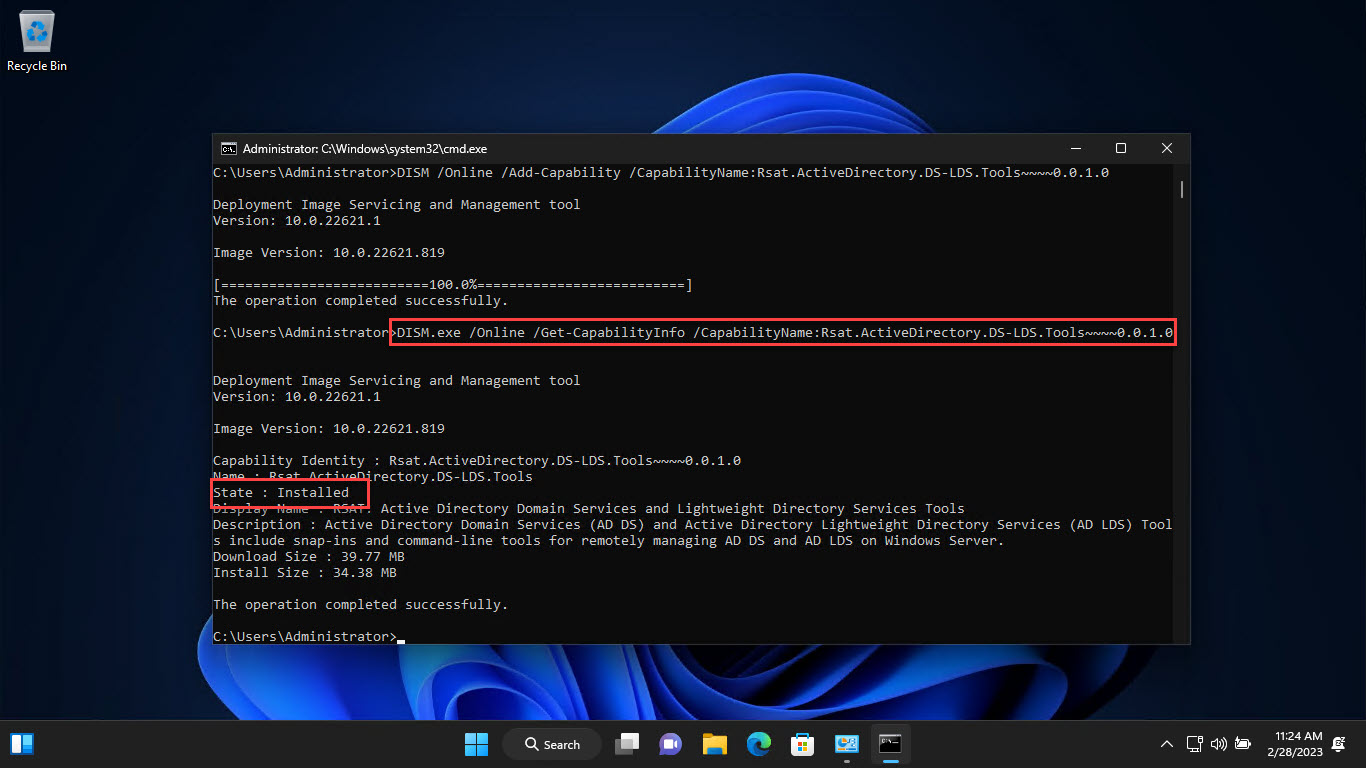
3. Alternatively, in an elevated PowerShell run: Add-WindowsCapability -Online -Name "Rsat.ActiveDirectory.DS-LDS.Tools~~~~0.0.1.0"
4. Import it with: Import-Module ActiveDirectory
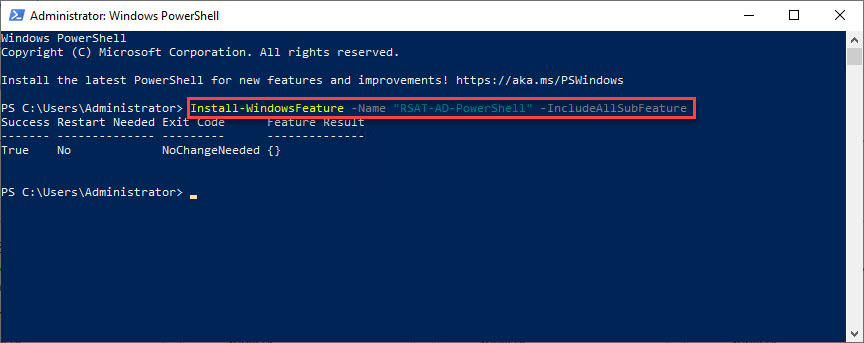
Installing the AD PowerShell module.
Install on Windows Server
1. Open Server Manager > Add Roles and Features.
2. Add the "Active Directory module for Windows PowerShell" under RSAT, or install the AD DS role.
3. Import the module with Import-Module ActiveDirectory.
Query User Information
1. Find one user: Get-ADUser -Identity jsmith -Properties *
2. Filter users: Get-ADUser -Filter "Department -eq 'IT'" -Properties Department,EmailAddress
3. Select specific fields: Get-ADUser -Filter * -Properties EmailAddress | Select Name,SamAccountName,EmailAddress
Export to CSV
1. Pipe results to Export-Csv, e.g.:
2. Get-ADUser -Filter * -Properties EmailAddress,Department | Select Name,SamAccountName,EmailAddress,Department | Export-Csv C:\users.csv -NoTypeInformation
3. Open the CSV in Excel for reporting.
Troubleshooting
Problem: Get-ADUser is not recognised.
Solution: Install RSAT (or the AD module on Server) and run Import-Module ActiveDirectory.
Problem: A property shows blank.
Solution: Add it explicitly with -Properties; by default Get-ADUser returns only a limited set of attributes.
Problem: "Cannot find an object with identity".
Solution: Check the SamAccountName/identity and that you’re querying the correct domain.
Problem: Access denied.
Solution: Run PowerShell with an account that has rights to read AD, and against a reachable domain controller.
Conclusion
With the AD PowerShell module installed, Get-ADUser gives administrators a fast, scriptable way to query and report on user accounts. Combine -Filter and -Properties to get exactly the data you need, then export it to CSV for analysis.
</w:pBdr><w:spacing w:before="220" w:after="40"/></w:pPr><w:r><w:rPr><w:b/><w:bCs/><w:color w:val="0B5394"/><w:sz w:val="21"/><w:szCs w:val="21"/><w:rFonts w:ascii="Calibri" w:cs="Calibri" w:eastAsia="Calibri" w:hAnsi="Calibri"/></w:rPr><w:t xml:space="preserve">About TechHub
This guide is part of the TechHub Knowledge Base. For more step-by-step IT guides and support, visit techhub.com.lk.