Overview
Google Drive for desktop කියන්නේ Windows File Explorer එකෙන්ම ඔබේ Drive files access කරන්න Google's official app එක. ඒක පරණ Backup and Sync සහ Drive File Stream clients replace කරලා, ඒවායේ features එක tool එකකට combine කරනවා. මේ guide එකෙන් වෙනස්කම් පැහැදිලි කරලා, app එක download, install, configure, uninstall කරන ආකාරය පෙන්නනවා.
Google Drive for desktop එකෙන් ඔබේ cloud files Windows File Explorer එකට ගේනවා.
Key Takeaways
- Drive for desktop කියන්නේ single, current Google client එක — ඒක Backup and Sync සහ Drive File Stream replace කළා.
- Files on demand stream කරන්න (disk space save කරමින්) හෝ offline access වලට locally mirror කරන්න පුළුවන්.
- එකවර Google accounts කිහිපයක් support කරනවා.
- Google's official website එකෙන් විතරයි download කරන්න.
Drive for Desktop vs File Stream vs Backup and Sync
- Drive for desktop — personal සහ work accounts වලට streaming සහ syncing unify කරන current app එක.
- Drive File Stream — පරණ business-focused client එක, දැන් Drive for desktop එකට merge කරලා.
- Backup and Sync — පරණ consumer client එක, එයත් Drive for desktop එකෙන් replace කරලා.
Download කරලා Install කරන්නේ කොහොමද
1. Google's official Drive for desktop download page එක open කරලා Download Drive for desktop click කරන්න.
2. Download කරපු installer (GoogleDriveSetup.exe) එක run කරන්න.
3. desktop සහ app shortcuts වලට options ඔබ කැමති විදිහට තියලා, Install click කරන්න.
4. Prompt වුණාම, Sign in with browser click කරලා ඔබේ Google account එකට log in වෙන්න.
5. Files Stream (on demand) කරනවද Mirror (local copy තියාගන්නවද) කරනවද තෝරලා setup ඉවර කරන්න.
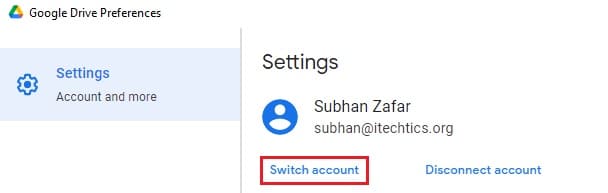
Google accounts කිහිපයකට sign in වෙලා ඒවා අතර switch කරන්න පුළුවන්.
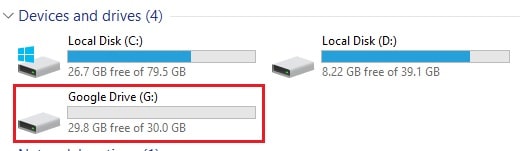
Drive for desktop File Explorer එකේ dedicated drive එකක් විදිහට පෙන්නනවා.
ඔබේ Files Access කරන්න
1. File Explorer open කරලා Google Drive entry එක (dedicated drive letter එකක්) හොයන්න.
2. ඔබේ My Drive සහ shared drives local folders වගේම browse කරන්න.
3. Streaming කරනවා නම් local copy එකක් ඕන නම්, file එකක් right-click කරලා Available offline තෝරන්න.
4. Accounts switch කරන්න, syncing pause කරන්න, හෝ preferences open කරන්න system tray එකේ Drive icon එක පාවිච්චි කරන්න.
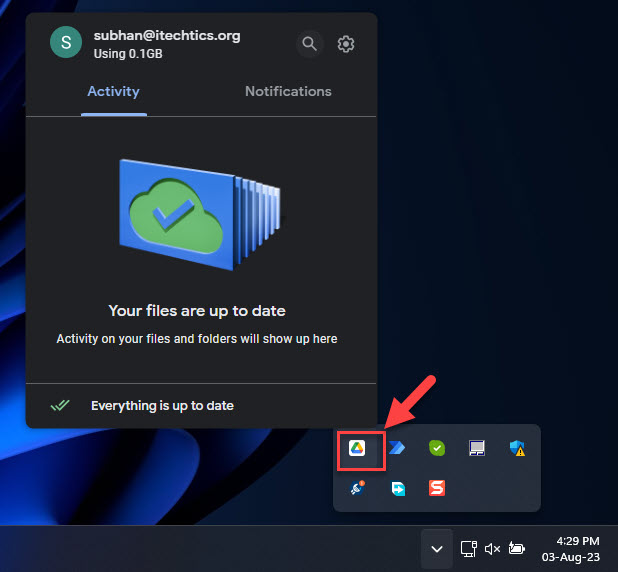
Windows taskbar/system tray එකෙන් Drive for desktop open කරන්න.
Bulk Install කරන්න (Administrators ලාට)
1. Google's official page එකෙන් installer එක download කරන්න.
2. Command-line switches පාවිච්චි කරලා silently deploy කරන්න (උදාහරණයක් GoogleDriveSetup.exe --silent --desktop_shortcut).
3. ඔබේ management tool (Intune, Group Policy, හෝ ඒ වගේ) හරහා installer එක PCs කිහිපයකට push කරන්න.
Uninstall කරන්නේ කොහොමද
1. System tray එකෙන් Drive for desktop quit කරන්න (Settings > Quit).
2. Settings > Apps > Installed apps open කරන්න.
3. Google Drive හොයලා Uninstall click කරලා prompts follow කරන්න.
Troubleshooting
Problem: File Explorer එකෙන් Google Drive entry එක නෑ.
Solution: Drive for desktop running සහ signed in කියලා බලන්න. Start menu එකෙන් app එක restart කරන්න, නැත්නම් PC එක restart කරන්න.
Problem: Files sync වෙන්නේ නෑ.
Solution: Drive tray icon එක open කරලා, sync status එක බලලා, online කියලා confirm කරන්න. Syncing pause කරලා resume කරන්න, නැත්නම් sign out කරලා ආපහු sign in වෙන්න.
Problem: Disk space අඩුයි.
Solution: Files open කරාම විතරයි download වෙන්න Preferences එකේ Mirror එකෙන් Stream files වලට switch කරන්න.
Problem: Sign-in fail වෙනවා.
Solution: Browser sign-in එක complete වෙන්න දීලා, firewall එකක් app එක block නොකරනවා කියලා බලලා, ඔබේ account එක Drive පාවිච්චි කරන්න permitted කියලා බලන්න.
Conclusion
Google Drive for desktop කියන්නේ Windows එකෙන් ඔබේ Drive files එක්ක වැඩ කරන්න සරලම ක්රමය. Google's official site එකෙන් install කරලා, ඔබේ disk space එකට ගැලපෙන්න streaming හෝ mirroring තෝරලා, handy system-tray menu එකෙන් හැම දේම manage කරන්න.
About TechHub
මේ guide එක TechHub Knowledge Base එකේ කොටසක්. තව step-by-step IT guides සහ support වලට techhub.com.lk එකට යන්න.