Overview
Enhanced Session Mode lets you interact with a Hyper-V virtual machine like a Remote Desktop session — with clipboard sharing, audio, USB redirection, and resizable, high-resolution display. This guide shows how to enable or disable it.
Enhanced Session Mode improves Hyper-V VM integration.
Key Takeaways
- Enhanced Session adds clipboard, audio, USB, drive redirection, and better display.
- It works over the VM’s RDP channel, so the guest must support it.
- Enable it for all users (host setting) and per user in the Hyper-V Manager.
- Linux guests need additional configuration to support it.
Requirements
- Hyper-V on Windows Pro/Enterprise/Education (or Server).
- A supported guest OS (Windows 10/11, Server, or specially configured Linux).
- The Guest Services/RDP enabled in the guest.
Enable Enhanced Session for All Users (Host Setting)
1. Open Hyper-V Manager.
2. Click Hyper-V Settings on the right.
3. Under Server, select Enhanced Session Mode Policy and tick "Allow enhanced session mode".
4. Click OK.
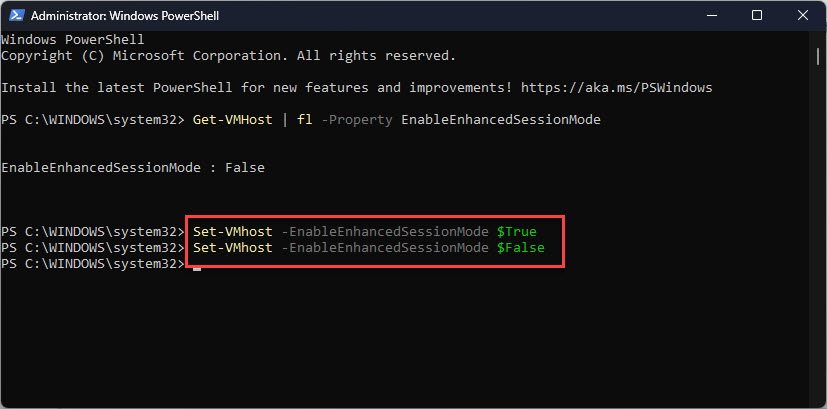
Enable Enhanced Session Mode in Hyper-V settings.
Enable for the Current User
1. In Hyper-V Manager, open Hyper-V Settings.
2. Under User, select Enhanced Session Mode and tick "Use enhanced session mode".
3. Click OK.
4. When you connect to a VM, choose the enhanced session (set resolution/local resources).
Disable Enhanced Session
1. Reverse the settings above (untick the policy and/or user option).
2. Or, in a VM connection window, toggle the Enhanced Session button on the toolbar to switch to basic session.
Frequently Asked Questions
Problem: Enhanced Session is greyed out.
Solution: Enable "Allow enhanced session mode" in Hyper-V server settings, and ensure the guest supports it (RDP/Guest Services running).
Problem: A Linux VM will not use it.
Solution: Linux guests need XRDP and the hv_sock configuration; follow the distro-specific Enhanced Session setup.
Problem: No clipboard or USB sharing.
Solution: Connect using the enhanced session and enable local resources in the connection dialog; basic session lacks these features.
Problem: Which editions support it?
Solution: Hyper-V (and thus Enhanced Session) requires Windows Pro/Enterprise/Education or Windows Server.
Conclusion
Enhanced Session Mode makes Hyper-V VMs far more usable with clipboard, audio, USB, and crisp display. Enable it in Hyper-V settings (server and user), and connect using the enhanced session for the full experience.
</w:pBdr><w:spacing w:before="220" w:after="40"/></w:pPr><w:r><w:rPr><w:b/><w:bCs/><w:color w:val="0B5394"/><w:sz w:val="21"/><w:szCs w:val="21"/><w:rFonts w:ascii="Calibri" w:cs="Calibri" w:eastAsia="Calibri" w:hAnsi="Calibri"/></w:rPr><w:t xml:space="preserve">About TechHub
This guide is part of the TechHub Knowledge Base. For more step-by-step IT guides and support, visit techhub.com.lk.