Overview
Internet Information Services (IIS) කියන්නේ Windows එකට built-in වෙලා තියෙන Microsoft ගේ flexible web server එක. Developers ලා සහ administrators ලා මේක පාවිච්චි කරන්නේ Windows එකේ websites, web applications, සහ services host කරන්න. IIS default විදිහට install වෙලා නෑ, හැබැයි ඔයාට Windows optional features එකෙන් ඒක enable කරන්න පුළුවන්. මේ guide එකෙන් IIS install කරලා ඒක run වෙනවද කියලා verify කරන විදිහ cover කරනවා.
Key Takeaways
- IIS කියන්නේ Turn Windows features on or off එකෙන් enable කරන built-in Windows web server එකක්.
- මේකෙන් HTTP, HTTPS support කරනවා, සහ static සහ dynamic web content host කරන්න පුළුවන්.
- Installation එකට පස්සේ ඔයාට IIS Manager console එකෙන් sites manage කරන්න පුළුවන්.
- ඔයාට installation එක verify කරන්න පුළුවන් http://localhost එකට browse කරලා.
What Is Internet Information Services?
IIS කියන්නේ browsers වලට HTTP සහ HTTPS හරහා web pages සහ applications serve කරන modular web server එකක්. ඒක .NET framework එක සහ වෙනත් Microsoft technologies එක්ක integrate වෙනවා, සහ development, internal tools, සහ Windows Server එකේ production hosting වලට widely පාවිච්චි කරනවා. desktop editions වල මේක local testing සහ learning වලට පහසුයි.
How to Enable IIS on Windows
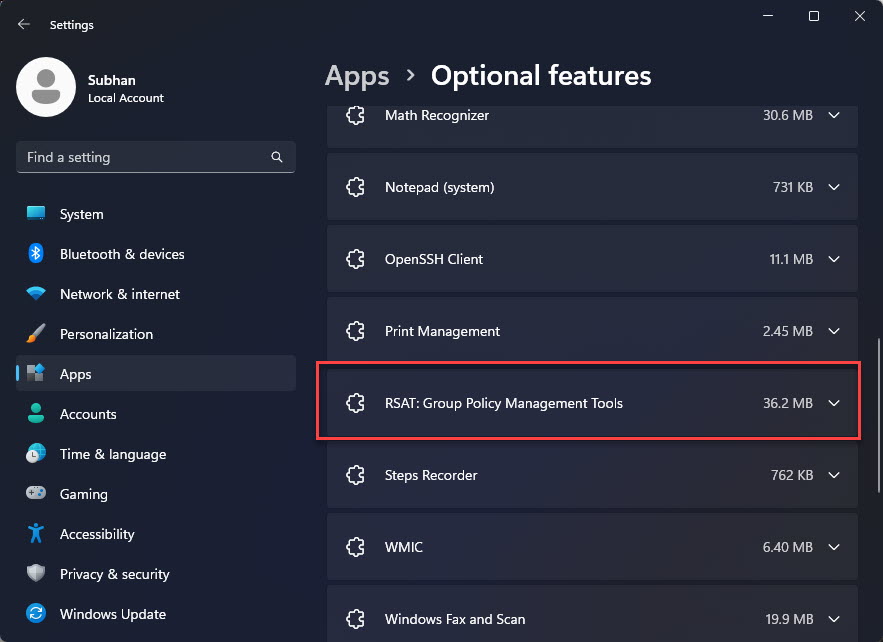
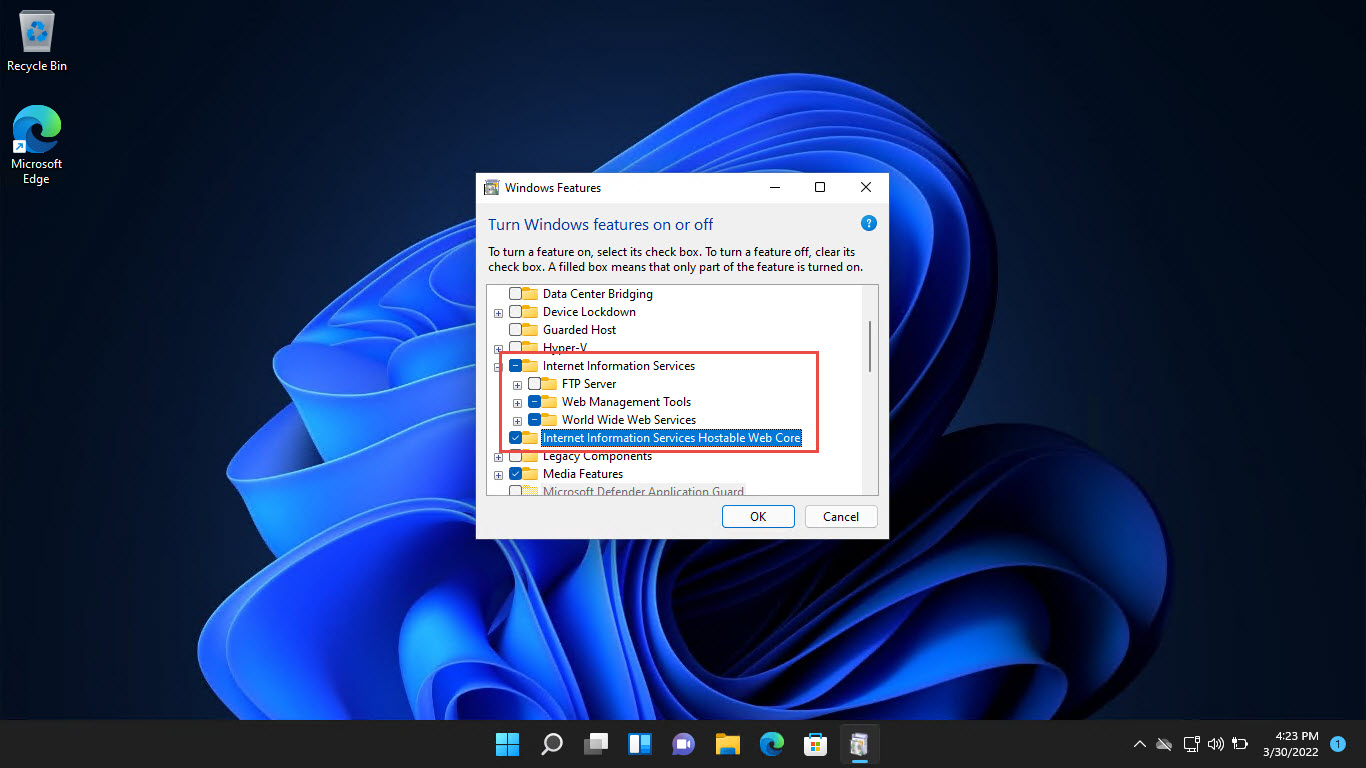
1. Windows + R press කරලා, optionalfeatures type කරලා, Enter press කරලා Windows Features open කරන්න.
2. list එකේ Internet Information Services අසල box එක tick කරන්න.
3. ඔයාට ඕනේ additional components, Web Management Tools සහ World Wide Web Services වගේ, තෝරන්න entry එක expand කරන්න.
4. OK click කරලා Windows එකට තෝරාගත්ත features install කරන්න දෙන්න.
5. installation complete වුණාම, prompt කරොත් computer එක restart කරන්න.
Windows optional features එකේ IIS enable කිරීම.
Note: basic web hosting එකට, default selections ඇති. ASP.NET, CGI, හෝ FTP වගේ features add කරන්නේ ඔයාගේ application එකට ඒවා අවශ්ය නම් විතරයි.
How to Check if IIS Is Installed
ලේසිම test එක තමයි browser එකක් open කරලා http://localhost එකට යන එක. IIS run වෙනවා නම්, ඔයාට default IIS welcome page එක පේනවා.
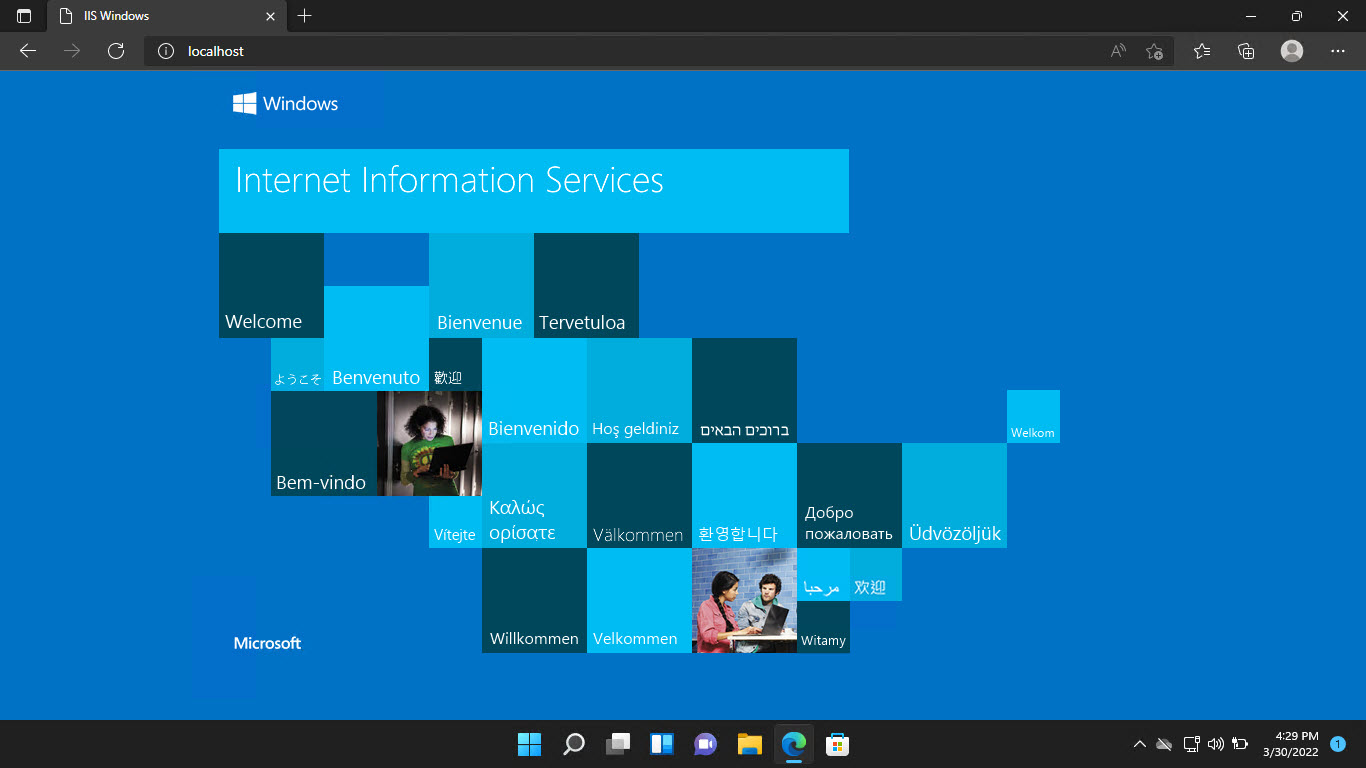
default IIS welcome page එකෙන් installation එක confirm කරනවා.
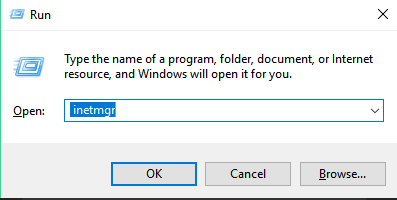
Open IIS Manager
1. Start click කරලා, "IIS" type කරලා, Internet Information Services (IIS) Manager open කරන්න.
2. manager එකෙන් ඔයාගේ server, application pools, සහ sites වම් pane එකේ list කරනවා.
3. මෙතනින් ඔයාට අලුත් sites add කරන්න, ports bind කරන්න, සහ settings configure කරන්න පුළුවන්.
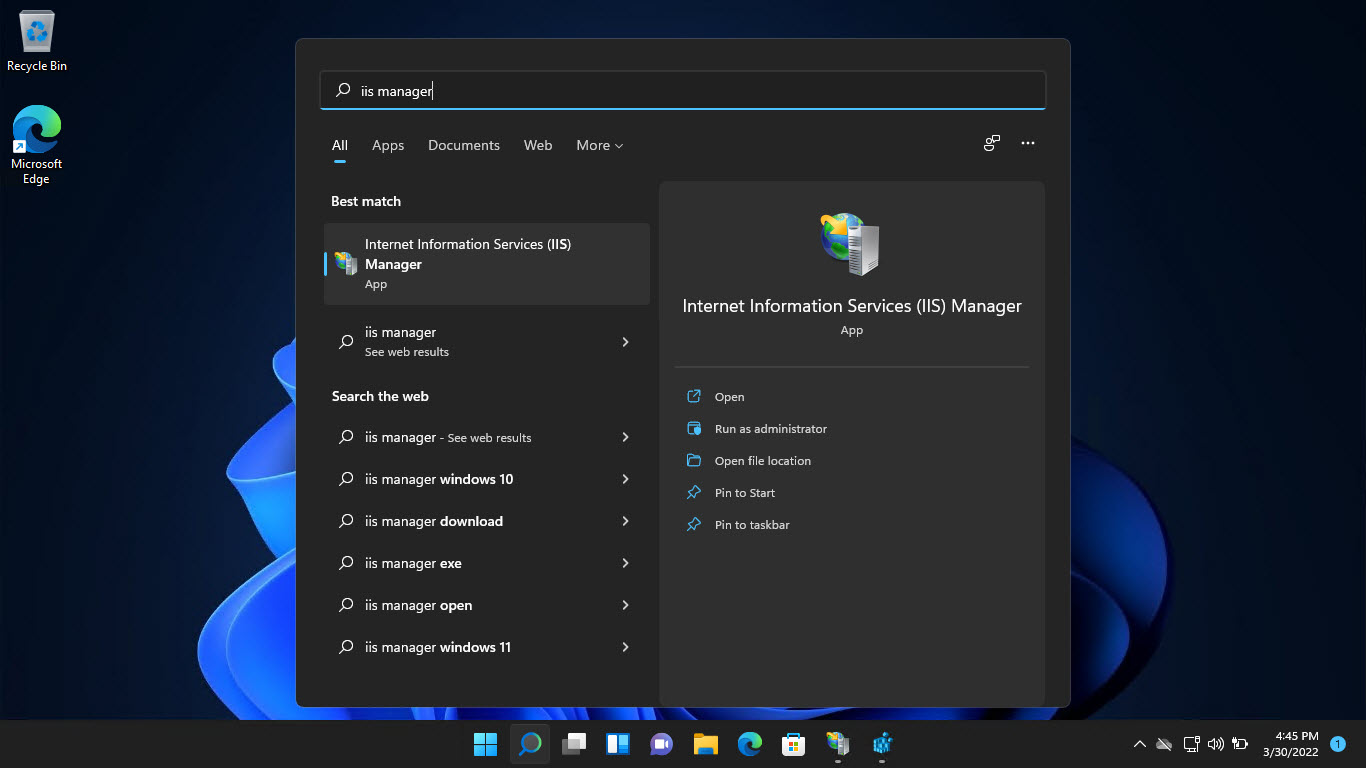
IIS Manager console එක.
How to Check the IIS Version
ඔයා run කරන්නේ IIS version එකක්ද කියලා ඔයාට ක්රම කිහිපයකින් confirm කරන්න පුළුවන්.
1. IIS Manager එකේ, Help > About Internet Information Services click කරලා version එක බලන්න.
2. විකල්පයක් විදිහට, Registry Editor එක open කරලා HKEY_LOCAL_MACHINE\SOFTWARE\Microsoft\InetStp වලට browse කරලා VersionString value එක කියවන්න.
3. PowerShell එකේ, Get-ItemProperty HKLM:\SOFTWARE\Microsoft\InetStp | Select VersionString run කරලා version එක display කරන්න.
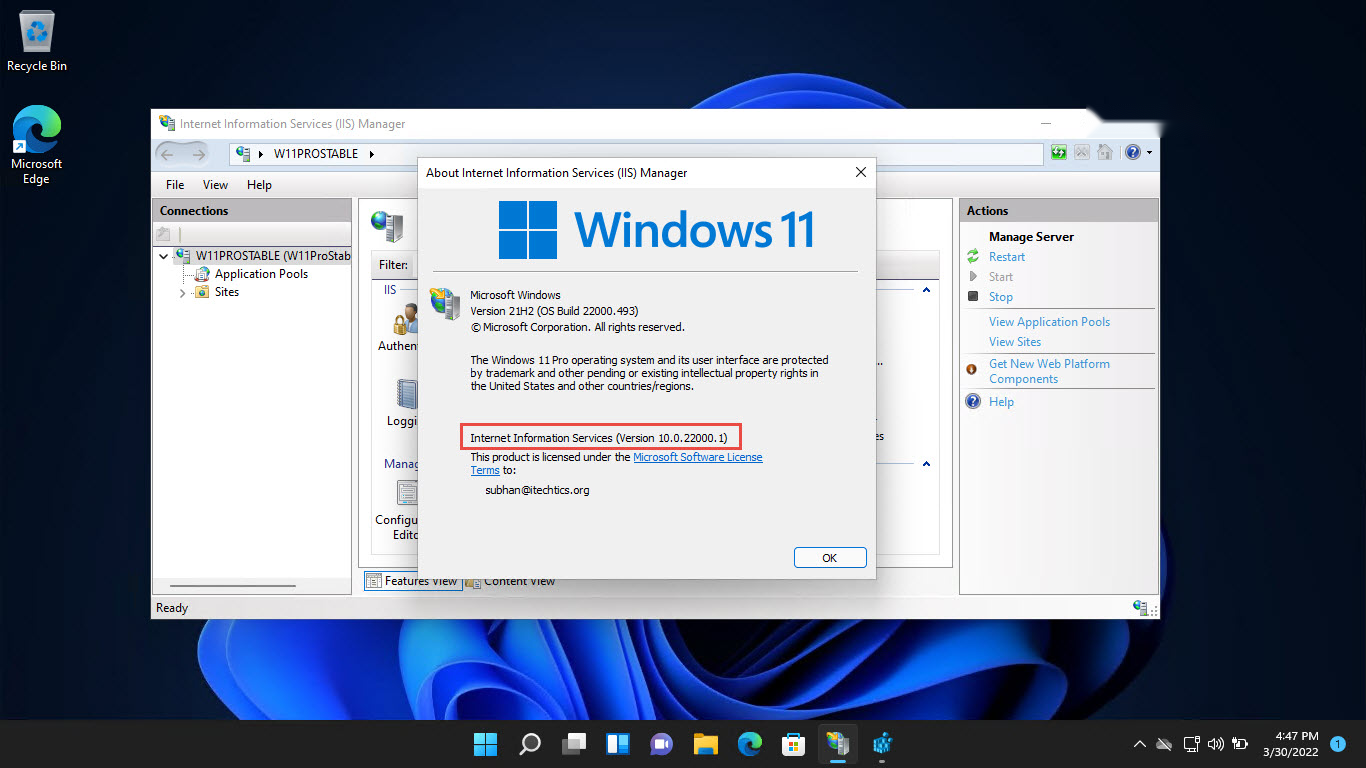
IIS version එක check කිරීම.
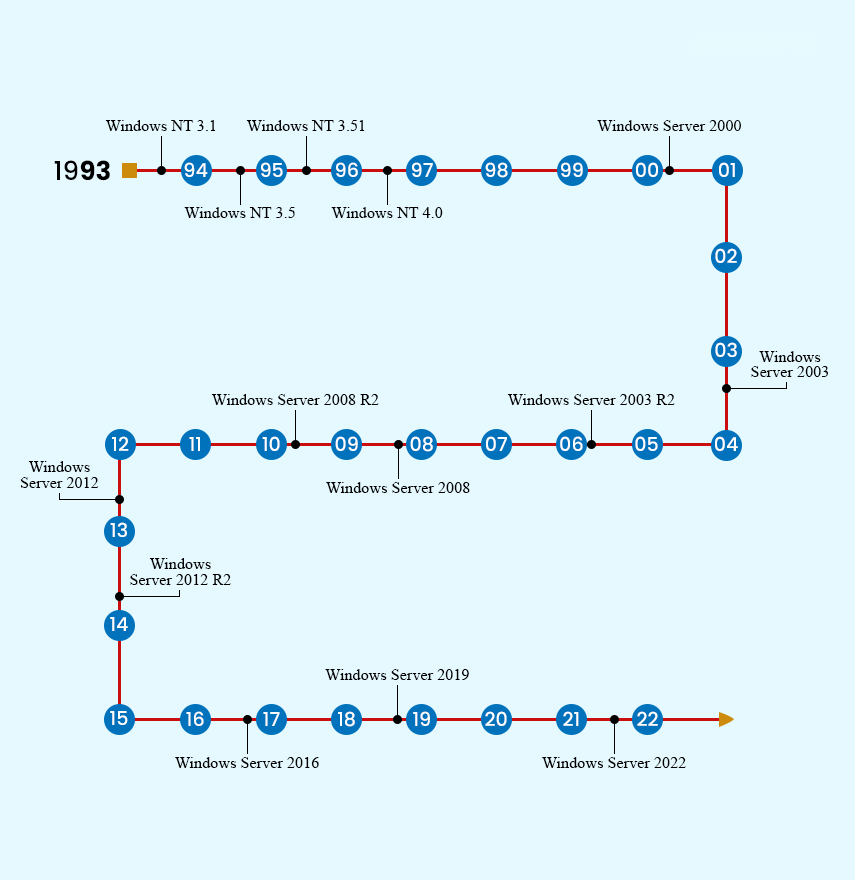
Tip: IIS version numbers Windows release එක track කරනවා — උදාහරණයක් විදිහට, IIS 10 එන්නේ Windows 10, Windows 11, සහ Windows Server 2016 සහ ඊට පස්සේ ඒවා එක්ක.
Troubleshooting
Problem: http://localhost එකෙන් IIS page එක පෙන්නන්නේ නෑ.
Solution: installation එකේදී World Wide Web Services component එක තෝරලා තිබ්බද කියලා, සහ services.msc එකේ World Wide Web Publishing Service එක run වෙනවද කියලා confirm කරන්න.
Problem: IIS features greyed out හෝ install වෙන්නේ නෑ.
Solution: ඔයා administrator විදිහට sign in වෙලා තියෙනවද කියලා, සහ pending Windows updates install කරලා තියෙනවද කියලා බලාගෙන, ආයෙත් features enable කරන්න try කරන්න.
Problem: port conflict එකක් නිසා site එක start වෙන්නේ නෑ.
Solution: වෙන program එකක් port 80 පාවිච්චි කරන්න පුළුවන්. එම program එක stop කරන්න හෝ IIS Manager එකේ site binding එක free port එකකට වෙනස් කරන්න.
Problem: IIS install කරාට පස්සේ IIS Manager missing.
Solution: Windows Features ආයෙත් open කරලා Web Management Tools > IIS Management Console එක tick කරලා තියෙනවද කියලා බලාගන්න.
Conclusion
Windows එකේ IIS install කරන එකට optional features එකෙන් click කිහිපයක් විතරයි යන්නේ, ඒකෙන් development හෝ hosting වලට capable web server එකක් දෙනවා. enable කරාට පස්සේ, http://localhost එකේ ඒක verify කරලා, IIS Manager එකෙන් ඔයාගේ sites manage කරලා, ඔයාගේ projects වලට ඕනේ වෙන පරිදි optional components add කරන්න.
About TechHub
මේ guide එක TechHub Knowledge Base එකේ කොටසක්. තව step-by-step IT guides සහ support වලට techhub.com.lk එකට යන්න.