Overview
Intel graphics DCH drivers දෙකක් single package එකක එකට release කළා: newer processors වලට version 31.0.101.3222 සහ පරණ ඒවා වලට version 31.0.101.2111. Installer එකෙන් ඔබේ CPU එකට correct driver එක automatically apply කරනවා. මේ release එකෙන් Windows 11 22H2 support එකතු කරනවා. මේ guide එකෙන් ඔබට apply වෙන්නේ කොයි version එකද සහ install කරන ආකාරය පැහැදිලි කරනවා.
Intel's combined package එකෙන් ඔබේ processor generation එකට හරි DCH driver එක install කරනවා.
Key Takeaways
- Version 31.0.101.3222 කියන්නේ 11th සහ 12th Gen Intel Core processors වලට.
- Version 31.0.101.2111 කියන්නේ 10th Gen සහ ඊට කලින් processors වලට (legacy DCH branch එකක්).
- Single package එකෙන් ඔබේ hardware එකට correct driver එක විතරයි install කරන්නේ.
- මේ release එකෙන් Windows 11 version 22H2 වලට support එකතු කරනවා.
ඔබට Apply වෙන්නේ කොයි Version එකද?
- 11th සහ 12th Gen Intel Core (Iris Xe සහ අලුත් ඒවා) — version 31.0.101.3222 ලැබෙනවා.
- 10th Gen සහ පහළ — legacy DCH version 31.0.101.2111 ලැබෙනවා.
- Manually තෝරන්න ඕන නෑ; installer එකෙන් ඔබේ processor එක detect කරලා matching driver එක install කරනවා.
Download කරන්නේ කොහොමද
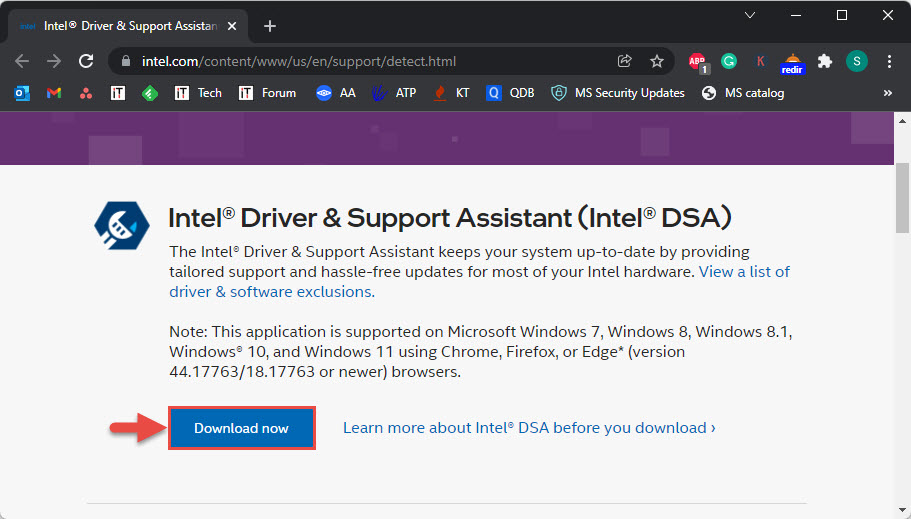
1. Intel's official Download Center එක හෝ Intel Driver & Support Assistant එක open කරන්න.
2. ඔබේ graphics model එක search කරන්න, නැත්නම් assistant එකට ඔබේ hardware එක detect කරන්න දෙන්න.
3. July 2022 (31.0.101.3222 / 31.0.101.2111) වලට combined driver package එක download කරන්න.
4. Install කරන්න කලින් download එක complete වුණාද confirm කරන්න.
Warning: Intel drivers download කරන්නේ Intel's official site එකෙන් හෝ Intel Driver & Support Assistant එකෙන් විතරයි.
Install කරන්නේ කොහොමද
1. Download කරපු installer එක run කරලා licence agreement එක accept කරන්න.
2. Offer කරනවා නම් clean installation එකක් තෝරන්න.
3. Installer එකට ඔබේ processor එකට correct version එක apply කරන්න දෙන්න; screen එක flicker වෙන්න පුළුවන්.
4. Prompt වුණොත් restart කරලා, Device Manager > Display adapters එකේ installed version එක verify කරන්න.
Note: ගොඩක් laptops වල, graphics driver එක manage කරන්නේ PC manufacturer එක. Generic Intel installer එක block වුණොත්, ඒ වෙනුවට ඔබේ OEM එකෙන් driver එක ගන්න.
Supported Systems
- Operating systems: Windows 10 සහ Windows 11 (22H2 ඇතුළුව) 64-bit.
- Processors: 6th Gen සිට 12th Gen Intel Core, උඩ විස්තර කරපු version split එක්ක.
Troubleshooting
Problem: Installer කියනවා ඔබේ computer එක validated නෑ කියලා.
Solution: ඔබේ OEM එක graphics driver එක control කරනවා. ඔබේ laptop manufacturer's support page එකෙන් matching driver එක download කරන්න.
Problem: Install කළාට පස්සේ display problems.
Solution: Device Manager > Display adapters > Properties > Driver > Roll Back Driver එකෙන් roll back කරලා, clean installation එකකින් reinstall කරන්න.
Problem: කොයි version එකද install වුණේ කියලා sure නෑ.
Solution: Device Manager > Display adapters > ඔබේ Intel GPU > Properties > Driver tab එකේ exact version එක බලන්න.
Problem: Installation fail වෙනවා.
Solution: Apps close කරලා, antivirus තාවකාලිකව disable කරලා, installer එක administrator විදිහට run කරන්න.
Conclusion
මේ combined Intel package එකෙන් newer සහ older processors දෙකම හරි DCH driver එකෙන් up to date තියාගෙන Windows 11 22H2 support එකතු කරනවා. Intel's official channels එකෙන් install කරලා, ඔබේ hardware එකට correct version එක pick කරන්න දෙන්න.
About TechHub
මේ guide එක TechHub Knowledge Base එකේ කොටසක්. තව step-by-step IT guides සහ support වලට techhub.com.lk එකට යන්න.