Overview
Microsoft Defender Application Guard (MDAG) එකෙන් untrusted sites, isolated වුණු virtualized container එකක open කරනවා. එතකොට malware වලට ඔයාගේ PC එකට එන්න බෑ. මේ guide එකෙන් ඒක වැඩ කරන හැටි සහ support වෙන Windows editions වල enable කරගන්නේ කොහොමද කියලා පැහැදිලි කරනවා.
Microsoft Defender Application Guard.
Note: Microsoft කෙමෙන් Edge සඳහා Application Guard deprecate කරමින් ඉන්නවා, වෙනත් isolation technologies වලට මාරු වෙමින්. ඔයාගේ Windows edition සහ version එක check කරන්න — අලුත් builds වල මේ feature එක නැති වෙන්න පුළුවන්.
Key Takeaways
- MDAG එකෙන් untrusted browsing, hardware-isolated container එකක run කරනවා.
- Site එකක් malicious වුණත් host එක protect කරනවා.
- Windows Pro/Enterprise/Education වල virtualization එක්ක available.
- Optional Features නැත්නම් PowerShell වලින් enable කරන්න.
How It Works
Application Guard window එකක untrusted site එකක් open කරද්දී, Windows එකෙන් OS එකෙන් වෙන් වුණු lightweight Hyper-V container එකක් start කරනවා. Download කරන නැත්නම් execute කරන ඕන දෙයක් ඒ container එක ඇතුළේ තිබෙනවා, ඒක close කරද්දී discard වෙනවා.
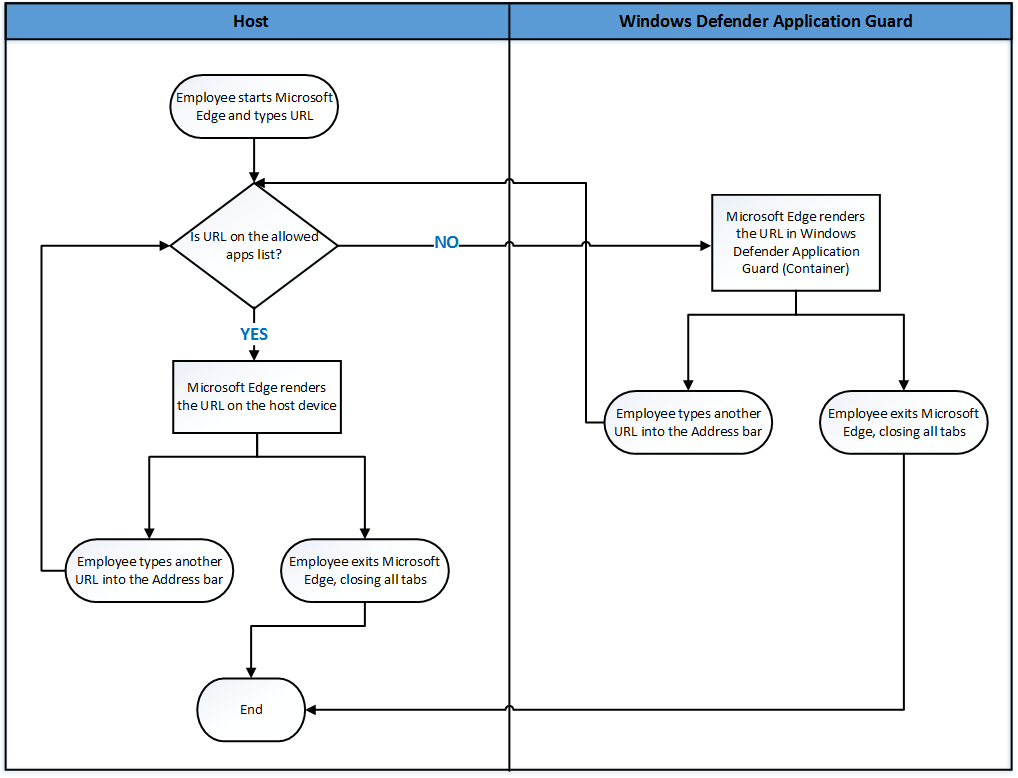
Application Guard browsing isolate කරන හැටි.
Requirements
- Windows 10/11 Pro, Enterprise, නැත්නම් Education.
- Virtualization (VT-x/AMD-V) enable කරපු 64-bit CPU එකක්.
- Container එකට ප්රමාණවත් RAM සහ disk.
Enable via Optional Features
1. "Turn Windows features on or off" (optionalfeatures) open කරන්න.
2. "Microsoft Defender Application Guard" tick කරන්න.
3. OK click කරලා, prompt වුණාම restart කරන්න.
Enable via PowerShell
1. PowerShell එක administrator විදිහට open කරන්න.
2. මේක run කරන්න: Enable-WindowsOptionalFeature -Online -FeatureName Windows-Defender-ApplicationGuard
3. PC එක restart කරන්න.
Use It in Microsoft Edge
1. Edge open කරලා menu (…) click කරන්න.
2. "New Application Guard window" තෝරන්න.
3. Isolated window එක ඇතුළේ untrusted sites safe විදිහට browse කරන්න.
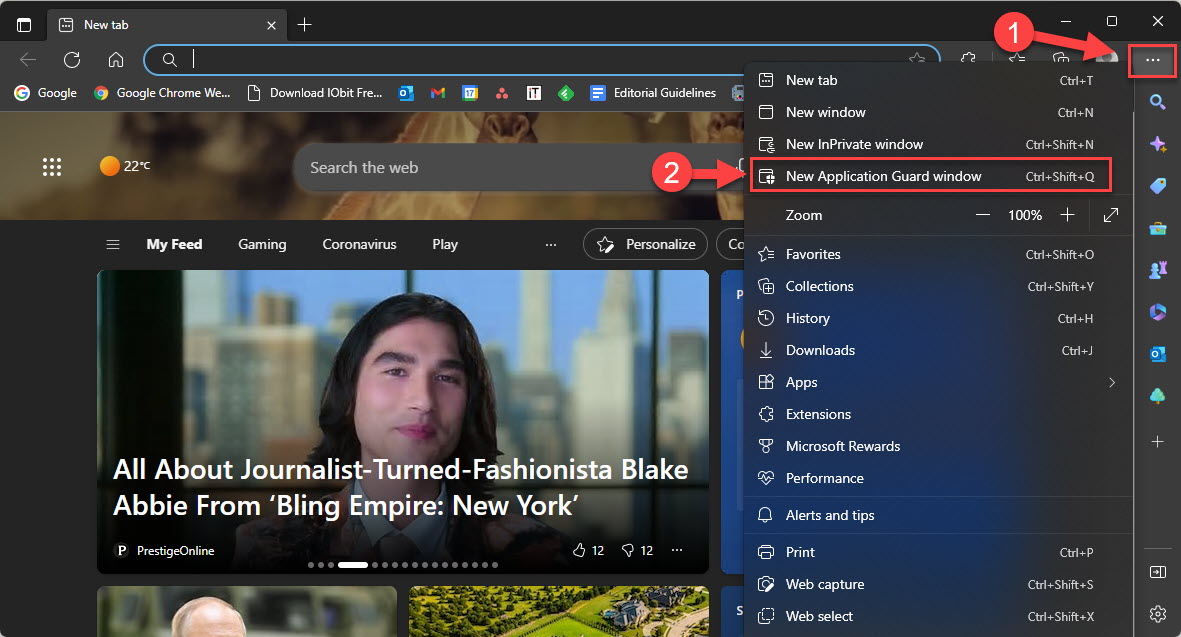
Edge එකේ අලුත් Application Guard window එකක්.
Troubleshooting
Problem: Feature එක list වෙලා නෑ.
Solution: ඒකට Pro/Enterprise/Education ඕන, අලුත් builds වල remove වෙලා තියෙන්නත් පුළුවන්; ඔයාගේ edition සහ Windows version එක confirm කරගන්න.
Problem: "Application Guard requires virtualization".
Solution: BIOS/UEFI වල VT-x/AMD-V enable කරලා, Hyper-V/virtualization features on කියලා confirm කරගන්න.
Problem: Container එක start වෙන්න පරක්කුයි.
Solution: පළවෙනි launch එකේදී container එක initialize වෙනවා; ප්රමාණවත් RAM තියෙනවද, host එක load වෙලා නැද්ද කියලා බලන්න.
Problem: Container එකෙන් copy/print කරන්න බෑ.
Solution: Isolation එකට policy එකෙන් ඒවා restrict කරලා තියෙන්නේ; ඕන නම් admin කෙනෙක්ට Group Policy වලින් ඒවා allow කරන්න පුළුවන්.
Conclusion
Application Guard එකෙන් support වෙන Windows editions වල risky browsing වලට ශක්තිමත් isolation layer එකක් එකතු කරනවා. Available තැන් වල Optional Features නැත්නම් PowerShell වලින් enable කරන්න — හැබැයි Microsoft, Edge integration එක phase out කරමින් ඉන්න නිසා ඔයාගේ build එකේ support එක verify කරගන්න.
About TechHub
මේ guide එක TechHub Knowledge Base එකේ කොටසක්. තව step-by-step IT guides සහ support වලට techhub.com.lk එකට යන්න.