Overview
A magnet link points a torrent client to content without first downloading a .torrent file. Clicking one should open your torrent client, but browsers sometimes do nothing because no app is associated. This guide shows how to make each major browser open magnet links and how to fix it when they will not.
Magnet links pass content directly to a torrent client.
Warning: Only download content you are legally entitled to. Use torrents for legitimate files such as open-source software and licensed media.
Key Takeaways
- A magnet link needs a torrent client (qBittorrent, Transmission, etc.) installed.
- The browser must be allowed to open the magnet (external) protocol.
- Set the torrent client as the default handler for magnet links.
- If clicking does nothing, re-associate the magnet protocol with your client.
What Are Magnet Links?
A magnet link is a URI starting with "magnet:" that contains a content hash and tracker info. Instead of downloading a separate .torrent file, your torrent client uses the link to find and download the content directly.
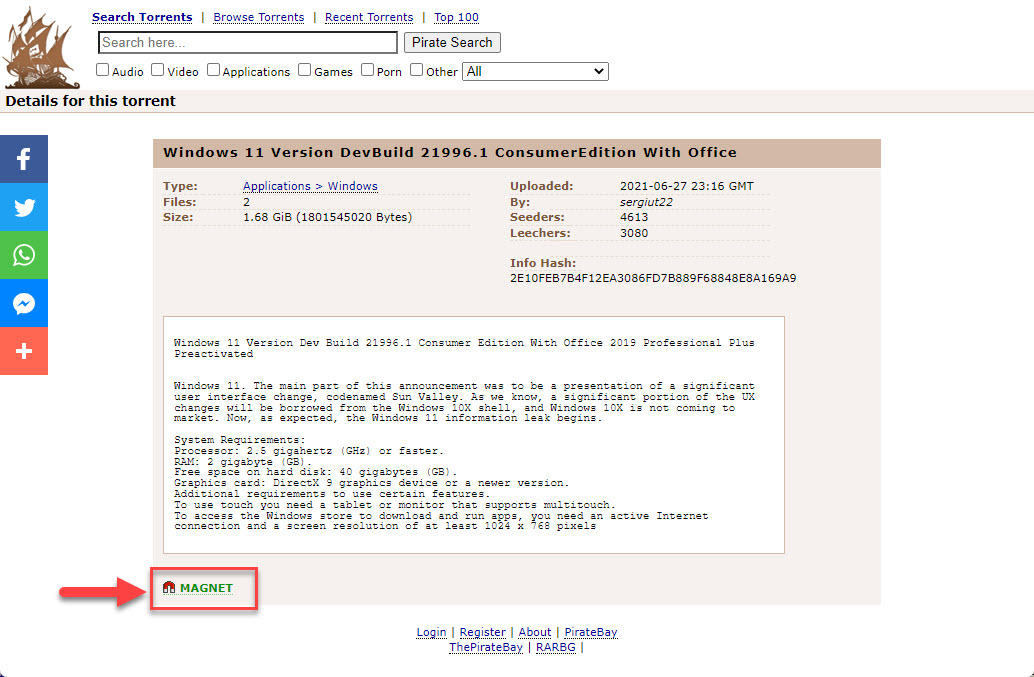
A magnet link as it appears on a torrent page.
Before You Begin
- Install a reputable torrent client such as qBittorrent or Transmission.
- During installation, allow it to associate with magnet links if prompted.
- Then configure your browser to open magnet links (steps below).
Google Chrome
1. Click a magnet link; Chrome shows a prompt asking which app to open it with.
2. Choose your torrent client and tick "Always allow" so future links open automatically.
3. If no prompt appears, ensure the torrent client is installed and set as the magnet handler in Windows.
Microsoft Edge
1. Click a magnet link; Edge asks to open it in your torrent client.
2. Select the client and tick "Always allow".
3. Manage this later under Edge settings if you need to change the handler.
Mozilla Firefox
1. Open Settings > General > Applications.
2. Find "magnet" in the Content Type list.
3. Set the Action to your torrent client (or "Always ask").
Set the Default Magnet Handler in Windows
1. Open Settings > Apps > Default apps.
2. Scroll down and click "Choose defaults by link type".
3. Find MAGNET and set it to your torrent client.
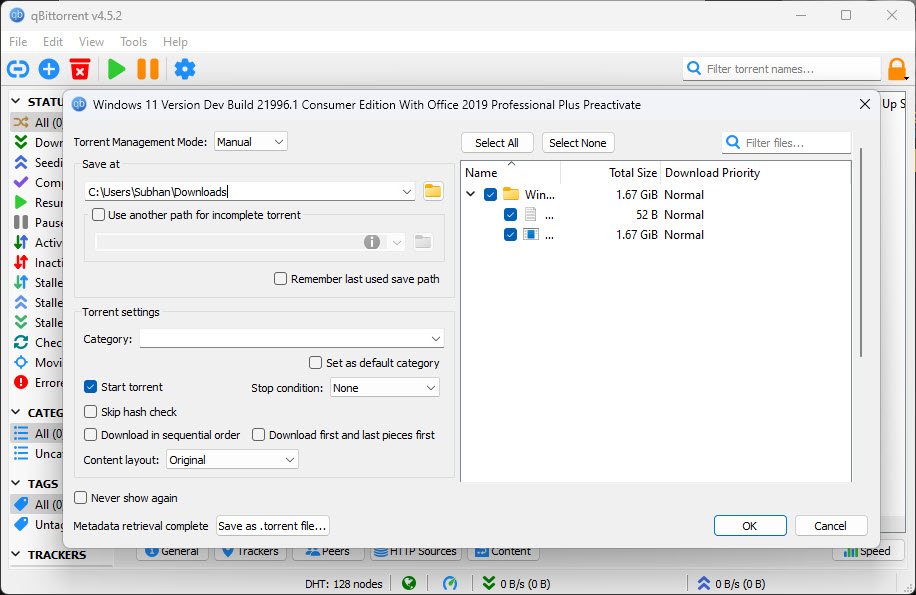
The torrent client begins downloading from the magnet link.
Troubleshooting
Problem: Clicking a magnet link does nothing.
Solution: Set your torrent client as the default for the MAGNET link type in Settings > Apps > Default apps, and reopen the browser.
Problem: The browser keeps asking every time.
Solution: Tick "Always allow/open" when the prompt appears, or set the handler in the browser’s application settings.
Problem: The torrent client is not listed.
Solution: Reinstall the client and allow it to associate with magnet links, then re-pick it as the default handler.
Problem: The link opens the wrong app.
Solution: Change the MAGNET default in Windows Default apps to your preferred torrent client.
Conclusion
Magnet links are convenient once your browser knows to hand them to a torrent client. Install a reputable client, set it as the MAGNET default, and allow the browser to open external links — and always stick to content you are licensed to download.
</w:pBdr><w:spacing w:before="220" w:after="40"/></w:pPr><w:r><w:rPr><w:b/><w:bCs/><w:color w:val="0B5394"/><w:sz w:val="21"/><w:szCs w:val="21"/><w:rFonts w:ascii="Calibri" w:cs="Calibri" w:eastAsia="Calibri" w:hAnsi="Calibri"/></w:rPr><w:t xml:space="preserve">About TechHub
This guide is part of the TechHub Knowledge Base. For more step-by-step IT guides and support, visit techhub.com.lk.