Overview
Magnet link එකකින් .torrent file එකක් මුලින් download කරන්නේ නැතුව torrent client එකකට content එකට යොමු කරනවා. එකක් click කරද්දී ඔයාගේ torrent client එක open විය යුතුයි, නමුත් කිසිම app එකක් associate වෙලා නැති නිසා browsers සමහරවිට කිසිවක් කරන්නේ නෑ. මේ guide එකෙන් පෙන්නනවා ප්රධාන browser එකින් එක magnet links open කරන්න හදන හැටිත්, ඒවා නොකළොත් fix කරන හැටිත්.
Magnet links වලින් content එක කෙළින්ම torrent client එකකට pass කරනවා.
Warning: ඔයාට නීත්යානුකූලව හිමිකම් තියෙන content විතරක් download කරන්න. open-source software සහ licensed media වගේ නීත්යානුකූල files වලට torrents පාවිච්චි කරන්න.
Key Takeaways
- Magnet link එකකට torrent client එකක් (qBittorrent, Transmission, ආදිය) install කරලා තියෙන්න ඕන.
- Browser එකට magnet (external) protocol එක open කරන්න ඉඩ දෙන්න ඕන.
- Torrent client එක magnet links වලට default handler එක විදිහට set කරන්න.
- Click කරද්දී කිසිවක් නොවෙනවා නම්, magnet protocol එක ඔයාගේ client එකට නැවත associate කරන්න.
What Are Magnet Links?
Magnet link එකක් කියන්නේ "magnet:" වලින් පටන් ගන්න URI එකක්, ඒකේ content hash එකයි tracker info එකයි තියෙනවා. වෙනම .torrent file එකක් download කරනවා වෙනුවට, ඔයාගේ torrent client එක ඒ link එක පාවිච්චි කරලා content එක කෙළින්ම හොයලා download කරනවා.
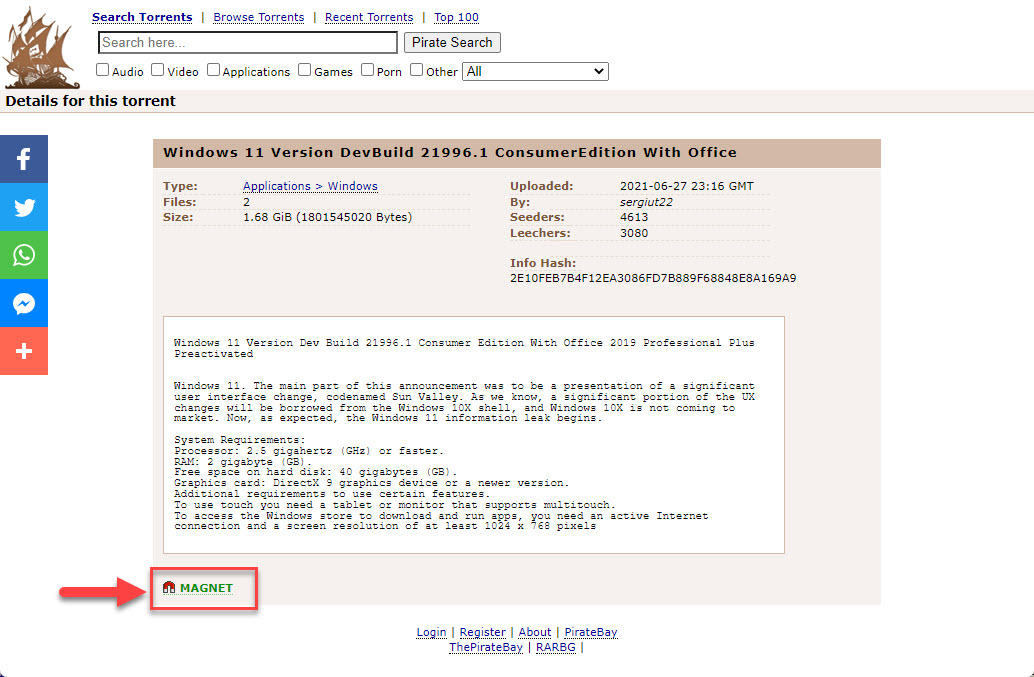
Torrent page එකක magnet link එකක් පෙනෙන ආකාරය.
Before You Begin
- qBittorrent හෝ Transmission වගේ විශ්වාසවන්ත torrent client එකක් install කරන්න.
- Installation එකේදී, prompt කළොත් ඒක magnet links එක්ක associate වෙන්න ඉඩ දෙන්න.
- ඊට පස්සේ magnet links open කරන්න ඔයාගේ browser එක configure කරන්න (steps පහළින්).
Google Chrome
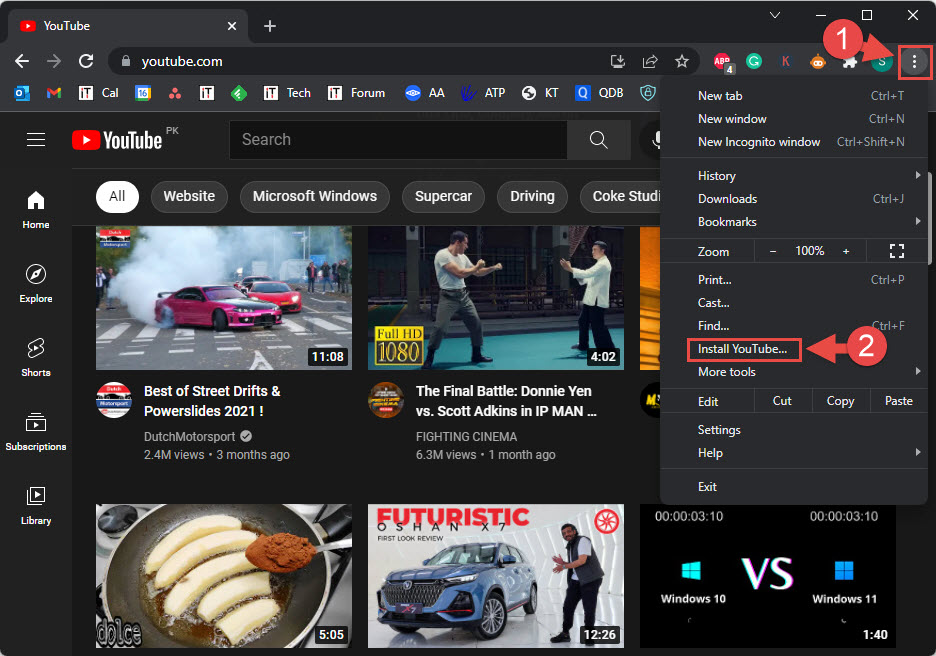
1. Magnet link එකක් click කරන්න; ඒක open කරන්නේ මොන app එකෙන්ද කියලා Chrome prompt එකක් පෙන්නනවා.
2. ඔයාගේ torrent client එක තෝරලා, ඉදිරි links automatically open වෙන්න "Always allow" tick කරන්න.
3. Prompt එකක් නොපෙනුනොත්, torrent client එක install කරලා Windows එකේ magnet handler එක විදිහට set කරලා තියෙනවද කියලා තහවුරු කරගන්න.
Microsoft Edge
1. Magnet link එකක් click කරන්න; ඔයාගේ torrent client එකේ ඒක open කරන්නද කියලා Edge අහනවා.
2. Client එක select කරලා "Always allow" tick කරන්න.
3. Handler එක වෙනස් කරන්න ඕන නම්, පස්සේ Edge settings යටතේ මේක manage කරන්න.
Mozilla Firefox
1. Settings > General > Applications open කරන්න.
2. Content Type list එකේ "magnet" හොයාගන්න.
3. Action එක ඔයාගේ torrent client එකට (හෝ "Always ask") set කරන්න.
Set the Default Magnet Handler in Windows
1. Settings > Apps > Default apps open කරන්න.
2. පහළට scroll කරලා "Choose defaults by link type" click කරන්න.
3. MAGNET හොයලා ඒක ඔයාගේ torrent client එකට set කරන්න.
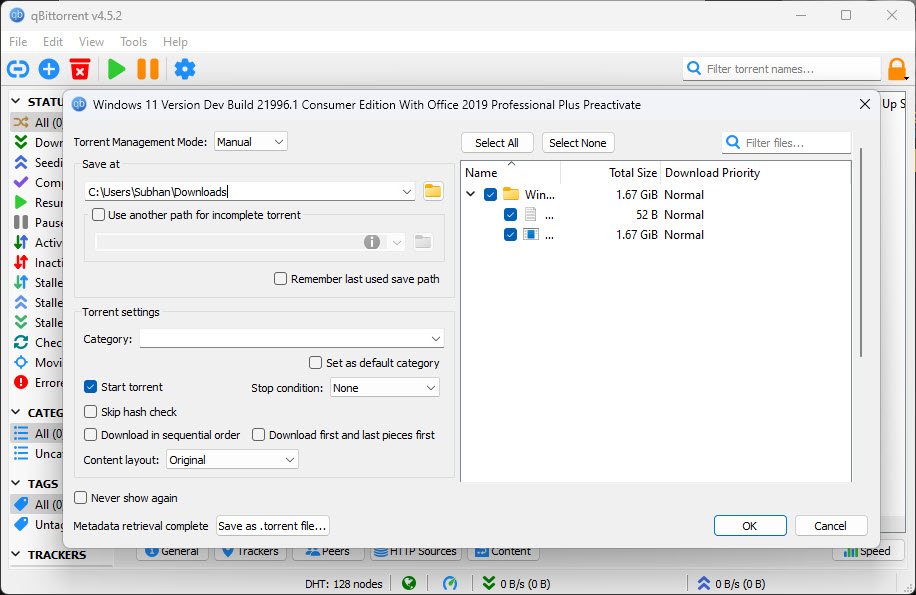
Torrent client එක magnet link එකෙන් download කරන්න පටන් ගන්නවා.
Troubleshooting
Problem: Magnet link එකක් click කරද්දී කිසිවක් නොවෙනවා.
Solution: Settings > Apps > Default apps එකේ MAGNET link type එකට ඔයාගේ torrent client එක default විදිහට set කරලා, browser එක නැවත open කරන්න.
Problem: Browser එක හැම වෙලාවෙම අහනවා.
Solution: Prompt එක ආවම "Always allow/open" tick කරන්න, හෝ browser එකේ application settings වල handler එක set කරන්න.
Problem: Torrent client එක list වෙලා නෑ.
Solution: Client එක නැවත install කරලා ඒක magnet links එක්ක associate වෙන්න ඉඩ දීලා, ඊට පස්සේ default handler විදිහට ඒක නැවත තෝරන්න.
Problem: Link එකෙන් වැරදි app එක open වෙනවා.
Solution: Windows Default apps එකේ MAGNET default එක ඔයාට කැමති torrent client එකට වෙනස් කරන්න.
Conclusion
Magnet links convenient වෙන්නේ browser එකට ඒවා torrent client එකකට දෙන්න දැනගත්තට පස්සේ. විශ්වාසවන්ත client එකක් install කරලා, ඒක MAGNET default විදිහට set කරලා, browser එකට external links open කරන්න ඉඩ දෙන්න — හැමවෙලේම ඔයාට license තියෙන content වලට විතරක් limit වෙන්න.
About TechHub
මේ guide එක TechHub Knowledge Base එකේ කොටසක්. තව step-by-step IT guides සහ support වලට techhub.com.lk එකට යන්න.