Overview
Snip & Sketch කියන්නේ Windows එකේ built-in screenshot utility එකයි — region එකක්, window එකක් නැත්නම් full screen එක capture කරලා crop, annotate සහ share කරන්න පුළුවන්. Windows 11 එකේ app එක modern Snipping Tool එකට merge වෙලා තියෙනවා, ඒත් තාමත් ඒම capture experience එකට ක්රම කිහිපයකින් යන්න පුළුවන්. මේ guide එකෙන් ඒක open කරන fast methods තුනකුයි, screenshots තව ඉක්මන් කරගන්නේ කොහොමද කියලත් cover කරනවා.
Windows 11 එකේ screenshot එකක් capture කරලා annotate කරන්න Snip & Sketch open කරන එක.
Key Takeaways
- Windows 11 එකේ, Snip & Sketch දැන් Snipping Tool app එකේ කොටසක්.
- Windows + Shift + S shortcut එකෙන් වහාම අලුත් snip එකක් පටන් ගන්නවා.
- Tool එක Start menu එකෙන් හෝ search box එකෙන් launch කරන්න පුළුවන්.
- Print Screen key එක snipping bar එක automatically open වෙන්න set කරන්න පුළුවන්.
Method 1: Use the Keyboard Shortcut
මුලින්ම window එකක් open නොකර screenshot එකක් ගන්න ඉක්මනම ක්රමය මේකයි.
1. Windows + Shift + S එකට press කරන්න.
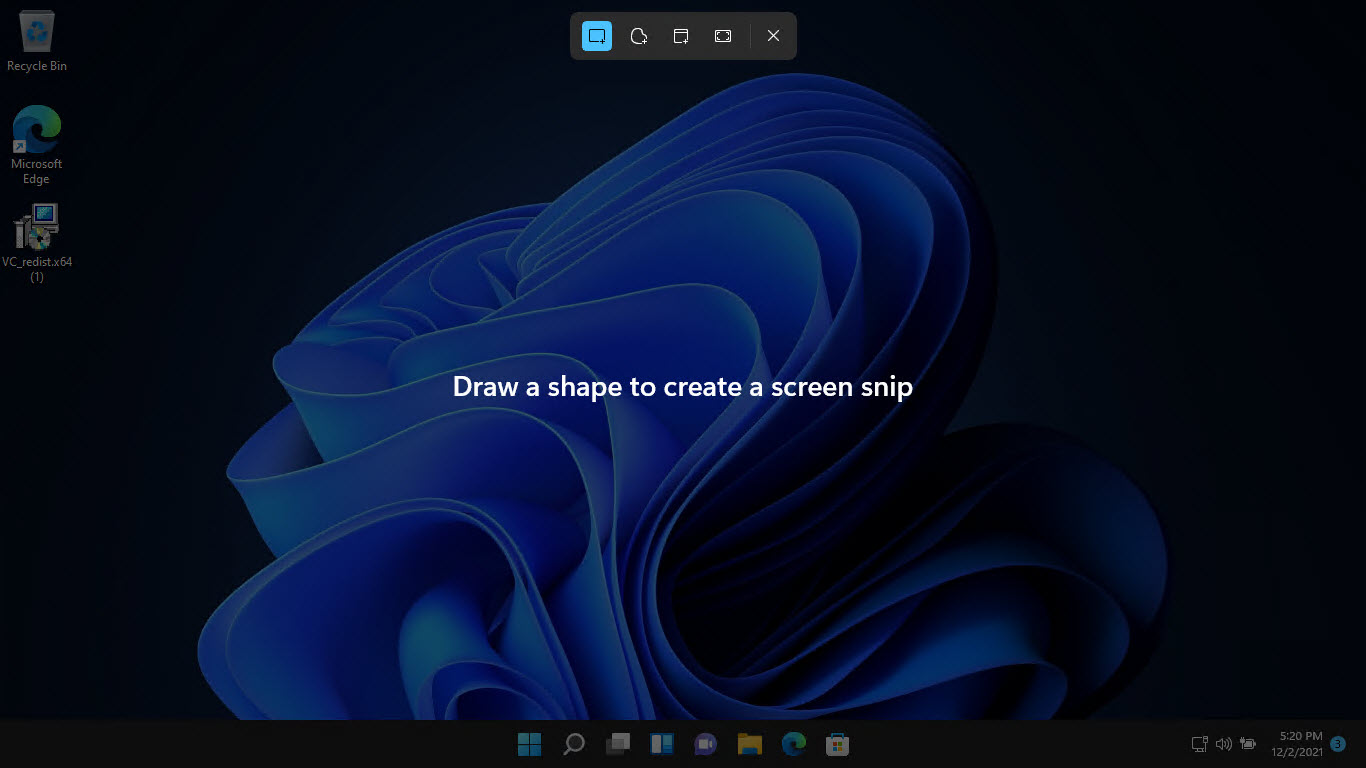
2. Screen එක අඳුරු වෙලා උඩ පැත්තේ පොඩි capture toolbar එකක් පෙනෙනවා.
3. rectangular, freeform, window හෝ full-screen capture තෝරන්න.
4. Area එක select කරන්න — snip එක clipboard එකට copy වෙනවා, notification එකකින් editing එකට open කරගන්න පුළුවන් වෙනවා.
Windows + Shift + S press කරාට පස්සේ පෙන්නන capture toolbar එක.
Method 2: Open from the Start Menu
1. Start button එක click කරන්න.
2. "All apps" තෝරලා "Snipping Tool" (Snip & Sketch features ඇතුළත් වෙන) එකට scroll කරන්න.
3. App window එක open කරන්න ඒක click කරන්න.
4. Capture එකක් පටන් ගන්න "New" click කරන්න.
Tip: Snipping Tool එක Start menu එකේ right-click කරලා "Pin to taskbar" තෝරන්න, එතකොට ඒක හැමවෙලේම එක click එකකින් ළඟ තියෙනවා.
Method 3: Use Windows Search
1. Windows key එක press කරන්න නැත්නම් taskbar එකේ search icon එක click කරන්න.
2. "Snipping Tool" හෝ "Snip" type කරන්න.
3. Results වල app එක click කරලා open කරන්න.
4. Screenshot එකක් ගන්න "New" click කරන්න.
Make Print Screen Open the Snipping Tool
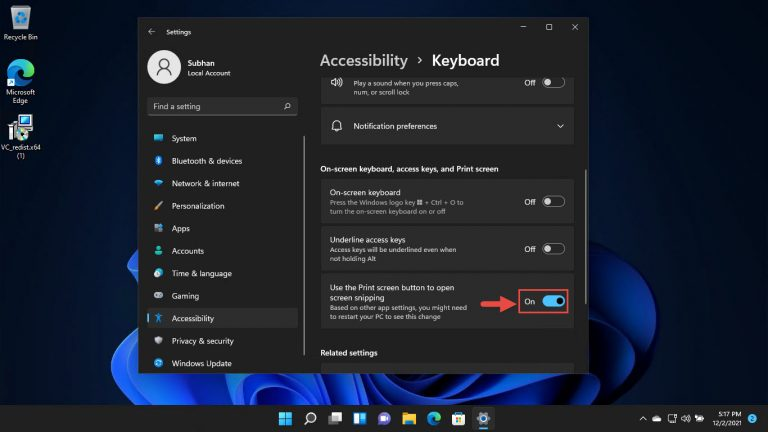
Print Screen (PrtScn) key එක snipping toolbar එක කෙලින්ම launch කරන්න map කරන්න පුළුවන්.
1. Settings open කරලා Accessibility > Keyboard (නැත්නම් Ease of Access > Keyboard) එකට යන්න.
2. "Use the Print screen button to open screen capture" (හෝ "Use the Print Screen key to open Snipping Tool" කියලත් label වෙනවා) එක turn on කරන්න.
3. Capture toolbar එක දැන් පෙනෙනවද කියලා confirm කරන්න PrtScn press කරන්න.
Print Screen key එක snipping toolbar එක open කරන්න configure කරන එක.
Troubleshooting
Problem: Windows + Shift + S එකෙන් snip එකක් පටන් ගන්නේ නෑ.
Solution: Snipping Tool app එක Microsoft Store හරහා enabled සහ updated කියලා confirm කරන්න. PC එක නැත්නම් Snipping Tool process එක restart කරාම සාමාන්යයෙන් shortcut එක ආපහු හරි වෙනවා.
Problem: Screenshot එක file එකකට save වෙන්නේ නෑ.
Solution: Shortcut එකෙන් default විදිහට snips clipboard එකට copy කරනවා. Editor එක open කරන්න notification එක click කරලා, PNG එකක් විදිහට store කරන්න Save (disk) icon එක use කරන්න.
Problem: Print Screen එකෙන් tool එක open කරනවා වෙනුවට තාමත් full screen එක copy කරනවා.
Solution: Settings > Accessibility > Keyboard යටතේ Print Screen option එක enable කරලා, change එක effect වෙන්න sign out වෙලා ආපහු sign in වෙන්න.
Problem: Snipping Tool app එක නෑ.
Solution: Microsoft Store එකෙන් ඒක ආයෙත් install කරන්න, නැත්නම් Store cache එක refresh කරන්න "wsreset.exe" run කරලා app එක ආයෙත් check කරන්න.
Conclusion
Snip & Sketch — දැන් Windows 11 එකේ Snipping Tool එක්ක unified වෙලා — screenshots capture කරලා annotate කරන එක ලේසි කරනවා. Windows + Shift + S shortcut එක තමයි ඉක්මනම මාර්ගය, Start menu එකයි search එකයි ඔයාට සම්පූර්ණ app window එක දෙනවා. Print Screen key එක tool එකට map කරන්න, එතකොට screenshots single keystroke එකකින් ගන්න පුළුවන් වෙනවා.
About TechHub
මේ guide එක TechHub Knowledge Base එකේ කොටසක්. තව step-by-step IT guides සහ support වලට techhub.com.lk එකට යන්න.