Overview
To save memory and battery, modern browsers put inactive background tabs to sleep — a feature called tab throttling, tab suspension, or "sleeping tabs". This usually helps performance, but it can interrupt background music, live dashboards, chat apps, or long uploads. This guide shows how to disable tab throttling in every major browser and how to keep specific sites always active.
Key Takeaways
- Tab throttling suspends background tabs to free up RAM and CPU, but can break web apps that need to keep running.
- Chrome and Brave use "Memory Saver", Edge uses "Sleeping tabs", and Firefox uses automatic tab unloading.
- You can turn the feature off entirely, or add specific sites to an exception list so only they stay active.
- Keeping tabs awake increases memory and battery use, so disable throttling selectively when possible.
How Tab Throttling Works
When a tab sits in the background without interaction, the browser reduces the resources it receives and may fully unload it from memory after a set time. Returning to the tab reloads it. This lowers memory and battery usage, but any live activity in that tab — a running timer, a streaming connection, or an unsaved form — can be paused or reset.
Disable Sleeping Tabs in Google Chrome
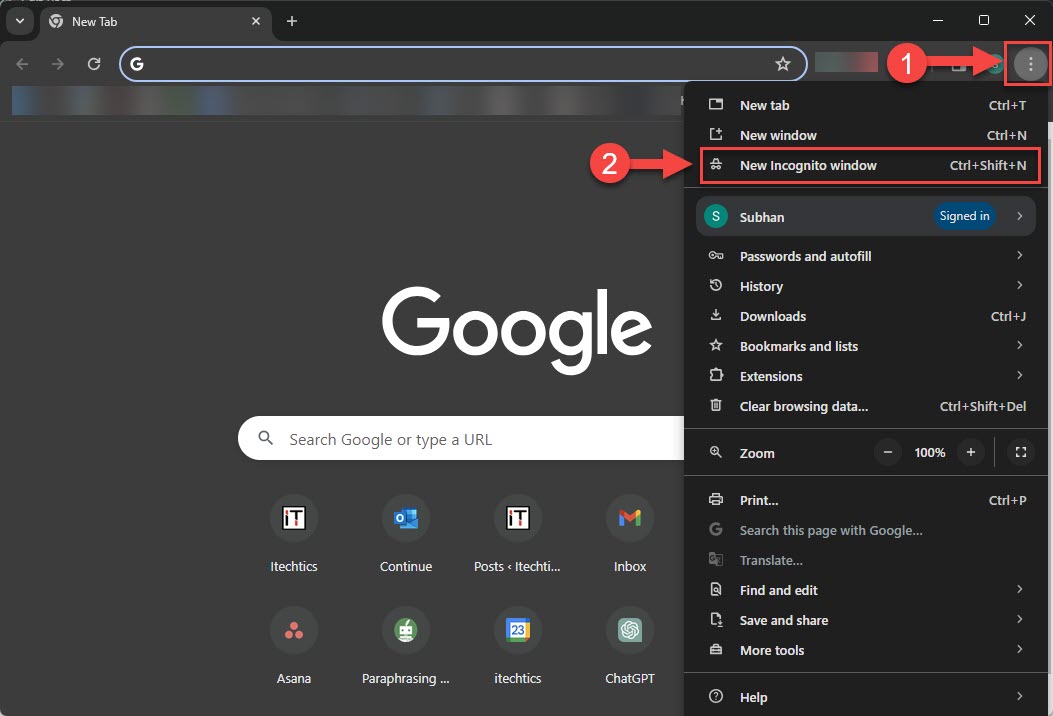
1. Click the three-dot menu in the top-right corner and open Settings.
2. Select "Performance" from the left menu.
3. Turn off the "Memory Saver" toggle to keep all tabs active.
4. To keep Memory Saver on but exempt certain sites, leave it enabled and click "Add" next to "Always keep these sites active", then enter the site addresses.
Tip: You can also open chrome://discards to see which tabs are currently discarded and toggle "Auto Discardable" for individual tabs.
Disable Sleeping Tabs in Microsoft Edge
1. Open the three-dot menu and go to Settings.
2. Select "System and performance".
3. Turn off the "Save resources with sleeping tabs" toggle.
4. To keep the feature but add exceptions, use "Never put these sites to sleep" and add the URLs you want to stay awake.
Disable Tab Unloading in Mozilla Firefox
Firefox automatically unloads tabs when system memory runs low. You can disable this behavior through its advanced configuration.
1. Type about:config in the address bar and press Enter, then accept the warning.
2. Search for browser.tabs.unloadOnLowMemory.
3. Double-click it to set the value to false, which stops Firefox from unloading background tabs.
Disable Tab Throttling in Other Browsers
Chromium-based browsers share similar settings under different names.
- Opera: Settings > Advanced > Features (or Performance) and turn off "Battery/Memory Saver" tab snoozing.
- Brave: Settings > Performance and turn off "Memory Saver", or add exception sites just like Chrome.
- Vivaldi: Settings > Tabs and disable tab hibernation, or exclude specific sites.
Note: Disabling tab sleeping keeps every tab in memory, which raises RAM and battery consumption. On laptops, consider using the exception list instead of turning the feature off completely.
Troubleshooting
Problem: A background web app still pauses even after disabling Memory Saver.
Solution: The site may have its own idle handling, or the OS is throttling it. Add the site to the browser's "always active" exception list and keep the tab in a visible window.
Problem: The performance or sleeping-tabs option is missing.
Solution: Update the browser to the latest version — these settings were added recently and may sit under "System", "Performance", or "System and performance".
Problem: The browser now uses much more memory.
Solution: This is expected with throttling off. Re-enable Memory Saver or sleeping tabs and use per-site exceptions for only the tabs that must stay live.
Problem: Firefox still unloads tabs after editing about:config.
Solution: Confirm browser.tabs.unloadOnLowMemory is set to false and restart Firefox. Freeing system RAM also reduces how aggressively it unloads tabs.
Conclusion
Tab throttling is helpful for most browsing but gets in the way when tabs need to keep working in the background. Each major browser lets you disable it or whitelist specific sites. For the best balance, keep the feature on and add only the sites that must stay active to the exception list.
About TechHub
This guide is part of the TechHub Knowledge Base. For more step-by-step IT guides and support, visit techhub.com.lk.