Overview
Many Windows applications need elevated (administrator) permissions to change system settings, write to protected folders, or install components. Running a program "as administrator" grants it those rights for the current session so it can complete tasks that a standard user context would block. This guide walks through six dependable methods, from quick one-time launches to configuring a program to always start elevated.
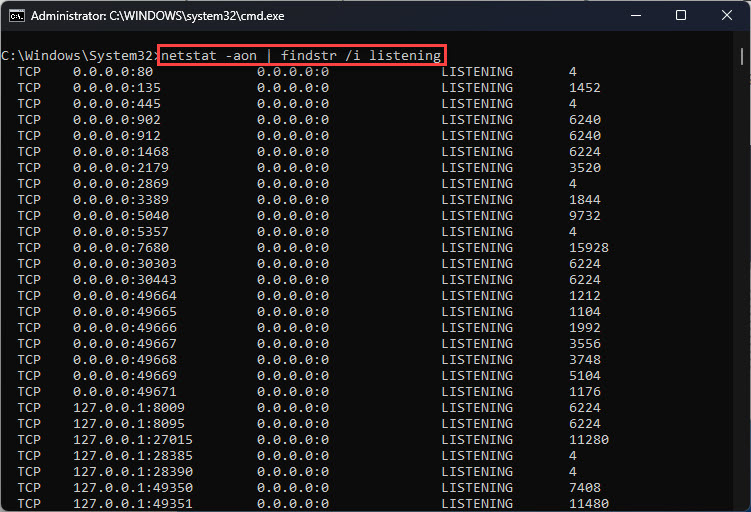
Launching an application with administrator privileges in Windows.
Key Takeaways
- Elevated privileges let an app modify system files, the registry, and protected settings.
- Use the right-click "Run as administrator" option for a fast one-time launch.
- Set the "Run this program as an administrator" checkbox in Properties to make it permanent.
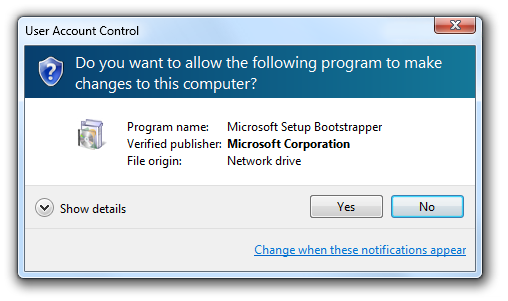
- User Account Control (UAC) will prompt for confirmation each time an app requests elevation.
- Only elevate programs you trust — administrator rights remove important safety limits.
Method 1: Right-Click and Run as Administrator
This is the quickest way to elevate a single launch without changing any permanent settings.
1. Locate the program in the Start menu, on the desktop, or in File Explorer.
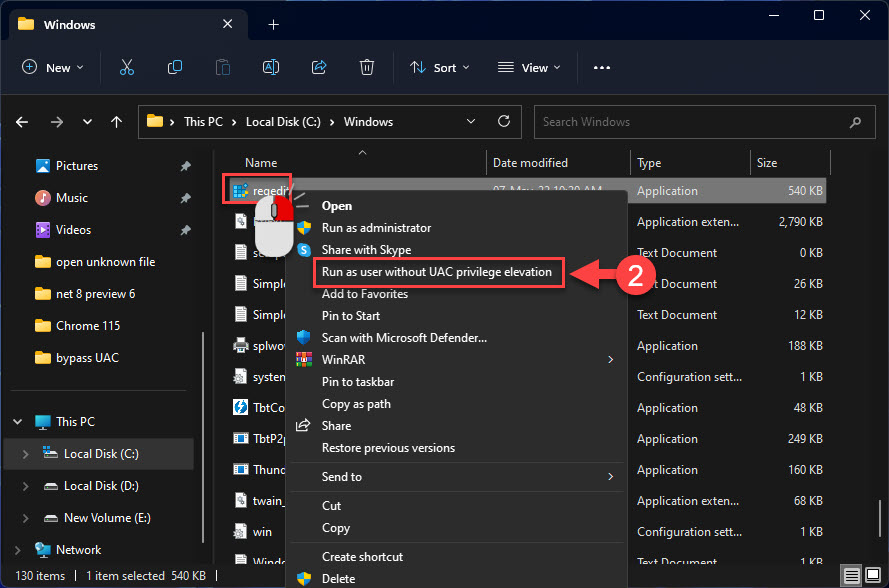
2. Right-click the program icon.
3. Select "Run as administrator" from the context menu.
4. Confirm the User Account Control prompt by clicking "Yes".
<w:bottom w:val="single" w:color="E2F0E1" w:sz="2" w:space="4"/><w:left w:val="single" w:color="2E7D32" w:sz="24" w:space="8"/><w:right w:val="single" w:color="E2F0E1" w:sz="2" w:space="4"/></w:pBdr><w:shd w:fill="E2F0E1" w:color="auto" w:val="clear"/><w:spacing w:before="80" w:after="160"/><w:ind w:left="120" w:right="120"/></w:pPr><w:r><w:rPr><w:b/><w:bCs/><w:color w:val="2E7D32"/><w:sz w:val="21"/><w:szCs w:val="21"/><w:rFonts w:ascii="Calibri" w:cs="Calibri" w:eastAsia="Calibri" w:hAnsi="Calibri"/></w:rPr><w:t xml:space="preserve">Tip: From the Start menu you can also highlight an app with the arrow keys and press Ctrl + Shift + Enter to launch it elevated.
Method 2: Always Run a Program as Administrator
If a program always needs elevation, configure it once so it launches with administrator rights every time.
1. Right-click the program shortcut or its .exe file and choose "Open file location" if needed.
2. Right-click the program and select "Properties".
3. Open the "Compatibility" tab.
4. Tick the box labelled "Run this program as an administrator".
5. Click "Apply" and then "OK".
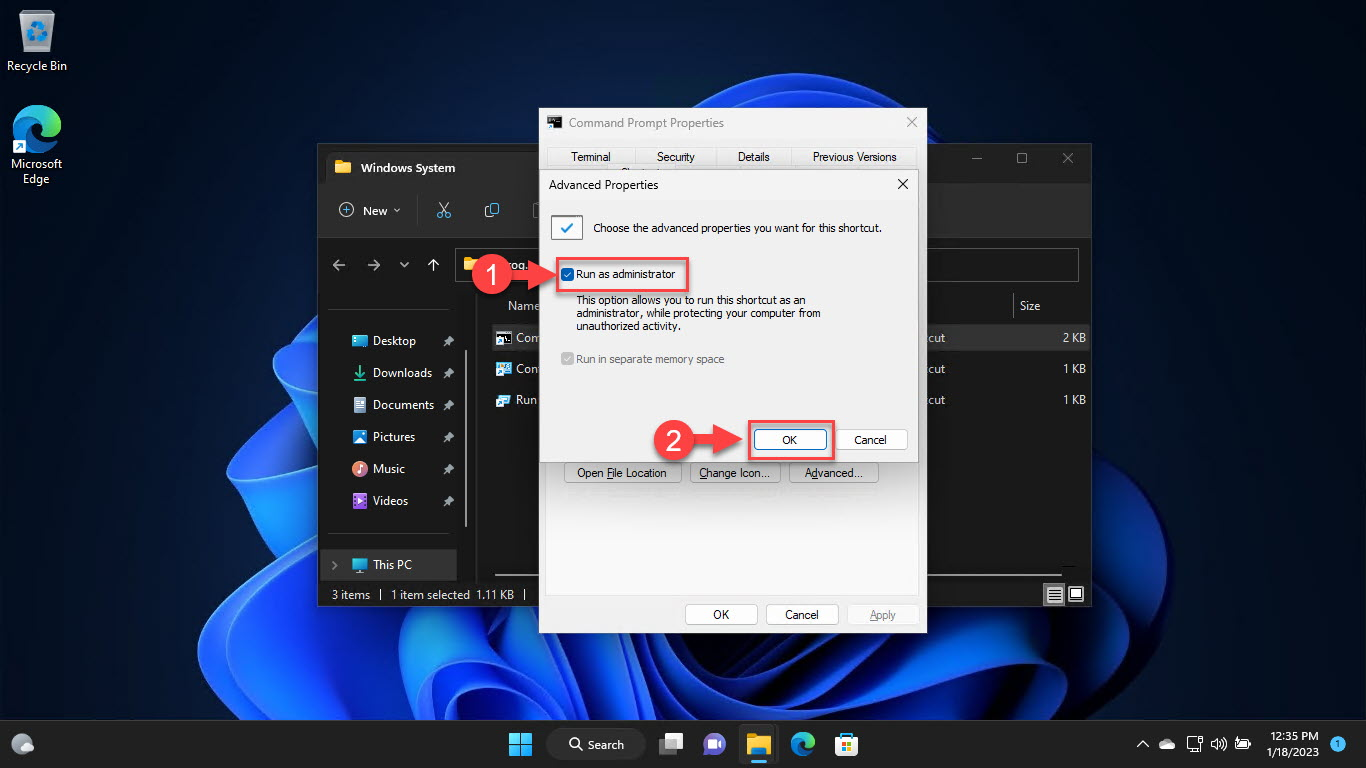
Enabling "Run this program as an administrator" in the Compatibility tab.
<w:bottom w:val="single" w:color="DEEAF6" w:sz="2" w:space="4"/><w:left w:val="single" w:color="0B5394" w:sz="24" w:space="8"/><w:right w:val="single" w:color="DEEAF6" w:sz="2" w:space="4"/></w:pBdr><w:shd w:fill="DEEAF6" w:color="auto" w:val="clear"/><w:spacing w:before="80" w:after="160"/><w:ind w:left="120" w:right="120"/></w:pPr><w:r><w:rPr><w:b/><w:bCs/><w:color w:val="0B5394"/><w:sz w:val="21"/><w:szCs w:val="21"/><w:rFonts w:ascii="Calibri" w:cs="Calibri" w:eastAsia="Calibri" w:hAnsi="Calibri"/></w:rPr><w:t xml:space="preserve">Note: This setting applies to the specific executable. If you launch the app from a different shortcut or copy, you may need to repeat the steps for that shortcut.
Method 3: Elevate from the Search Box
The Windows search box offers a built-in elevation option that is handy for system tools.
1. Click the search icon on the taskbar or press the Windows key.
2. Type the name of the program (for example, "cmd" or "PowerShell").
3. In the results pane, click "Run as administrator".
4. Approve the UAC prompt.
Method 4: Run as a Different User
When you are signed in with a standard account, you can run a program using another account that has administrator rights.
1. Hold the Shift key and right-click the program icon.
2. Select "Run as different user" from the expanded context menu.
3. Enter the username and password of an administrator account.
4. Click "OK" to launch the program under that account.
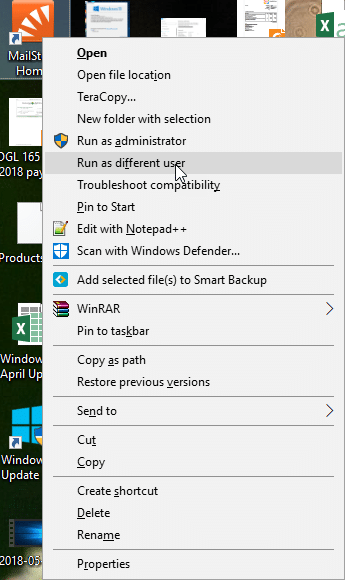
The "Run as different user" option in the right-click menu.
Method 5: Launch from Task Manager
Task Manager can start a new task with administrative privileges, which is useful when the desktop or Explorer is unresponsive.
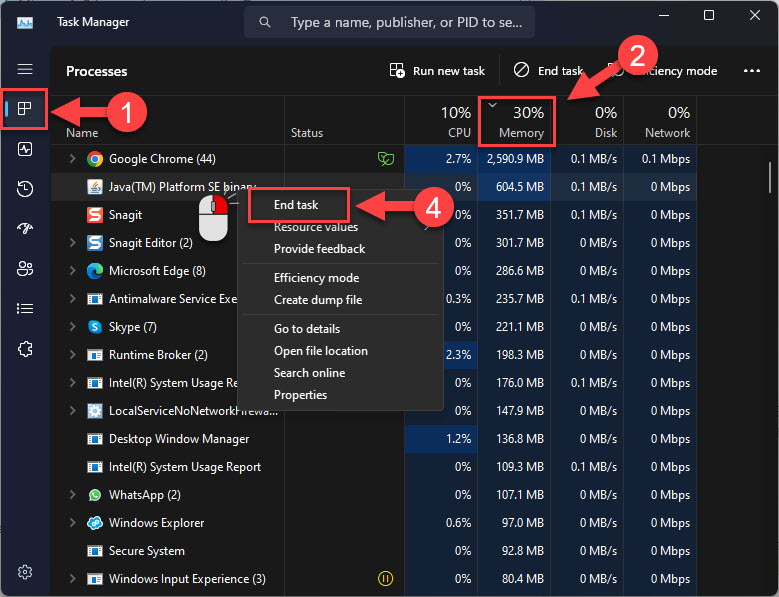
1. Press Ctrl + Shift + Esc to open Task Manager.
2. Click "Run new task" (or File > Run new task).
3. Type the program name or browse to its executable.
4. Tick "Create this task with administrative privileges".
5. Click "OK".
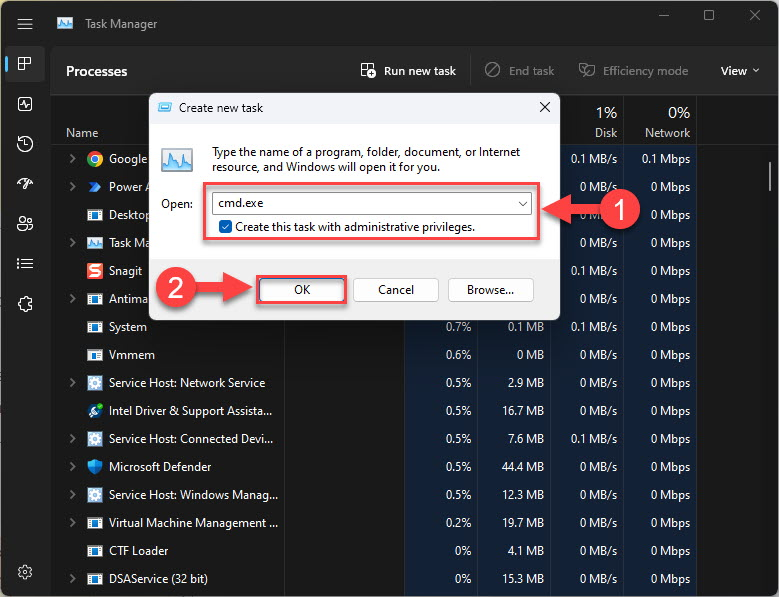
Creating an elevated task from Task Manager.
Method 6: Adjust User Account Control Behaviour
UAC controls how often Windows prompts for elevation. You can review its level in the Control Panel, but keep protection enabled.
1. Open the Start menu and search for "UAC".
2. Select "Change User Account Control settings".
3. Review the slider position — the default "Notify me only when apps try to make changes" is recommended.
4. Click "OK" to save.
<w:bottom w:val="single" w:color="FBE4E4" w:sz="2" w:space="4"/><w:left w:val="single" w:color="C0392B" w:sz="24" w:space="8"/><w:right w:val="single" w:color="FBE4E4" w:sz="2" w:space="4"/></w:pBdr><w:shd w:fill="FBE4E4" w:color="auto" w:val="clear"/><w:spacing w:before="80" w:after="160"/><w:ind w:left="120" w:right="120"/></w:pPr><w:r><w:rPr><w:b/><w:bCs/><w:color w:val="C0392B"/><w:sz w:val="21"/><w:szCs w:val="21"/><w:rFonts w:ascii="Calibri" w:cs="Calibri" w:eastAsia="Calibri" w:hAnsi="Calibri"/></w:rPr><w:t xml:space="preserve">Warning: Do not drag the UAC slider to "Never notify". Disabling UAC removes a key security barrier and allows programs — including malware — to gain administrator rights silently.
Troubleshooting
Problem: The "Run as administrator" option is missing from the right-click menu.
Solution: Right-click the actual .exe file rather than a Store-app tile. UWP apps from the Microsoft Store cannot be elevated this way; use the desktop version of the program instead.
Problem: The UAC prompt never appears and elevation silently fails.
Solution: Confirm UAC is enabled in "Change User Account Control settings". If it is set to "Never notify", raise it to the default level and restart the PC.
Problem: You are asked for an administrator password you do not have.
Solution: Your account is a standard user. Ask an administrator to sign in, or have them add your account to the Administrators group in Settings > Accounts.
Problem: A program still reports "access denied" even when run as administrator.
Solution: Check that the file or folder it is writing to is not blocked by antivirus or lacks NTFS permissions. Verify the executable is not marked read-only and that the drive is not write-protected.
Conclusion
Windows offers several ways to grant a program administrator privileges, from a quick right-click launch to a permanent Compatibility-tab setting. Choose the method that matches how often the app needs elevation, and always keep User Account Control active so that every elevation stays a deliberate, confirmed action.
About TechHub
This guide is part of the TechHub Knowledge Base. For more step-by-step IT guides and support, visit techhub.com.lk.