Overview
Command line එකෙන් Windows Update run කරන එක automation, remote management, සහ Settings app එක හිර වුණ වෙලාවක update check එකක් force කරන්න ප්රයෝජනවත්. මේ guide එකෙන් built-in UsoClient commands, PowerShell PSWindowsUpdate module එක, සහ specific updates install හෝ block කරන හැටි ආවරණය කරනවා.
Automation සහ troubleshooting වලට CMD හෝ PowerShell එකෙන් Windows Update run කරන්න.
Key Takeaways
- UsoClient එකෙන් Command Prompt එකෙන් update scans, downloads, සහ installs trigger කරනවා.
- PSWindowsUpdate PowerShell module එකෙන් specific KBs ඇතුළුව සම්පූර්ණ control එකක් දෙනවා.
- PowerShell එකෙන් remote PCs වලට updates deploy කරන්න පුළුවන්.
- Command-line updates scripts සහ headless machines වලට වඩාත් සුදුසුයි.
Force an Update Check From Command Prompt
1. Command Prompt එක administrator විදිහට open කරන්න.
2. Updates වලට scan එකක් පටන් ගන්න: UsoClient StartScan
3. Available updates download කරන්න: UsoClient StartDownload
4. ඒවා install කරන්න: UsoClient StartInstall
5. (පරණ Windows builds වල, ඊට සමාන එක wuauclt /detectnow.)
Open Windows Update From the Run Box
1. Windows key + R press කරන්න.
2. මේක type කරන්න: ms-settings:windowsupdate
3. Windows Update page එක open කරන්න Enter press කරලා, පස්සේ Check for updates click කරන්න.
Run Windows Update From PowerShell
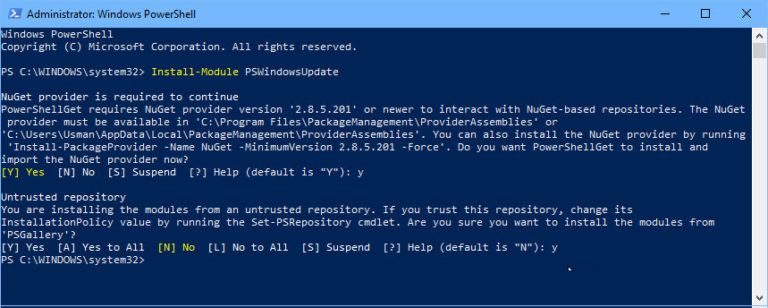
1. PowerShell එක administrator විදිහට open කරන්න.
2. Module එක install කරන්න (පළමු වතාවට): Install-Module PSWindowsUpdate -Force
3. Available updates list කරන්න: Get-WindowsUpdate
4. ඔක්කොම install කරන්න: Install-WindowsUpdate -AcceptAll -AutoReboot
Install Only Specific Updates
1. PSWindowsUpdate install කරලා තියෙනවා නම්, KB එකක් target කරන්න: Get-WindowsUpdate -KBArticleID KB5034123
2. එය install කරන්න: Install-WindowsUpdate -KBArticleID KB5034123 -AcceptAll
3. මේකෙන් ඒ update එක විතරක් install වෙලා ඉතුරු ඒවා skip කරනවා.
Block Specific Updates
1. Update එකක් install නොවෙන්න hide කරන්න: Hide-WindowsUpdate -KBArticleID KB5034123
2. පස්සේ එය unhide කරන්න: Show-WindowsUpdate -KBArticleID KB5034123 (එතකොට ආයෙත් install වෙන්න පුළුවන්).
Deploy Updates to Remote Computers
1. Remote PC එකේ PSWindowsUpdate available බවත් PowerShell Remoting enable කරලා තියෙනවා බවත් තහවුරු කරගන්න.
2. මේක run කරන්න: Invoke-WUJob -ComputerName PC01 -Script { Install-WindowsUpdate -AcceptAll -AutoReboot } -Confirm:$false
3. මේකෙන් නම් කරපු remote computer එකේ updates install වෙනවා.
Troubleshooting
Problem: UsoClient එකෙන් පේන දෙයක් වෙන්නේ නැහැ.
Solution: එය silently run වෙනවා. Settings > Windows Update එකේ progress check කරන්න, නැත්නම් detailed output එකට PowerShell module එක පාවිච්චි කරන්න.
Problem: Install-Module PSWindowsUpdate fail වෙනවා.
Solution: PowerShell එක administrator විදිහට run කරලා, prompt වුණොත් execution policy එක set කරන්න (Set-ExecutionPolicy RemoteSigned) සහ PSGallery trust කරන්න.
Problem: Updates corrupt වෙලා හෝ හිරවෙලා.
Solution: Windows Update components reset කරන්න: wuauserv සහ bits stop කරලා, SoftwareDistribution folder එක rename කරලා, පස්සේ services ආයෙත් restart කරලා retry කරන්න.
Problem: specific update එකක් නිතරම fail වෙනවා.
Solution: Hide-WindowsUpdate එකෙන් එය hide කරන්න, නැත්නම් Microsoft Update Catalog එකෙන් standalone package එක download කරලා manually install කරන්න.
Conclusion
Command line එකෙන් ඔබට Windows Update එක මත නිශ්චිත control එකක් දෙනවා. Quick scans සහ installs වලට UsoClient පාවිච්චි කරන්න, specific KBs target කරන්න, updates script කරන්න, හෝ remote machines manage කරන්න ඕන වෙලාවට PSWindowsUpdate module එක පාවිච්චි කරන්න.
About TechHub
මේ guide එක TechHub Knowledge Base එකේ කොටසක්. තව step-by-step IT guides සහ support වලට techhub.com.lk එකට යන්න.