3 Ways to Set a Maximum Volume Limit in Windows
Cap your PC’s volume to protect your hearing and speakers using built-in and third-party tools.
Overview
Windows doesn’t have a single "max volume" slider, but you can effectively cap loudness using the Communications setting, per-app levels, and third-party volume limiters. This guide covers three approaches.
Setting a maximum volume limit in Windows.
Key Takeaways
- Loudness Equalization evens out volume spikes.
- Per-app levels in the Volume Mixer cap individual apps.
- Tools like Sound Lock enforce a hard ceiling.
- Useful to protect hearing and avoid sudden loud sounds.
Method 1: Loudness Equalization
1. Open the Sound applet (mmsys.cpl) > Playback tab.
2. Select your device > Properties > Enhancements.
3. Enable "Loudness Equalization" to tame volume spikes.
4. Apply and test.
Method 2: Per-App Volume Mixer
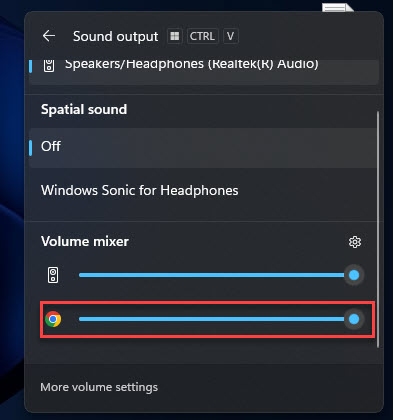
1. Right-click the speaker icon > Open Volume Mixer.
2. Lower the level of specific loud apps (e.g., a browser or game).
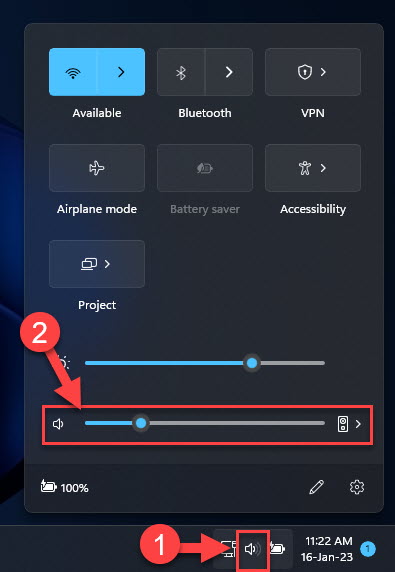
3. Set the system slider to your comfortable maximum.
Adjusting volume with the built-in tools.
Method 3: Third-Party Volume Limiter
Note: Download volume-limiter tools (e.g., Sound Lock) only from their official sources.
1. Install a volume limiter such as Sound Lock.
2. Set the maximum decibel/level ceiling.
3. It caps output even if apps try to go louder.
4. Set it to run at startup to keep the limit active.
A third-party volume limiter enforcing a ceiling.
Troubleshooting
Problem: No Enhancements tab.
Solution: Your audio driver may not expose it — use a third-party limiter or Equalizer APO instead.
Problem: Apps still get loud.
Solution: A hard limiter (Sound Lock) enforces a ceiling that per-app sliders alone can’t.
Problem: Limit resets after reboot.
Solution: Set the limiter tool to launch at startup.
Problem: Want to protect kids’ hearing.
Solution: Combine Loudness Equalization with a limiter and set a comfortable system max.
Conclusion
To cap Windows volume, enable Loudness Equalization to smooth spikes, use the Volume Mixer for per-app control, and add a tool like Sound Lock for a hard ceiling. Together they protect your hearing and speakers from sudden loud audio.