Overview
Voice typing lets you enter text by speaking instead of using the keyboard. Built into Windows 11 and Windows 10, it converts your speech into text in almost any app that accepts typing — documents, browsers, chat windows, and search boxes. This guide explains how to enable the feature, activate it with a keyboard shortcut, add extra languages, and use voice commands for punctuation and editing.
Key Takeaways
- Voice typing is free and built into Windows 11 and 10 — no third-party software required.
- Press Windows + H in any text field to open the voice typing toolbar.
- An internet connection is recommended for the most accurate recognition.
- You can add languages and enable automatic punctuation from the toolbar settings.
Before You Begin
Make sure a working microphone is connected and set as the default recording device. For best accuracy, speak clearly at a normal pace in a quiet environment. Voice typing uses online speech recognition, so keep your device connected to the internet.
Note: The keyboard shortcut Windows + H works system-wide. Place your cursor in any text box first, then press the shortcut to start dictating into that field.
Activate Voice Typing
1. Click inside the text field where you want to type — for example, a Word document, Notepad, or a browser address bar.
2. Press the Windows key + H together to open the voice typing toolbar at the top of the screen.
3. Click the microphone button on the toolbar, or simply start speaking, to begin dictation.
4. Speak naturally. Your words appear in the text field as they are recognized.
5. To stop, click the microphone button again or press Windows + H once more.
Starting voice typing from the toolbar.
Grant Microphone Permission
The first time you use voice typing, Windows may ask for permission to access your microphone and to enable online speech recognition. Approve these prompts so the feature can work. You can review these settings later under Settings > Privacy & security > Speech and Microphone.
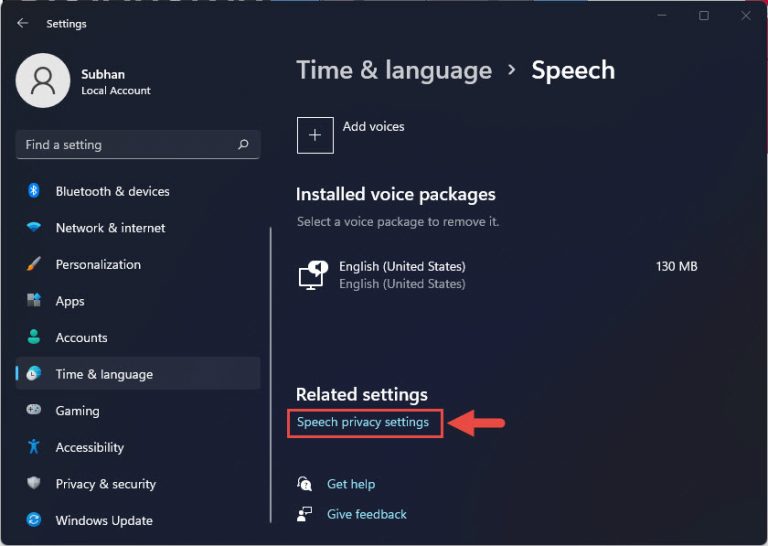
Speech and microphone privacy settings.
Add a Language for Voice Typing
Voice typing works in the languages installed on your PC. To dictate in another language, add its language pack first.
1. Open Settings and go to Time & language > Language & region.
2. Click Add a language and choose the language you want.
3. Ensure the Speech recognition component is selected during installation, then click Install.
4. After installation, open a text field, press Windows + H, and select your language from the toolbar settings gear.
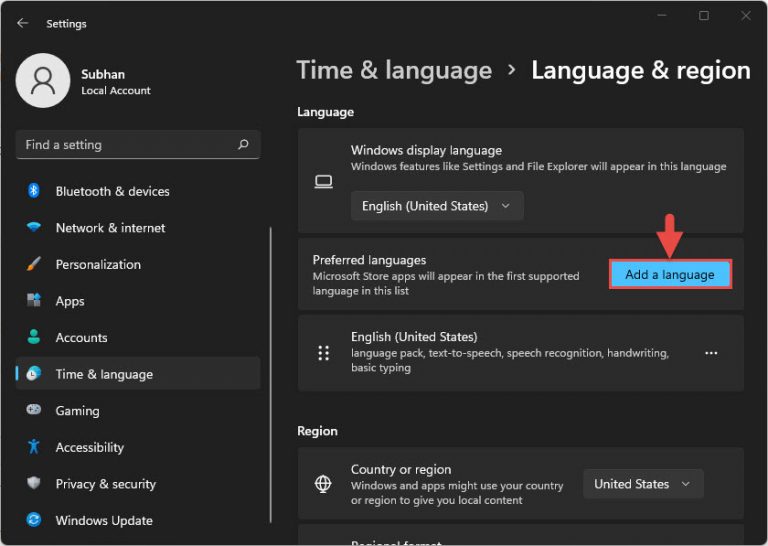
Adding a new language with speech support.
Enable Automatic Punctuation
Automatic punctuation inserts commas, periods, and question marks for you based on your speech patterns. Open the settings gear on the voice typing toolbar and turn on Automatic punctuation. You can also add punctuation manually with voice commands.
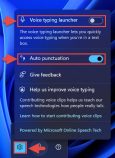
Turning on automatic punctuation.
Useful Voice Commands
- Say "period", "comma", "question mark", or "exclamation mark" to insert punctuation.
- Say "new line" or "new paragraph" to move the cursor down.
- Say "delete that" to remove the last spoken phrase.
- Say "stop listening" to pause voice typing.
Tip: If a word is misrecognized often, speak it more distinctly or spell tricky names out loud. Recognition improves with a good-quality microphone and minimal background noise.
Troubleshooting
Problem: Pressing Windows + H does nothing.
Solution: Click inside an editable text field first — the shortcut only opens the toolbar when the cursor is in a place that accepts text. Also confirm your keyboard shortcut keys are working.
Problem: Voice typing cannot hear me.
Solution: Open Settings > System > Sound and confirm the correct microphone is set as the default input device and its volume is up. Test it under Input settings.
Problem: Recognition is inaccurate or very slow.
Solution: Check your internet connection, since online speech recognition needs it. Reduce background noise and speak at a steady pace.
Problem: My language is not available in the toolbar.
Solution: Add the language under Settings > Time & language > Language & region and make sure the Speech component is installed, then restart voice typing.
Conclusion
Voice typing is a fast, accessible way to enter text without a keyboard. Once you learn the Windows + H shortcut and a few voice commands, you can dictate emails, notes, and documents comfortably. Add the languages you need and enable automatic punctuation to make the experience smoother.
About TechHub
This guide is part of the TechHub Knowledge Base. For more step-by-step IT guides and support, visit techhub.com.lk.