Overview
Voice typing එකෙන් keyboard එක use කරනවා වෙනුවට කතා කරලා text enter කරන්න පුළුවන්. Windows 11 සහ Windows 10 වලට built-in වෙච්ච මේකෙන් ඔයාගේ කතාව text බවට convert කරනවා — typing accept කරන ඕනම app එකක: documents, browsers, chat windows, search boxes. මේ guide එකෙන් feature එක enable කරන්නේ කොහොමද, keyboard shortcut එකකින් activate කරන්නේ කොහොමද, තව languages එකතු කරන්නේ කොහොමද, punctuation සහ editing වලට voice commands use කරන්නේ කොහොමද කියලා පැහැදිලි කරනවා.
Key Takeaways
- Voice typing free, Windows 11 සහ 10 වලට built-in — third-party software එකක් අවශ්ය නැහැ.
- ඕනම text field එකක Windows + H press කරලා voice typing toolbar එක open කරන්න.
- වඩාත්ම accurate recognition එකට internet connection එකක් තියෙන එක recommend කරනවා.
- Toolbar settings වලින් languages එකතු කරන්නත් automatic punctuation enable කරන්නත් පුළුවන්.
Before You Begin
වැඩ කරන microphone එකක් connect කරලා default recording device එක විදිහට set කරලා තියෙනවා confirm කරගන්න. හොඳම accuracy එකට නිශ්ශබ්ද පරිසරයක සාමාන්ය pace එකකින් පැහැදිලිව කතා කරන්න. Voice typing online speech recognition use කරන නිසා device එක internet එකට connected තියාගන්න.
Note: Windows + H keyboard shortcut එක system-wide වැඩ කරනවා. මුලින්ම ඕනම text box එකක cursor එක තියලා, ඊට පස්සේ ඒ field එකට dictate කරන්න shortcut එක press කරන්න.
Activate Voice Typing
1. ඔයාට type කරන්න ඕන text field එක ඇතුළේ click කරන්න — උදාහරණයක් විදිහට Word document එකක්, Notepad, නැත්නම් browser address bar එකක්.
2. Screen එකේ උඩින් voice typing toolbar එක open කරන්න Windows key + H එකට press කරන්න.
3. Dictation පටන් ගන්න toolbar එකේ microphone button එක click කරන්න, නැත්නම් කෙලින්ම කතා කරන්න පටන් ගන්න.
4. Naturally කතා කරන්න. ඔයාගේ වචන recognize වෙනකොට text field එකේ දිස්වෙනවා.
5. නවත්තන්න microphone button එක ආපහු click කරන්න නැත්නම් ආපහු Windows + H press කරන්න.
Toolbar එකෙන් voice typing පටන් ගැනීම.
Grant Microphone Permission
Voice typing පළවෙනි වතාවට use කරනකොට, Windows එකෙන් ඔයාගේ microphone එකට access කරන්නත් online speech recognition enable කරන්නත් permission ඉල්ලන්න පුළුවන්. Feature එක වැඩ කරන්න මේ prompts approve කරන්න. මේ settings පස්සේ Settings > Privacy & security > Speech සහ Microphone යටතේ review කරන්න පුළුවන්.
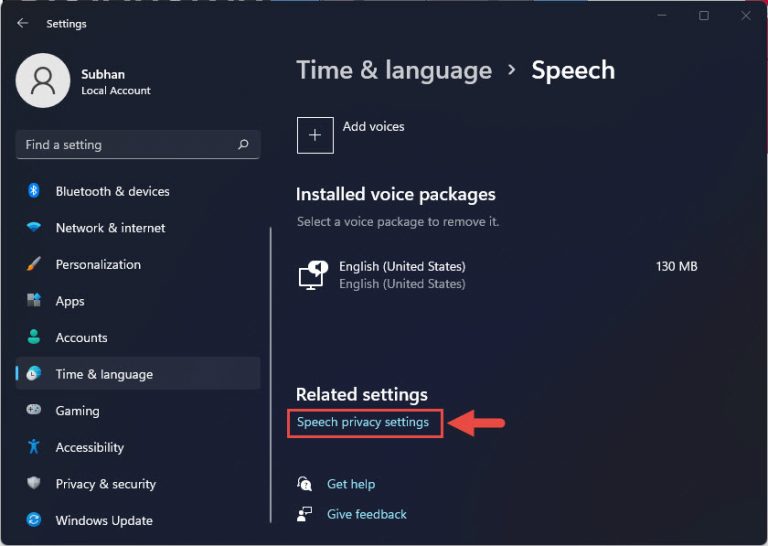
Speech සහ microphone privacy settings.
Add a Language for Voice Typing
Voice typing වැඩ කරන්නේ ඔයාගේ PC එකේ install කරපු languages වල. වෙන language එකකින් dictate කරන්න මුලින්ම ඒකේ language pack එක එකතු කරන්න.
1. Settings open කරලා Time & language > Language & region වෙත යන්න.
2. Add a language click කරලා ඔයාට ඕන language එක තෝරන්න.
3. Installation එකේදී Speech recognition component එක selected කියලා confirm කරලා, Install click කරන්න.
4. Install වුණාට පස්සේ, text field එකක් open කරලා, Windows + H press කරලා, toolbar එකේ settings gear එකෙන් ඔයාගේ language එක තෝරන්න.
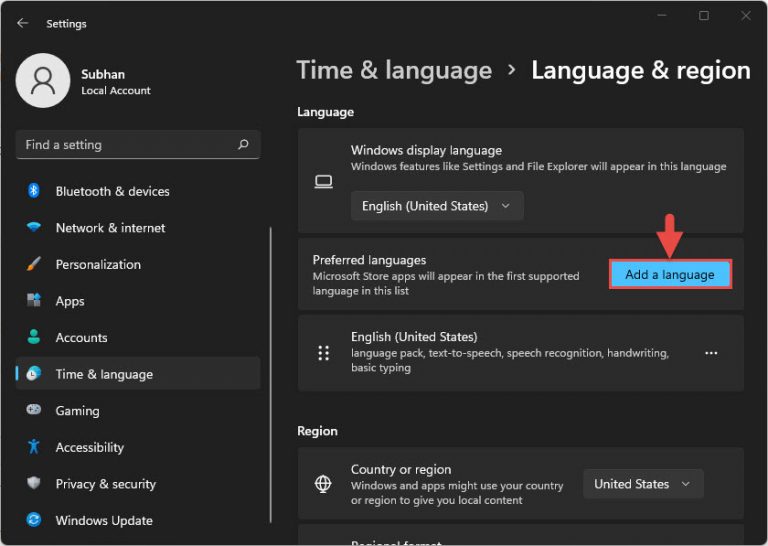
Speech support එක්ක අලුත් language එකක් එකතු කිරීම.
Enable Automatic Punctuation
Automatic punctuation එකෙන් ඔයාගේ speech patterns අනුව commas, periods, question marks ඔයාට insert කරලා දෙනවා. Voice typing toolbar එකේ settings gear එක open කරලා Automatic punctuation on කරන්න. Voice commands වලින් manually punctuation එකතු කරන්නත් පුළුවන්.
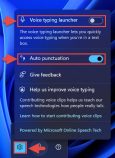
Automatic punctuation on කිරීම.
Useful Voice Commands
- Punctuation insert කරන්න "period", "comma", "question mark", නැත්නම් "exclamation mark" කියන්න.
- Cursor එක පහළට move කරන්න "new line" නැත්නම් "new paragraph" කියන්න.
- අන්තිමට කතා කරපු phrase එක remove කරන්න "delete that" කියන්න.
- Voice typing pause කරන්න "stop listening" කියන්න.
Tip: වචනයක් නිතරම වැරදියට recognize වෙනවා නම්, ඒක තව පැහැදිලිව කතා කරන්න නැත්නම් අමාරු names හඬින් spell කරන්න. Good-quality microphone එකකින් සහ අඩු background noise එකකින් recognition එක වැඩි දියුණු වෙනවා.
Troubleshooting
Problem: Windows + H press කරාට මුකුත් වෙන්නේ නැහැ.
Solution: මුලින්ම editable text field එකක් ඇතුළේ click කරන්න — cursor එක text accept කරන තැනක තියෙනකොට විතරයි shortcut එකෙන් toolbar එක open වෙන්නේ. ඔයාගේ keyboard shortcut keys වැඩ කරනවද කියලාත් confirm කරන්න.
Problem: Voice typing එකට මගේ කතාව අහන්න බැහැ.
Solution: Settings > System > Sound open කරලා නිවැරදි microphone එක default input device එක විදිහට set කරලා තියෙනවද, ඒකේ volume එක උඩද කියලා confirm කරන්න. Input settings යටතේ test කරන්න.
Problem: Recognition එක inaccurate නැත්නම් හරි slow.
Solution: Online speech recognition එකට internet එක ඕන නිසා ඔයාගේ internet connection එක check කරන්න. Background noise අඩු කරලා steady pace එකකින් කතා කරන්න.
Problem: මගේ language එක toolbar එකේ නැහැ.
Solution: Settings > Time & language > Language & region යටතේ language එක එකතු කරලා Speech component එක install වෙලා තියෙනවා confirm කරලා, voice typing restart කරන්න.
Conclusion
Voice typing කියන්නේ keyboard එකක් නැතුව text enter කරන්න ඉක්මන්, accessible ක්රමයක්. Windows + H shortcut එකයි voice commands කිහිපයක්යි ඉගෙනගත්තට පස්සේ, emails, notes, documents සුව පහසුවෙන් dictate කරන්න පුළුවන්. ඔයාට ඕන languages එකතු කරලා automatic punctuation enable කරලා experience එක තව සුමට කරගන්න.
About TechHub
මේ guide එක TechHub Knowledge Base එකේ කොටසක්. තව step-by-step IT guides සහ support වලට techhub.com.lk එකට යන්න.