How to View BIOS Information from Within Windows (Without Restarting)
Check your BIOS/UEFI version, vendor, and mode using PowerShell, wmic, and System Information.
Overview
You don’t need to reboot into firmware to see your BIOS version — Windows exposes it. This guide shows how to view BIOS/UEFI details using PowerShell, wmic, and System Information, handy before a firmware update.
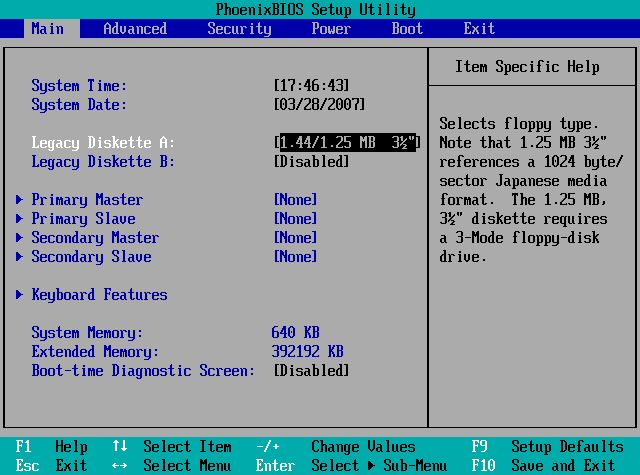
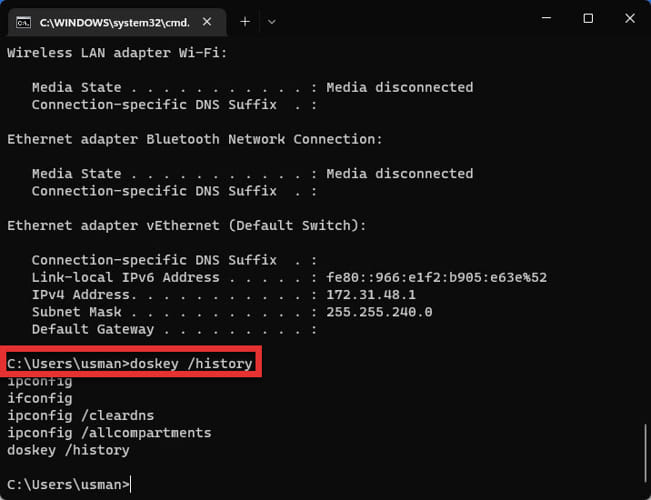
Viewing BIOS information from within Windows.
Key Takeaways
- PowerShell and wmic report the BIOS version/vendor.
- System Information (msinfo32) shows version and BIOS mode (UEFI/Legacy).
- No restart needed to read the version.
- Useful before checking for firmware updates.
Method 1: PowerShell
1. Open PowerShell.
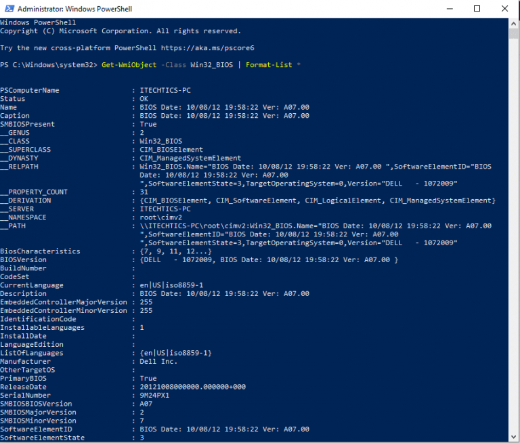
2. Run: Get-CimInstance -ClassName Win32_BIOS
3. Read SMBIOSBIOSVersion, Manufacturer, and ReleaseDate.
4. For a quick version: (Get-CimInstance Win32_BIOS).SMBIOSBIOSVersion
Method 2: Command Prompt (wmic / systeminfo)
1. Run: wmic bios get smbiosbiosversion, manufacturer, releasedate
2. Or run systeminfo and read the "BIOS Version" line.
3. These give the version without rebooting.
Method 3: System Information
1. Run msinfo32.
2. On System Summary, read "BIOS Version/Date" and "BIOS Mode" (UEFI or Legacy).
3. Note the mode if you plan to convert MBR↔GPT or enable Secure Boot.
Troubleshooting
Problem: Version looks generic.
Solution: Compare with the OEM/motherboard support page; use the board model (also in msinfo32) to find updates.
Problem: Need BIOS mode (UEFI/Legacy).
Solution: Check "BIOS Mode" in msinfo32 System Summary.
Problem: wmic missing.
Solution: wmic is deprecated on newer Windows 11 — use the PowerShell Get-CimInstance Win32_BIOS method.
Problem: Planning a BIOS update.
Solution: Note the exact version and board model, then download the update only from the OEM’s official site.
Conclusion
Windows lets you read your BIOS version and mode without rebooting: use PowerShell’s Get-CimInstance Win32_BIOS, wmic/systeminfo, or msinfo32. Note the version and board model before downloading any firmware update from the manufacturer.