Overview
PC එක crash වෙනවා නම්, freeze වෙනවා නම්, නැත්නම් අහම්බෙන් restart වෙනවා නම්, Windows එකේ error සහ crash logs වලින් ඇයි කියලා හොයාගන්න පුළුවන්. මේ guide එකෙන් Event Viewer එකෙන් detailed logs බලන ආකාරය සහ Reliability Monitor එකෙන් stability timeline එකක් බලන ආකාරය පෙන්නනවා.
Windows එකේ crash/error logs බලලා problems diagnose කරන්න.
Key Takeaways
- Event Viewer (eventvwr.msc) එකෙන් detailed system සහ application logs පෙන්නනවා.
- System logs යටතේ Error/Critical events වලින් crashes සහ hardware issues පෙන්නනවා.
- Reliability Monitor එකෙන් crashes සහ failures easy-to-read timeline එකක තියෙනවා.
- Event IDs සහ sources එකෙන් root cause හොයන්න online search කරන්න පුළුවන්.
Method 1 — Event Viewer පාවිච්චි කරන්න
1. Windows key + R press කරලා eventvwr.msc type කරලා Enter කරන්න.
2. වම් පැත්තෙන් Windows Logs expand කරන්න.
3. System click කරන්න (hardware/driver/system crashes වලට) හෝ Application (app crashes වලට).
4. Level column එකේ Error සහ Critical entries හොයන්න.
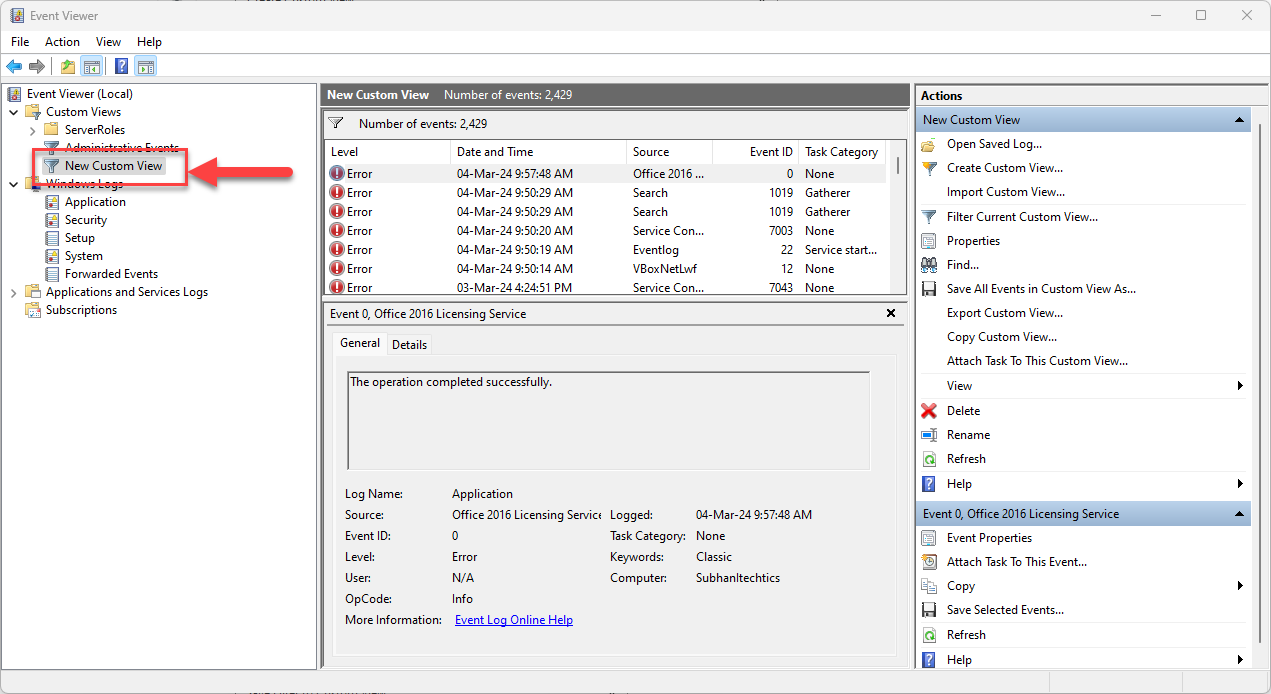
Event Viewer එකේ System log එක Error/Critical events පෙන්නනවා.
Events Filter කරන්න
1. දකුණු පැත්තෙන් Filter Current Log... click කරන්න.
2. Critical සහ Error levels tick කරන්න.
3. ඕන නම් date range හෝ specific Event IDs එකෙන් narrow කරන්න.
4. Event එකක් click කරලා General tab එකේ description, Event ID සහ source බලන්න — root cause හොයන්න ඒවා online search කරන්න.
Method 2 — Reliability Monitor පාවිච්චි කරන්න
1. Windows key + R press කරලා perfmon /rel type කරලා Enter කරන්න.
2. Reliability Monitor එකෙන් daily stability graph එකක් පෙන්නනවා, crashes red X marks විදිහට.
3. Details බලන්න ඕන දවසක් click කරන්න.
4. "View all problem reports" click කරලා crashes/failures list එකක් බලන්න — Event Viewer එකට වඩා ලේසියෙන් තේරෙනවා.
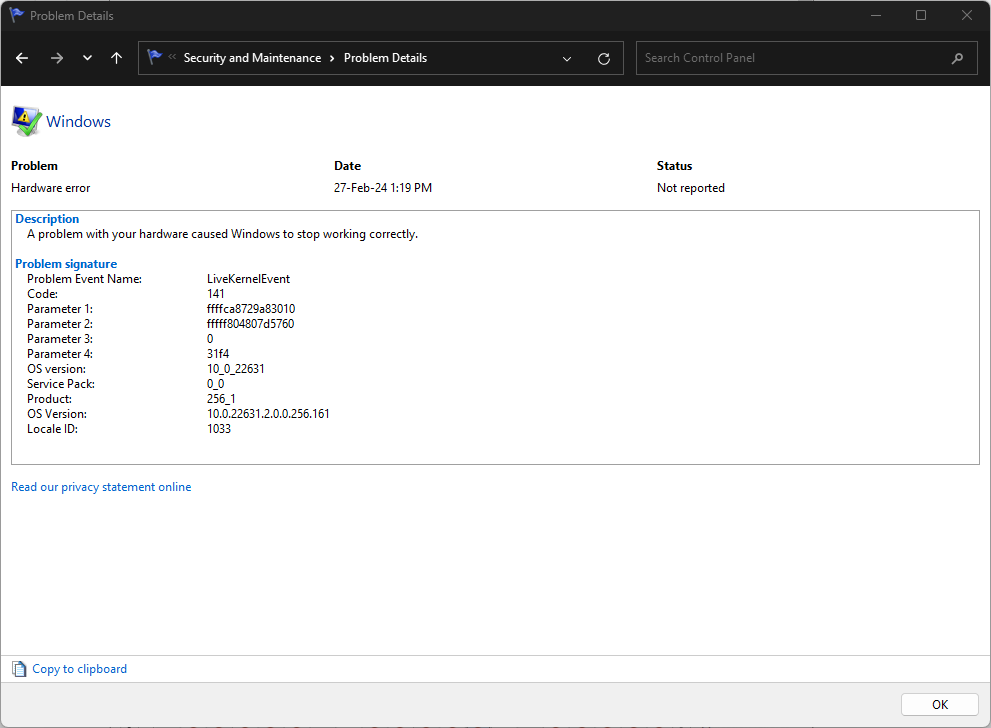
Reliability Monitor එකෙන් crashes සහ failures timeline එකක තියෙනවා.
Troubleshooting
Problem: Errors ගොඩක් — වැදගත් එක කොයිද?
Solution: Crash/freeze එක වෙච්ච වෙලාවට ළඟ Critical/Error events වලට focus කරන්න; recurring Event IDs බලන්න.
Problem: Event descriptions තේරෙන්නේ නෑ.
Solution: Event ID එකයි source එකයි (බ. Kernel-Power, Application Error) එකට online search කරන්න — ඒවාට known causes සහ fixes තියෙනවා.
Problem: Reliability Monitor එකේ data නෑ.
Solution: ඒක නැවත populate වෙන්න දවසක් දෙකක් යන්න පුළුවන්; monitoring off නම්, Reliability Monitor එකේ එයාට අදාළ scheduled task එක enabled කියලා confirm කරන්න.
Problem: Kernel-Power (Event ID 41) unexpected shutdowns පෙන්නනවා.
Solution: බොහෝවිට power/hardware issue එකක් — power connections, PSU, drivers සහ overheating බලන්න.
Conclusion
Event Viewer සහ Reliability Monitor එකෙන් Windows එකේ අඩුපාඩු පෙන්නනවා. Detailed entries වලට Event Viewer එකයි, ඉක්මන් visual timeline එකකට Reliability Monitor එකයි පාවිච්චි කරන්න — Event IDs එකෙන් crashes වල root cause හොයාගන්න.
About TechHub
මේ guide එක TechHub Knowledge Base එකේ කොටසක්. තව step-by-step IT guides සහ support වලට techhub.com.lk එකට යන්න.