Overview
Windows Test Mode (test signing) lets Windows load drivers that are not signed by a trusted certificate — useful for developers testing their own drivers, or to install niche hardware drivers. While active, a "Test Mode" watermark appears on the desktop. This guide shows how to enable and disable it.
Test Mode allows unsigned or in-development drivers to load.
Warning: Test Mode reduces a security protection. Only enable it to install drivers you trust, and turn it off again afterward.
Key Takeaways
- Test Mode allows unsigned/test-signed drivers to load.
- Enable it with bcdedit /set testsigning on (admin).
- A "Test Mode" watermark appears on the desktop while it is active.
- Disable it with bcdedit /set testsigning off and restart.
What Is Test Mode?
Normally Windows requires kernel-mode drivers to be digitally signed. Test Mode relaxes this so developers can load test-signed or unsigned drivers during development, and users can install certain unsigned drivers. The watermark is a reminder that this protection is relaxed.
How to Enable Test Mode
1. Open Command Prompt as administrator.
2. Run: bcdedit /set testsigning on
3. Restart the PC.
4. After reboot, the "Test Mode" watermark appears in the bottom-right corner, confirming it is active.
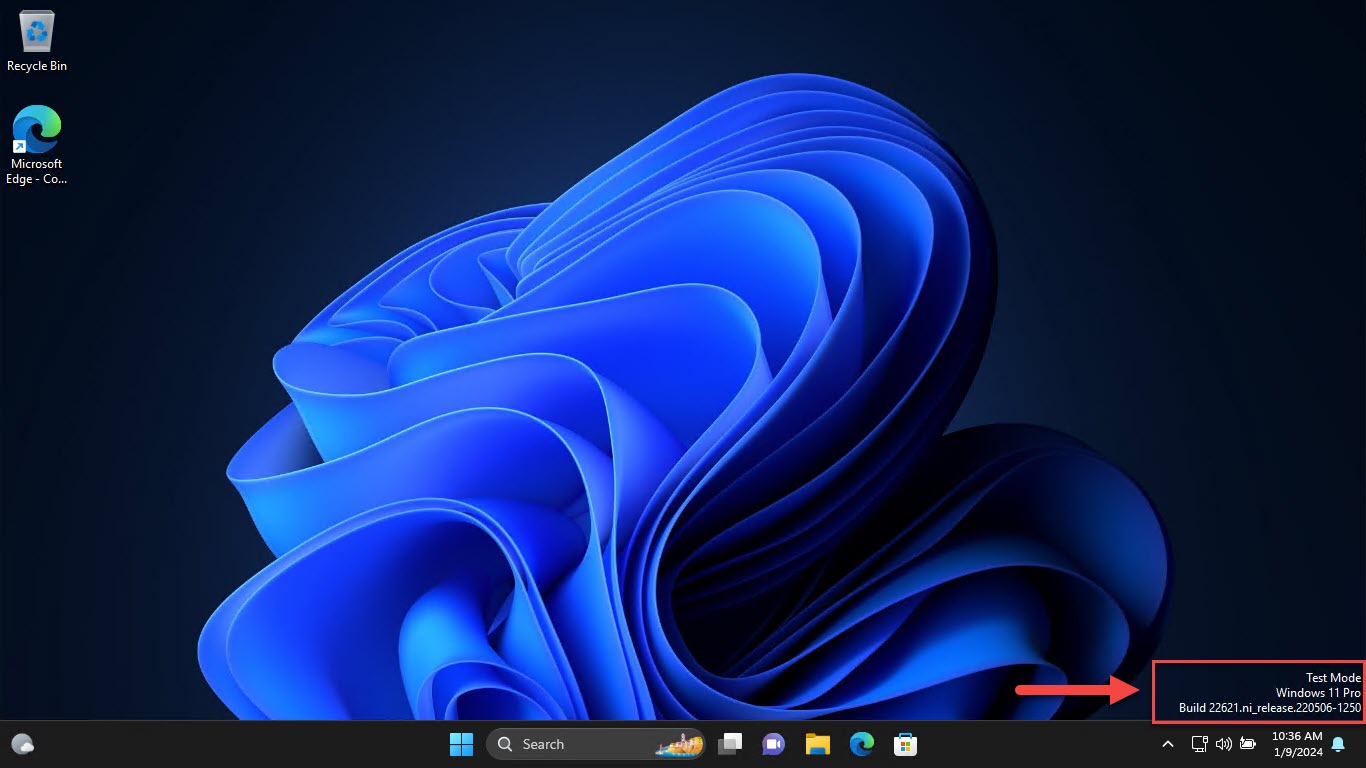
Test Mode activated successfully (note the desktop watermark).
Note: If the command fails with "secure boot" or "protected by policy", disable Secure Boot in UEFI first, then re-run it.
How to Disable Test Mode (Remove the Watermark)
1. Open Command Prompt as administrator.
2. Run: bcdedit /set testsigning off
3. Restart the PC.
4. The watermark disappears and normal driver signature enforcement resumes.
Troubleshooting
Problem: "The value is protected by Secure Boot policy".
Solution: Disable Secure Boot in UEFI/BIOS, run the bcdedit command, then re-enable Secure Boot afterward if desired.
Problem: The watermark remains after disabling.
Solution: Ensure you ran bcdedit as administrator and restarted. Also check no other test/integrity flags are set (bcdedit /enum).
Problem: Test Mode will not enable.
Solution: Run Command Prompt as administrator, and confirm Secure Boot is off if the policy blocks it.
Problem: You forgot whether it is on.
Solution: Look for the watermark, or run bcdedit /enum and check the testsigning value.
Conclusion
Test Mode is handy for installing unsigned or in-development drivers, toggled with two simple bcdedit commands. Enable it only for trusted drivers, and switch it back off — removing the watermark — once you are finished.
</w:pBdr><w:spacing w:before="220" w:after="40"/></w:pPr><w:r><w:rPr><w:b/><w:bCs/><w:color w:val="0B5394"/><w:sz w:val="21"/><w:szCs w:val="21"/><w:rFonts w:ascii="Calibri" w:cs="Calibri" w:eastAsia="Calibri" w:hAnsi="Calibri"/></w:rPr><w:t xml:space="preserve">About TechHub
This guide is part of the TechHub Knowledge Base. For more step-by-step IT guides and support, visit techhub.com.lk.