Overview
Local Administrators group එකේ members ලට elevated rights තියෙනවා — ඒ අයට software install කරන්න, system settings වෙනස් කරන්න, සහ වෙනත් accounts manage කරන්න පුළුවන්. මේ guide එකෙන් Windows එකේ Administrators group එකට user කෙනෙක් add කරන්න ක්රම හතරක්, Settings app එකේ ඉඳන් PowerShell දක්වා පෙන්නනවා.
Administrators group එකට user කෙනෙක් add කරන එකෙන් සම්පූර්ණ elevated rights ලබා දෙනවා.
Key Takeaways
- Administrators ලට apps install කරන්නත් ඕනෑම system setting එකක් වෙනස් කරන්නත් පුළුවන්.
- Settings app එක තමයි ලේසිම ක්රමය: account type එක Administrator එකට වෙනස් කරන්න.
- Command Prompt සහ PowerShell වලින් command එකකින් මේක කරන්න පුළුවන්.
- admin rights ටිකෙන් ටික දෙන්න — security එකට everyday accounts Standard users විදිහට තියාගන්න.
Warning: ඔයා විශ්වාස කරන accounts වලට විතරක් administrator rights දෙන්න. malware වලට වෙනස් කරන්න පුළුවන් දේ සීමා කරන නිසා everyday පාවිච්චියට Standard accounts සුරක්ෂිතයි.
Method 1 — Settings App
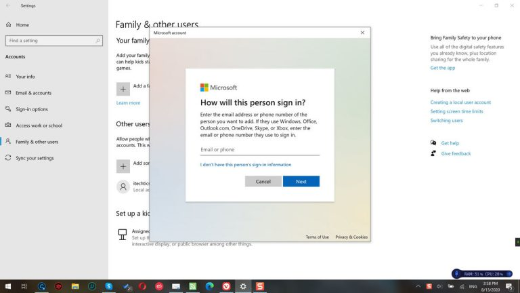
1. Settings > Accounts > Other users open කරන්න.
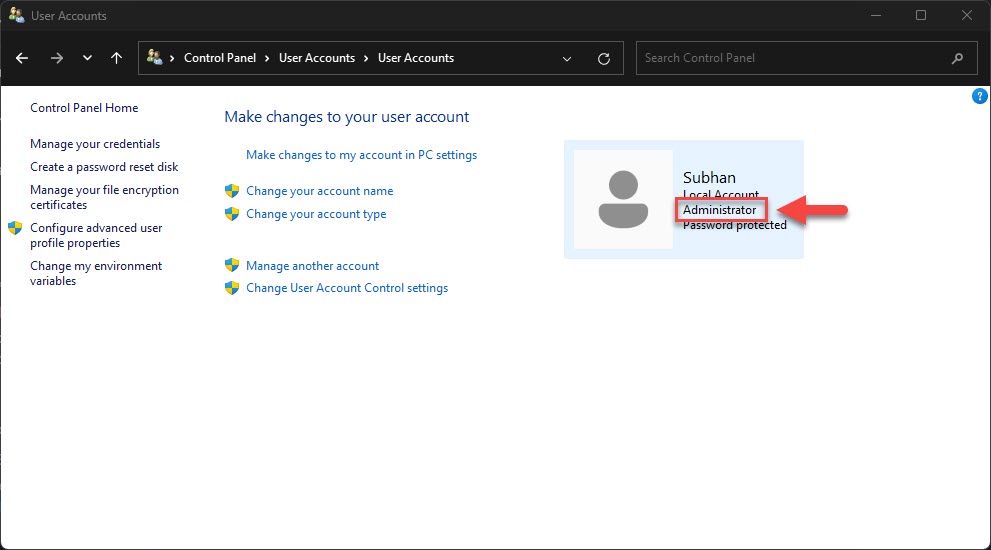
2. account එක select කරලා Change account type click කරන්න.
3. drop-down එකෙන් Administrator තෝරලා OK click කරන්න.
Method 2 — Computer Management (Local Users and Groups)
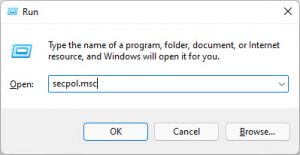
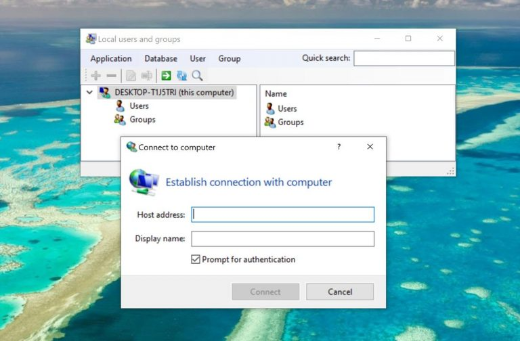
1. Windows key + R press කරලා, lusrmgr.msc type කරලා, Enter press කරන්න (Pro/Enterprise editions).
2. Groups open කරලා Administrators double-click කරන්න.
3. Add click කරලා, user name එක type කරලා, Check Names click කරලා, ඊට පස්සේ OK.
Method 3 — Command Prompt
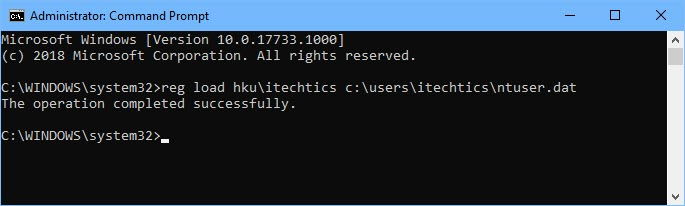
1. Windows key + R press කරලා, cmd type කරලා, elevated prompt එකකට Ctrl + Shift + Enter press කරන්න.
2. Run කරන්න: net localgroup administrators "USERNAME" /add
3. USERNAME account name එකෙන් replace කරන්න. පස්සේ remove කරන්න, /add වෙනුවට /delete පාවිච්චි කරන්න.
Method 4 — PowerShell
1. Start right-click කරලා Windows PowerShell (Admin) open කරන්න.
2. Run කරන්න: Add-LocalGroupMember -Group "Administrators" -Member "USERNAME"
3. මේකෙන් verify කරන්න: Get-LocalGroupMember -Group "Administrators"
Troubleshooting
Problem: command run කරද්දි "Access denied".
Solution: Command Prompt හෝ PowerShell administrator විදිහට open කරන්න (Ctrl + Shift + Enter) — group membership වෙනස් කිරීමට elevation අවශ්යයි.
Problem: user name එක හම්බ වෙන්නේ නෑ.
Solution: හරියටම local account name එක පාවිච්චි කරන්න (accounts list කරන්න net user run කරන්න), හෝ domain accounts වලට DOMAIN\user.
Problem: Change account type greyed out වෙලා.
Solution: වෙන account එකක type එක වෙනස් කරන්න ඔයා administrator විදිහට sign in වෙලා ඉන්න ඕනෑ.
Problem: ඔයාට admin rights revoke කරන්න ඕනෑ.
Solution: Settings එකේදී type එක ආපහු Standard user එකට වෙනස් කරන්න, හෝ net localgroup administrators "USERNAME" /delete run කරන්න.
Conclusion
Administrators group එකට user කෙනෙක් add කිරීම Settings එකේ හෝ command එකකින් ඉක්මන්. මේ rights අවශ්ය වුණාම විතරක් දෙන්න, සහ සුරක්ෂිතව ඉන්න everyday accounts Standard users විදිහට තියාගන්න.
About TechHub
මේ guide එක TechHub Knowledge Base එකේ කොටසක්. තව step-by-step IT guides සහ support වලට techhub.com.lk එකට යන්න.