Overview
Optional updates (non-security driver and feature previews) normally need manual approval in Windows Update. On Windows 11 you can configure them to install automatically — useful for keeping a fleet of PCs current. This guide shows how, using Group Policy or the registry.
Configure optional Windows updates to install automatically.
Key Takeaways
- Optional updates are usually manual; a policy can automate them.
- Use the "Enable optional updates" Group Policy, or the AllowOptionalContent registry value.
- This applies to driver and other optional/preview content via Windows Update.
- Requires a supported Windows 11 build.
Prerequisites
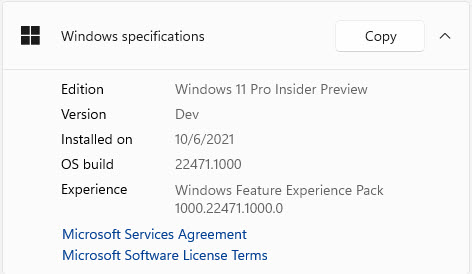
- A recent Windows 11 build that supports the optional-updates policy (check with winver).
- Administrator rights.
- Group Policy Editor (Pro/Enterprise) or registry access (all editions).
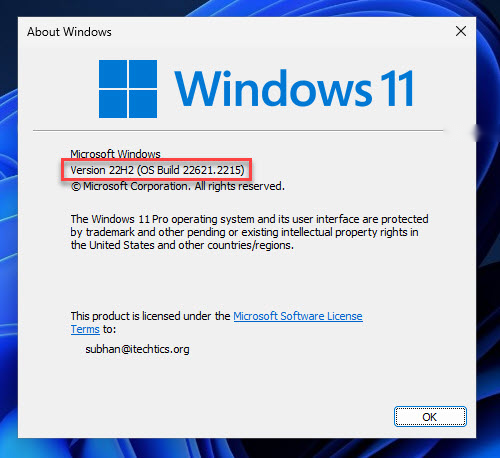
Check your OS build and version with winver.
Method 1 — Group Policy
1. Press Windows key + R, type gpedit.msc, and press Enter.
2. Go to Computer Configuration > Administrative Templates > Windows Components > Windows Update > Manage updates offered from Windows Update.
3. Open "Enable optional updates".
4. Set it to Enabled and choose to "Automatically receive optional updates (including CFRs)", then click OK.
5. Run gpupdate /force.
Method 2 — Registry (Home Editions)
Warning: Back up the registry before editing.
1. Open Registry Editor and go to HKEY_LOCAL_MACHINE\SOFTWARE\Policies\Microsoft\Windows\WindowsUpdate (create the key if needed).
2. Create a DWORD named AllowOptionalContent.
3. Set it to 2 to install all optional updates automatically (1 = make them available; 0 = off).
4. Restart the PC.
Verify It Works
1. Open Settings > Windows Update > Advanced options > Optional updates.
2. Optional updates should now download/install according to your policy.
3. Check update history to confirm optional items installed.
Troubleshooting
Problem: The policy is not present.
Solution: Update Windows 11 to a build that includes the "Enable optional updates" policy, then re-check gpedit.
Problem: Optional updates still need manual approval.
Solution: Confirm AllowOptionalContent is set to 2 (or the GPO is Enabled with the automatic option), and run gpupdate /force then restart.
Problem: You want only some optional updates.
Solution: Set the value to 1 (make available) instead of 2, so you can review and pick them manually.
Problem: A driver from optional updates caused issues.
Solution: Roll it back in Device Manager and consider setting optional updates to manual to vet drivers first.
Conclusion
On supported Windows 11 builds, the "Enable optional updates" policy (or the AllowOptionalContent registry value) lets you automate optional updates. Set it to automatic for hands-off currency, or "make available" if you prefer to review drivers first.
</w:pBdr><w:spacing w:before="220" w:after="40"/></w:pPr><w:r><w:rPr><w:b/><w:bCs/><w:color w:val="0B5394"/><w:sz w:val="21"/><w:szCs w:val="21"/><w:rFonts w:ascii="Calibri" w:cs="Calibri" w:eastAsia="Calibri" w:hAnsi="Calibri"/></w:rPr><w:t xml:space="preserve">About TechHub
This guide is part of the TechHub Knowledge Base. For more step-by-step IT guides and support, visit techhub.com.lk.