Overview
ඔබේ RAM size, speed, සහ type දැනගන්න එක upgrades, troubleshooting, සහ gaming වලට උදව්. Windows එකෙන් මේ ඔක්කොම command line එකෙන් හෝ built-in tools වලින් බලන්න පුළුවන්. මේ guide එකෙන් full memory details ගන්න ඉක්මන්ම ක්රම පෙන්නනවා.
Command line එකෙන් ඔබේ RAM size, speed, සහ type බලන්න.
Key Takeaways
- PowerShell එකේ Get-CimInstance Win32_PhysicalMemory එකෙන් full per-module detail දෙනවා.
- SystemInfo සහ Task Manager total සහ available RAM ඉක්මනට පෙන්නනවා.
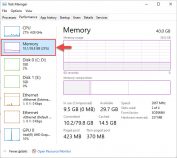
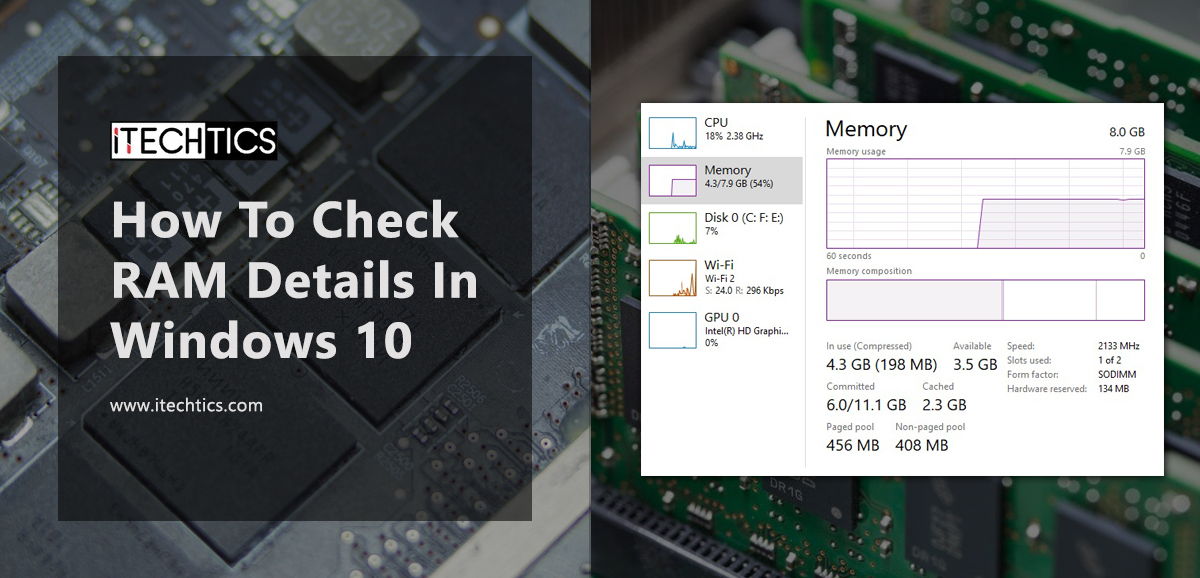
- Task Manager > Performance > Memory එකෙන් speed, slots used, සහ form factor පෙන්නනවා.
- Upgrade කරනකොට RAM type (DDR4/DDR5) සහ speed match කරන්න.
Method 1 — PowerShell (Detailed)
1. PowerShell open කරන්න.
2. Run: Get-CimInstance Win32_PhysicalMemory | Select-Object Capacity,Speed,Manufacturer,PartNumber,DeviceLocator
3. Capacity bytes වලින් (1GB එකෙන් බෙදන්න), Speed MHz වලින්, DeviceLocator එකෙන් slot එක පෙන්නනවා.
4. Total memory වලට: (Get-CimInstance Win32_ComputerSystem).TotalPhysicalMemory
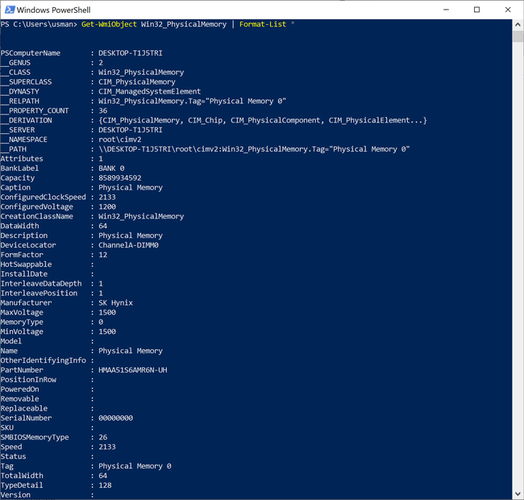
PowerShell එකෙන් detailed RAM information.
Method 2 — SystemInfo Command
1. Command Prompt open කරන්න.
2. Run: systeminfo | findstr /C:"Total Physical Memory" /C:"Available Physical Memory"
3. මේකෙන් installed සහ available RAM පෙන්නනවා.
Method 3 — Task Manager
1. Ctrl + Shift + Esc press කරලා Performance tab එක open කරන්න.
2. Memory select කරන්න.
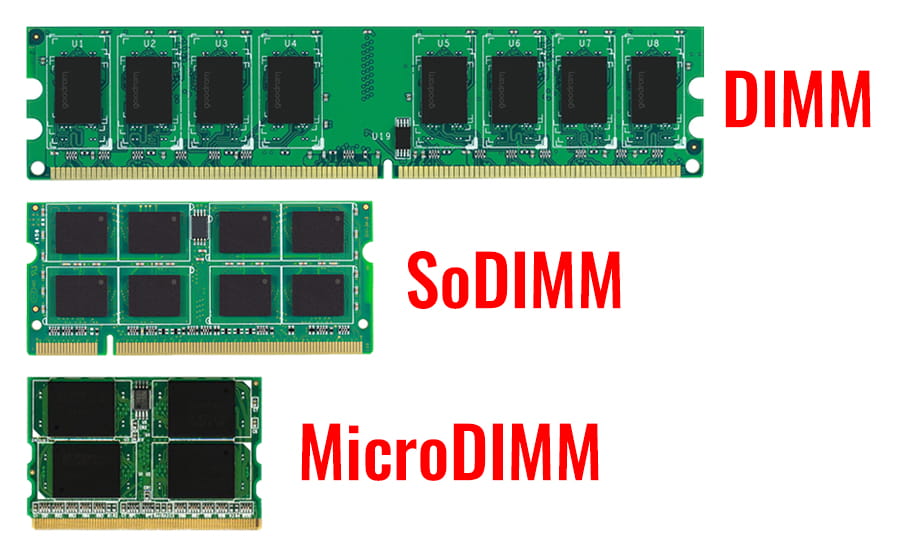
3. Total RAM, speed (MHz), slots used, සහ form factor (DIMM/SODIMM) බලන්න.
Method 4 — System Information සහ DxDiag
1. Windows key + R press කරලා msinfo32 type කරලා Enter කරලා Installed Physical Memory බලන්න.
2. නැත්නම් dxdiag run කරලා System tab එකේ Memory value එක බලන්න.
RAM Type බලන්න (DDR4 vs DDR5)
1. Task Manager > Performance > Memory open කරලා type එක බලන්න, නැත්නම් full SPD detail වලට CPU-Z පාවිච්චි කරන්න.
2. PowerShell එකේ, Get-CimInstance Win32_PhysicalMemory එකේ SMBIOSMemoryType තියෙනවා (බ. 26 = DDR4, 34 = DDR5).
3. අමතර RAM ගන්නකොට type එකයි speed එකයි match කරන්න.
Frequently Asked Questions
Problem: කවදද RAM upgrade කරන්නේ?
Solution: Task Manager එකේ memory usage නිතරම high, apps slow වෙනවා හෝ disk එකට swap වෙනවා නම්, තව RAM උදව් වෙයි.
Problem: Install කරන්න පුළුවන් maximum RAM එක කීයද?
Solution: Slot එකකට maximum supported capacity සහ speed එකට ඔබේ motherboard/laptop specifications බලන්න.
Problem: PowerShell capacity එක වැරදියි වගේ.
Solution: Capacity bytes වලින් — GB ගන්න 1073741824 එකෙන් බෙදන්න.
Problem: WMIC commands fail වෙනවා.
Solution: WMIC deprecated; PowerShell එකේ equivalent Get-CimInstance Win32_PhysicalMemory පාවිච්චි කරන්න.
Conclusion
Full RAM detail වලට, PowerShell එකේ Get-CimInstance Win32_PhysicalMemory එක වඩාත්ම complete; ඉක්මන් checks වලට Task Manager සහ SystemInfo හොඳයි. අලුත් modules match වෙන්න upgrade කරන්න කලින් type එකයි speed එකයි note කරන්න.
About TechHub
මේ guide එක TechHub Knowledge Base එකේ කොටසක්. තව step-by-step IT guides සහ support වලට techhub.com.lk එකට යන්න.