Overview
Windows 11 වලට Windows 10 එකට වඩා දැඩි hardware requirements තියෙනවා — TPM 2.0 සහ Secure Boot ඇතුළුව. මේ guide එකෙන් Microsoft's official PC Health Check app එකෙන් compatibility verify කරන ආකාරය සහ එක එක requirement manually check කරන ආකාරය පෙන්නනවා.
Windows 11 system requirements.
Key Takeaways
- PC Health Check කියන්නේ Microsoft's official compatibility tool එක.
- ප්රධාන requirements: TPM 2.0, Secure Boot, supported 64-bit CPU එකක්, 4 GB RAM, 64 GB storage.
- එක එක requirement Windows එකේ manually verify කරන්න පුළුවන්.
- Accuracy වලට third-party checkers වලට වඩා official tool එක prefer කරන්න.
Official PC Health Check App එක පාවිච්චි කරන්න
Warning: Fake හෝ bundled installers avoid කරන්න PC Health Check download කරන්නේ Microsoft's official website එකෙන් විතරයි.
1. Microsoft's official site එකෙන් "PC Health Check" download කරලා install කරන්න.
2. App එක open කරලා Windows 11 section එකේ "Check now" click කරන්න.
3. Result එක කියවන්න — ඔබේ PC එක requirements සම්පූර්ණ කරනවද පෙන්නනවා.
4. Fail වුණොත්, කොයි specific requirement එකද unmet කියලා බලන්න "See all results" click කරන්න.
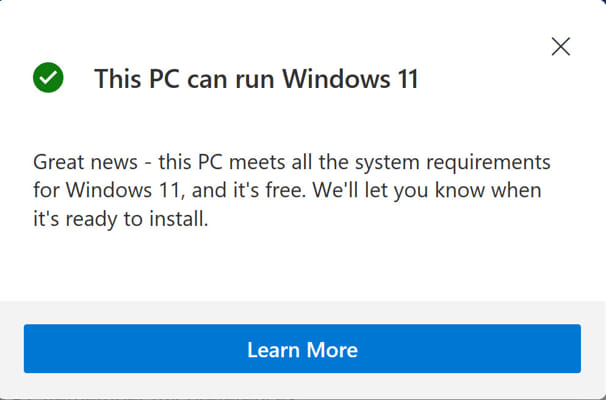
Compatible system එකක් check එක pass කරනවා.
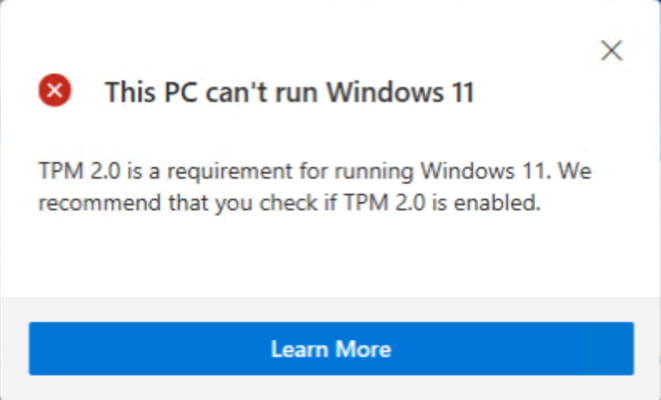
Incompatible system එකක් failing requirement එක පෙන්නනවා.
Requirements Manually Verify කරන්න
Processor
1. Settings > System > About open කරලා CPU එක note කරන්න.
2. ඒක 64-bit, 1 GHz+, cores 2+, Microsoft's supported CPU list එකේ කියලා confirm කරන්න.
TPM සහ Firmware (Secure Boot)
1. Windows + R press කරලා tpm.msc type කරලා Enter කරලා TPM 2.0 present සහ ready කියලා confirm කරන්න.
2. msinfo32 run කරලා "Secure Boot State" On, "BIOS Mode" UEFI කියලා බලන්න.
RAM සහ Storage
1. Settings > System > About එකේ, අඩුම 4 GB RAM කියලා confirm කරන්න.
2. Settings > System > Storage එකේ, අඩුම 64 GB total capacity කියලා confirm කරන්න.
Graphics සහ Display
1. GPU එක DirectX 12 / WDDM 2.0 support කරනවා කියලා බලන්න.
2. Display එක 720p හෝ ඉහළ, 9"+ diagonal, 8 bits per colour channel කියලා confirm කරන්න.
Troubleshooting
Problem: TPM 2.0 detect වෙන්නේ නෑ.
Solution: UEFI/BIOS එකේ ඒක enable කරන්න (බොහෝවිට Intel වලට PTT හෝ AMD වලට fTPM කියලා label කරලා); ඒක නිතරම default විදිහට disabled.
Problem: Secure Boot off.
Solution: UEFI එකේ Secure Boot enable කරන්න; disk එක legacy MBR වෙනුවට GPT/UEFI පාවිච්චි කරනවා කියලා බලන්න.
Problem: CPU එක unsupported විදිහට listed.
Solution: Microsoft's list එකෙන් පරණ CPUs exclude කරනවා; firmware update එකක් බලන්න, ඒත් unsupported CPUs officially qualify නොවෙන්න පුළුවන්.
Problem: PC Health Check install වෙන්නේ නෑ.
Solution: Microsoft එකෙන් latest version එක download කරලා administrator විදිහට run කරන්න.
Conclusion
Windows 11 compatibility confirm කරන්න වේගවත්ම ක්රමය Microsoft's PC Health Check app එක, TPM, Secure Boot, CPU, RAM, සහ storage වල manual checks වලින් backed up කරලා. Check එකක් fail වුණොත්, වඩාත්ම common fix එක UEFI firmware එකේ TPM සහ Secure Boot enable කරන එක.
About TechHub
මේ guide එක TechHub Knowledge Base එකේ කොටසක්. තව step-by-step IT guides සහ support වලට techhub.com.lk එකට යන්න.