Overview
Exporting and importing Group Policy lets you back up local policy, replicate settings on another PC, or move a GPO between domains. This guide covers the file-based local method and the Group Policy Management Console (GPMC) backup/import for domains.
Export and import Group Policy settings between machines.
Key Takeaways
- Local Group Policy can be copied via the GroupPolicy folder.
- Domain GPOs are backed up and imported through the GPMC.
- Importing into a domain GPO requires a backup made by Backup-GPO/GPMC.
- Always test imported policy in a controlled scope first.
Method 1 — Local Group Policy via File Explorer
1. On the source PC, ensure hidden items are shown in File Explorer.
2. Copy the folder C:\Windows\System32\GroupPolicy (and GroupPolicyUsers if present).
3. On the target PC, paste it into the same location, overwriting as needed.
4. Run gpupdate /force, then restart to apply.
Note: This copies registry-based local policy. It works best between similar Windows versions/editions.
Method 2 — Domain GPOs via GPMC
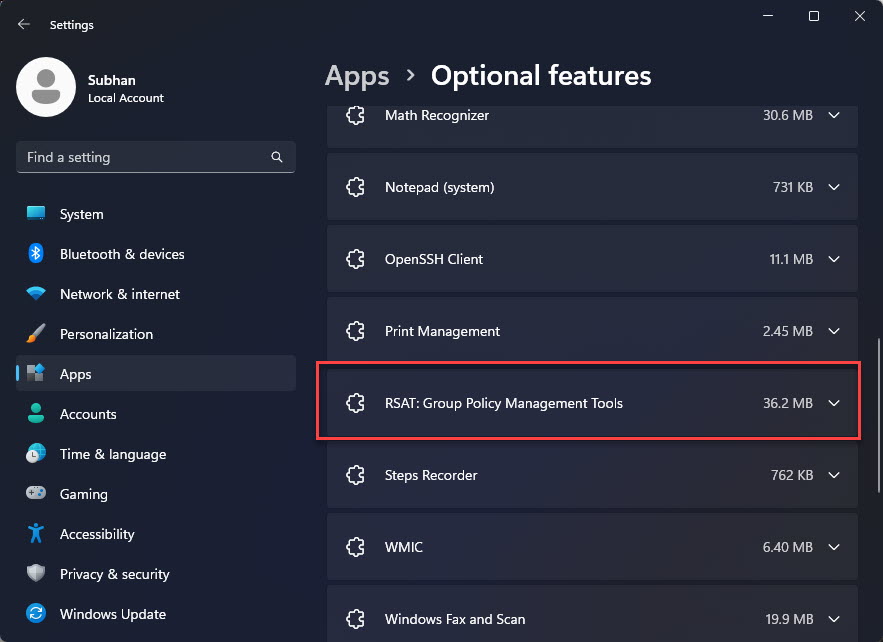
1. Open Group Policy Management Console (gpmc.msc).
2. Right-click the GPO and choose Back Up; pick a folder for the backup.
3. To import, create or select a target GPO, right-click it, and choose Import Settings.
4. Point the wizard at your backup folder and complete the import.
Export/Import Between Domains (PowerShell)
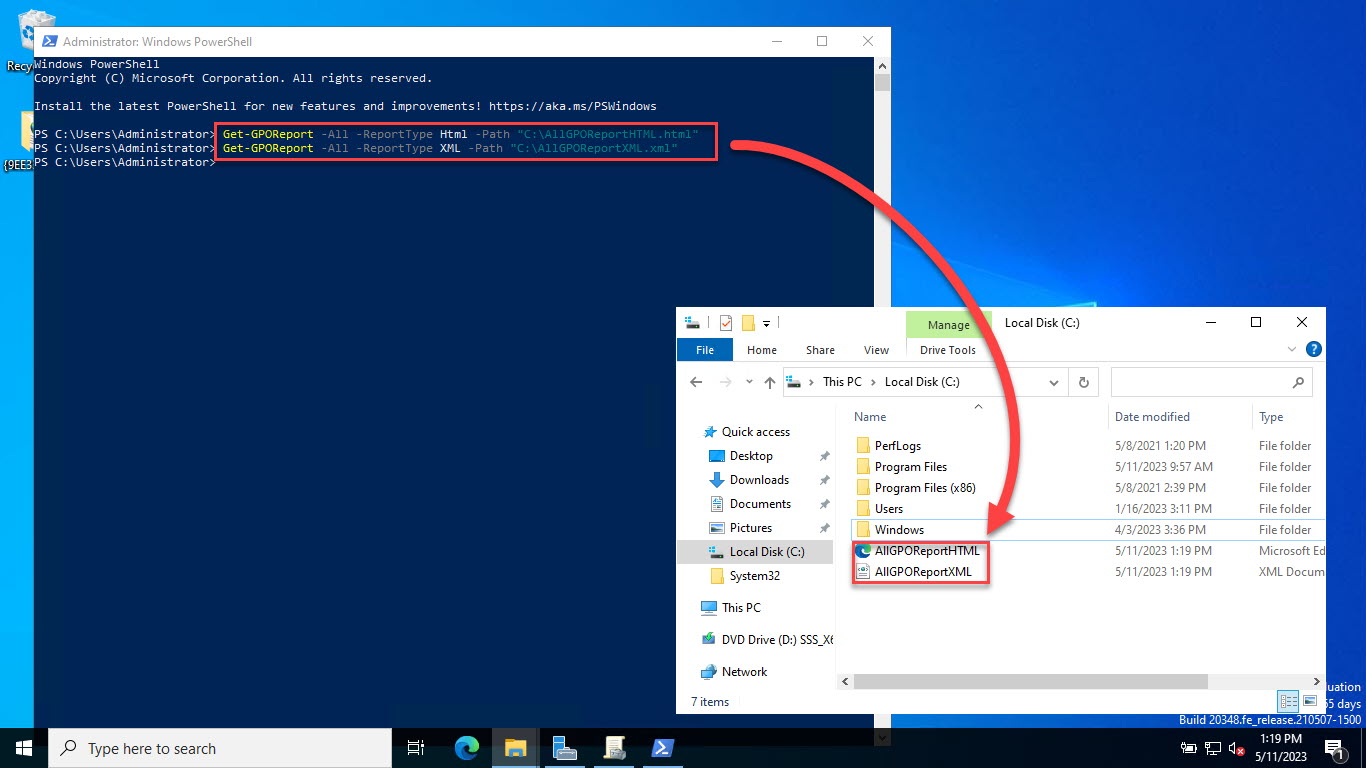
1. On the source: Backup-GPO -Name "Policy Name" -Path "C:\GPOBackup"
2. Copy the backup to the destination domain.
3. On the target: Import-GPO -BackupGpoName "Policy Name" -TargetName "New Policy" -Path "C:\GPOBackup" -CreateIfNeeded
4. Use a migration table for domain-specific references (paths, security principals).
Troubleshooting
Problem: Imported settings do not apply locally.
Solution: Run gpupdate /force and restart; ensure you copied the correct GroupPolicy folder and the editions match.
Problem: Import Settings is greyed out in GPMC.
Solution: You need a valid GPO backup. Back up a GPO first, then import into an existing/blank GPO.
Problem: Domain references break after import.
Solution: Use a migration table to map old domain paths and security groups to the new domain during import.
Problem: Some settings did not transfer.
Solution: Client-side preferences or version-specific policies may differ; verify in the GPO editor and re-apply manually if needed.
Conclusion
For local PCs, copying the GroupPolicy folder transfers settings quickly; for domains, use GPMC backup/import or Backup-GPO/Import-GPO with a migration table. Always validate imported policy in a limited scope before wide rollout.
</w:pBdr><w:spacing w:before="220" w:after="40"/></w:pPr><w:r><w:rPr><w:b/><w:bCs/><w:color w:val="0B5394"/><w:sz w:val="21"/><w:szCs w:val="21"/><w:rFonts w:ascii="Calibri" w:cs="Calibri" w:eastAsia="Calibri" w:hAnsi="Calibri"/></w:rPr><w:t xml:space="preserve">About TechHub
This guide is part of the TechHub Knowledge Base. For more step-by-step IT guides and support, visit techhub.com.lk.