Findstr: Search for Text in Files with Windows Command (a grep Alternative)
Use the built-in findstr command to search files and command output for strings and patterns.
Overview
findstr is Windows’ built-in text-search command — like grep on Linux. It can search files and folders or filter command output. This guide covers the essentials and common options.
Using findstr to search for text.
Key Takeaways
- findstr searches files and piped output for strings/patterns.
- /S searches subfolders; /I ignores case.
- /R enables regular expressions.
- Great for logs, config files, and filtering command output.
Search Inside a File
1. Open Command Prompt.
2. Run: findstr "error" logfile.txt
3. Case-insensitive: findstr /I "error" logfile.txt
4. Show line numbers: findstr /N "error" logfile.txt
Search a Folder (Recursively)
1. Search all .txt in a folder and subfolders: findstr /S /I "password" *.txt
2. List only matching filenames: add /M
3. Combine: findstr /S /M /I "TODO" *.cs
Filter Command Output (Pipe)
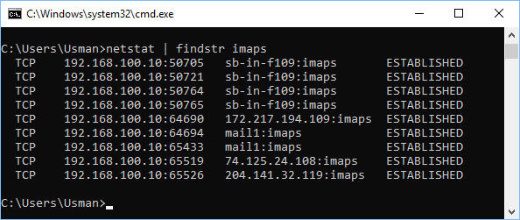
1. Pipe any command into findstr: ipconfig | findstr "IPv4"
2. tasklist | findstr /I "chrome"
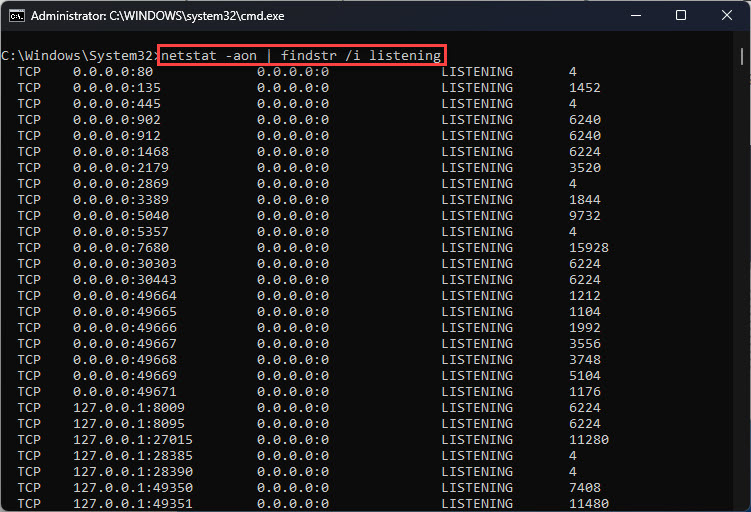
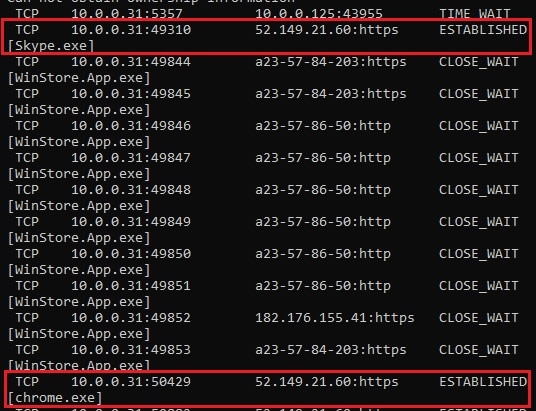
3. netstat -ano | findstr ":443"
Useful Options
- /I — case-insensitive.
- /S — recurse into subdirectories.
- /N — show line numbers.
- /M — list only file names with matches.
- /R — treat the search as a regular expression.
- /V — show lines that do NOT match.
Troubleshooting
Problem: Multi-word search fails.
Solution: By default each space-separated word is a separate term; use /C:"exact phrase" for a literal phrase.
Problem: Regex not matching.
Solution: Add /R and use findstr’s regex syntax (it’s limited compared to grep).
Problem: No results in subfolders.
Solution: Add /S to recurse into subdirectories.
Problem: Case mismatch.
Solution: Add /I for case-insensitive matching.
Conclusion
findstr is a capable, built-in grep alternative for Windows. Search files with /S and /I, match phrases with /C:, use /R for regex, and pipe command output through it to filter results — no extra tools required.