Overview
"gpupdate /force" reapplies all Group Policy settings, but sometimes it fails or policies don’t take effect. This guide covers the common causes and fixes, from the Group Policy service to resetting corrupted policy files.
Fixing the gpupdate /force command.
Key Takeaways
- Run gpupdate from an elevated prompt.
- A stopped Group Policy service or corrupt Registry.pol causes failures.
- SFC/DISM repair fixes underlying corruption.
- Resetting Group Policy forces a clean reapply.
Fix 1: Restart and Run as Administrator
1. Restart the PC to clear transient issues.
2. Open Command Prompt / PowerShell as administrator.
3. Run: gpupdate /force
4. Watch for specific error messages.
Fix 2: Restart the Group Policy Service
1. Open services.msc.
2. Ensure "Group Policy Client" is running.
3. If it can’t be restarted directly, reboot and retry gpupdate.
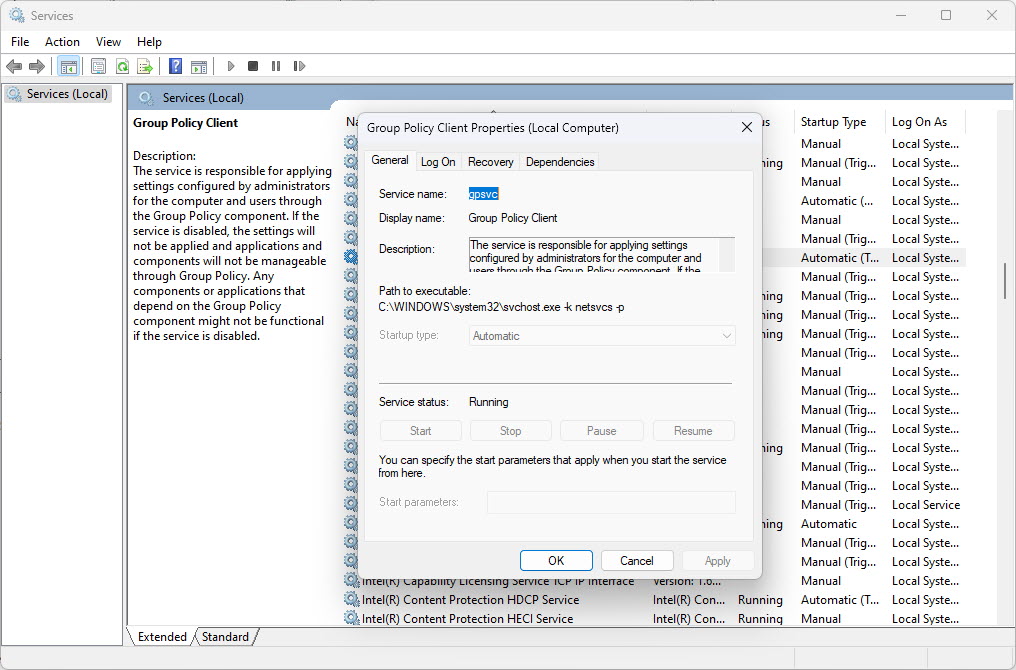
Group Policy Client service issue.
Fix 3: Repair System Files
1. In an elevated prompt, run: sfc /scannow
2. Then: DISM /Online /Cleanup-Image /RestoreHealth
3. Restart and run gpupdate /force again.
Fix 4: Recreate the Registry.pol File
Warning: These steps reset local Group Policy. Note your custom local policies first, as they’ll need to be reapplied.
1. Navigate to C:\Windows\System32\GroupPolicy\Machine.
2. Rename registry.pol to registry.pol.old (do the same under User if needed).
3. Run gpupdate /force — Windows recreates a fresh policy file.
Fix 5: Reset Group Policy
1. In an elevated prompt, run: RD /S /Q "%WinDir%\System32\GroupPolicy"
2. And: RD /S /Q "%WinDir%\System32\GroupPolicyUsers"
3. Then: gpupdate /force to rebuild defaults.
Troubleshooting
Problem: "Access denied" running gpupdate.
Solution: Use an elevated (administrator) Command Prompt or PowerShell.
Problem: Domain policies not applying.
Solution: Check network/DC connectivity; run gpresult /r to see which policies apply and why.
Problem: Group Policy Client won’t start.
Solution: Repair with SFC/DISM; the service depends on healthy system files.
Problem: Policy reverts after reboot.
Solution: A domain GPO may override local settings — verify with gpresult and your administrator.
Conclusion
When gpupdate /force fails, work from simple to thorough: run elevated, confirm the Group Policy service, repair system files, then recreate Registry.pol or reset Group Policy. On domain PCs, gpresult helps confirm which policies actually apply.
</w:pBdr><w:spacing w:before="220" w:after="40"/></w:pPr><w:r><w:rPr><w:b/><w:bCs/><w:color w:val="0B5394"/><w:sz w:val="21"/><w:szCs w:val="21"/><w:rFonts w:ascii="Calibri" w:cs="Calibri" w:eastAsia="Calibri" w:hAnsi="Calibri"/></w:rPr><w:t xml:space="preserve">About TechHub
This guide is part of the TechHub Knowledge Base. For more step-by-step IT guides and support, visit techhub.com.lk.