Overview
When the IPv6 connection shows "No network access" while IPv4 still works, something is blocking or misconfiguring IPv6 — often the network stack, a driver, or router settings. This guide works through the fixes in order to restore IPv6 connectivity.
Restore IPv6 connectivity when Windows reports "No network access".
Key Takeaways
- Resetting Winsock and the TCP/IP stack fixes many IPv6 issues.
- An outdated network driver is a common cause.
- Firewalls, antivirus, or the IP Helper service can interfere with IPv6.
- Your router must have IPv6 enabled and supplied by your ISP.
Pre-Troubleshooting
- Restart your PC and router/modem.
- Confirm your ISP actually provides IPv6 — not all do.
- Check whether other devices on the network have IPv6 access.
Fix 1 — Run the Network Troubleshooter
1. Open Settings > System > Troubleshoot > Other troubleshooters.
2. Run the Network and Internet (or Internet Connections) troubleshooter.
3. Apply any fixes it suggests.
Fix 2 — Reset Winsock and the TCP/IP Stack
1. Open Command Prompt as administrator.
2. Run: netsh winsock reset
3. Run: netsh int ip reset
4. Run: netsh int ipv6 reset
5. Restart the PC.
Fix 3 — Update the Network Driver
1. Open Device Manager and expand Network adapters.
2. Right-click your adapter and choose Update driver.
3. If that does not help, download the latest driver from your PC or adapter manufacturer and install it.
Fix 4 — Disable the IP Helper Service
1. Press Windows key + R, type services.msc, and press Enter.
2. Find IP Helper, right-click it, and choose Stop (or set Startup type to Disabled).
3. Test IPv6 connectivity — this service can sometimes interfere.
Fix 5 — Check Firewall and Antivirus
1. Temporarily disable third-party antivirus and the Windows Firewall to test.
2. If IPv6 works with them off, add an exception rather than leaving them disabled.
3. Re-enable your security software afterward.
Fix 6 — Check Router IPv6 Settings
1. Open your router’s admin page.
2. Ensure IPv6 is enabled and set to the mode your ISP requires (e.g. DHCPv6 or SLAAC).
3. Save and reboot the router, then reconnect.
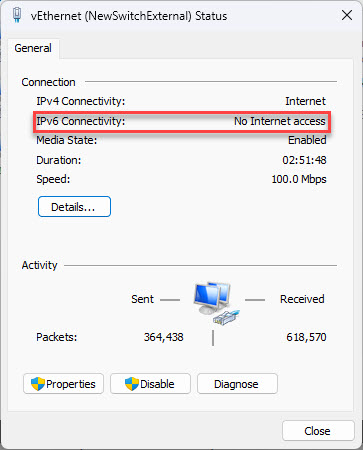
IPv6 showing "No network access" while IPv4 works.
Troubleshooting
Problem: IPv6 still shows no access after resets.
Solution: Confirm your ISP supports IPv6 and the router has it enabled correctly; without ISP IPv6 you will not get an IPv6 internet address.
Problem: Resetting the stack broke other connectivity.
Solution: Restart the PC after the netsh resets and re-check; reconfigure any static IP/DNS you had set.
Problem: Only this PC lacks IPv6.
Solution: Update its network driver and reset the stack; if other devices have IPv6, the issue is local to this PC.
Problem: You do not actually need IPv6.
Solution: Most sites work over IPv4. If IPv6 is unsupported by your ISP, you can leave it — IPv4 connectivity is unaffected.
Conclusion
Most IPv6 "no access" problems clear up after resetting Winsock and the TCP/IP stack and updating the network driver. If they persist, confirm your ISP and router actually provide IPv6 before troubleshooting further.
</w:pBdr><w:spacing w:before="220" w:after="40"/></w:pPr><w:r><w:rPr><w:b/><w:bCs/><w:color w:val="0B5394"/><w:sz w:val="21"/><w:szCs w:val="21"/><w:rFonts w:ascii="Calibri" w:cs="Calibri" w:eastAsia="Calibri" w:hAnsi="Calibri"/></w:rPr><w:t xml:space="preserve">About TechHub
This guide is part of the TechHub Knowledge Base. For more step-by-step IT guides and support, visit techhub.com.lk.