Overview
Windows එකට right-click "Mount" command එකෙන් ISO images natively mount කරන්න පුළුවන්. ඒ option එක නැති වුණොත් — බොහෝවිට වෙන app එකක් .iso association එක hijack කරපු නිසා — file association එක reset කරලා, බොහෝවිට Registry එකෙන්, ඒක restore කරන්න පුළුවන්. මේ guide එකෙන් ඒ ආකාරය පෙන්නනවා.
ISO files වලට missing Mount option එක restore කරන්න.
Key Takeaways
- Third-party app එකක් .iso association එක අරගත්තම Mount option එක නැති වෙනවා.
- Windows Explorer default ISO handler විදිහට set කරන එකෙන් ඒක restore කරනවා.
- Quick Registry fix එකකින් .iso Windows Disc Image Burner එකට re-associate කරනවා.
- Edit කරන්න කලින් Registry එක backup කරන්න.
ඇයි Mount Option එක නැති වෙන්නේ
Archivers හෝ virtual-drive tools (7-Zip, WinRAR, PowerISO, ආදිය) වගේ apps සමහරවිට .iso files වලට තමන්ව default program විදිහට set කරගන්නවා. එහෙම වුණාම, Windows ඒකේ built-in Mount command එක third-party app එකේ menu එකෙන් replace කරනවා.
Quick Fix: Explorer Default විදිහට Set කරන්න
1. ඕනෑම .iso file එකක් right-click කරලා Open with > Choose another app තෝරන්න.
2. Windows Explorer select කරන්න.
3. "Always use this app to open .iso files" tick කරලා OK click කරන්න.
4. ISO එක ආපහු right-click කරන්න — Mount option එක ආපහු පෙන්නන්න ඕන.
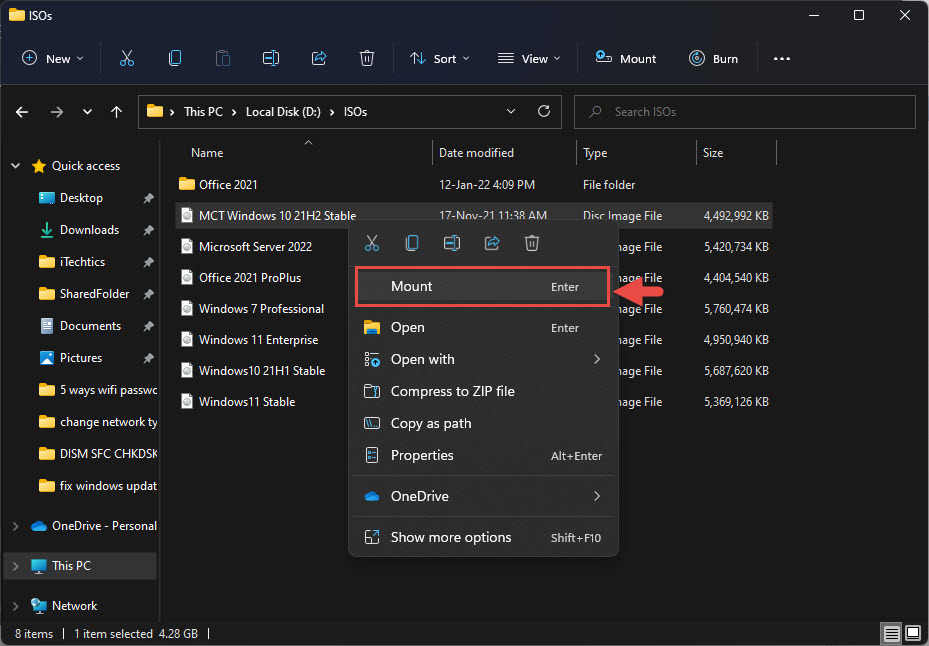
Right-click context menu එකේ Mount option එක.
Registry එකෙන් Fix කරන්න
Warning: Registry එක වැරදියට edit කරන එකෙන් problems ඇති වෙන්න පුළුවන්. Changes කරන්න කලින් Registry එක backup කරන්න (File > Export).
1. Windows + R press කරලා regedit type කරලා Enter කරන්න.
2. HKEY_CLASSES_ROOT\.iso වලට navigate කරන්න.
3. (Default) value එක මෙහෙම set කරන්න: Windows.IsoFile
4. Windows.IsoFile key එක mount shell command එක්ක තියෙනවා කියලා confirm කරන්න; නෑ නම් recreate කරන්න හෝ උඩ Open with step එක ආපහු run කරන්න.
5. Registry Editor එක close කරලා File Explorer එක restart කරන්න.
Troubleshooting
Problem: Association වෙනස් කළාට පස්සෙත් Mount නෑ.
Solution: Explorer restart කරන්න (හෝ sign out/in). අතරමගදී third-party app එකක් තමන්ව default විදිහට reset නොකළා කියලා බලන්න.
Problem: Mount greyed out.
Solution: ISO එක network/compressed location එකක තියෙන්න පුළුවන් — ඒක local NTFS drive එකකට copy කරලා try කරන්න.
Problem: "Couldn't mount file" error.
Solution: ISO එක corrupt හෝ sparse වෙන්න පුළුවන් — ආපහු download කරන්න, නැත්නම් valid disc image එකක් කියලා confirm කරන්න.
Problem: Third-party app එකක් ආපහු ආපහු අරගන්නවා.
Solution: ඒකේ options .iso එක්ක associate නොවෙන්න set කරලා, Windows Explorer ආපහු default විදිහට apply කරන්න.
Conclusion
වෙන program එකක් .iso association එක claim කරාම Mount option එක නැති වෙනවා. .iso ආපහු Windows Explorer වලට reset කරලා (හෝ Registry එකේ association එක fix කරලා) native Mount command එක ආපහු එනවා — extra software ඕන නෑ.
About TechHub
මේ guide එක TechHub Knowledge Base එකේ කොටසක්. තව step-by-step IT guides සහ support වලට techhub.com.lk එකට යන්න.