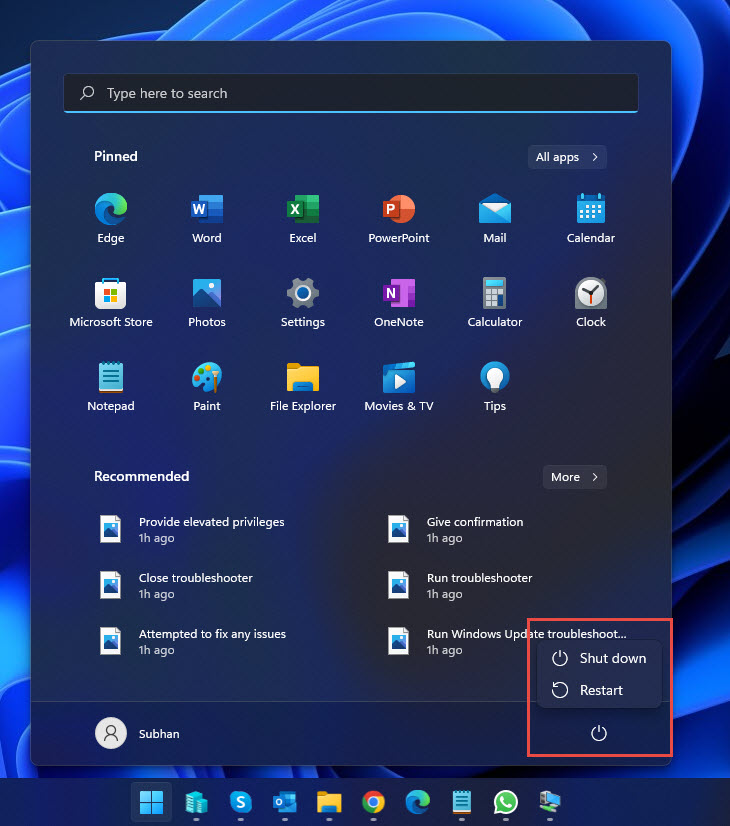
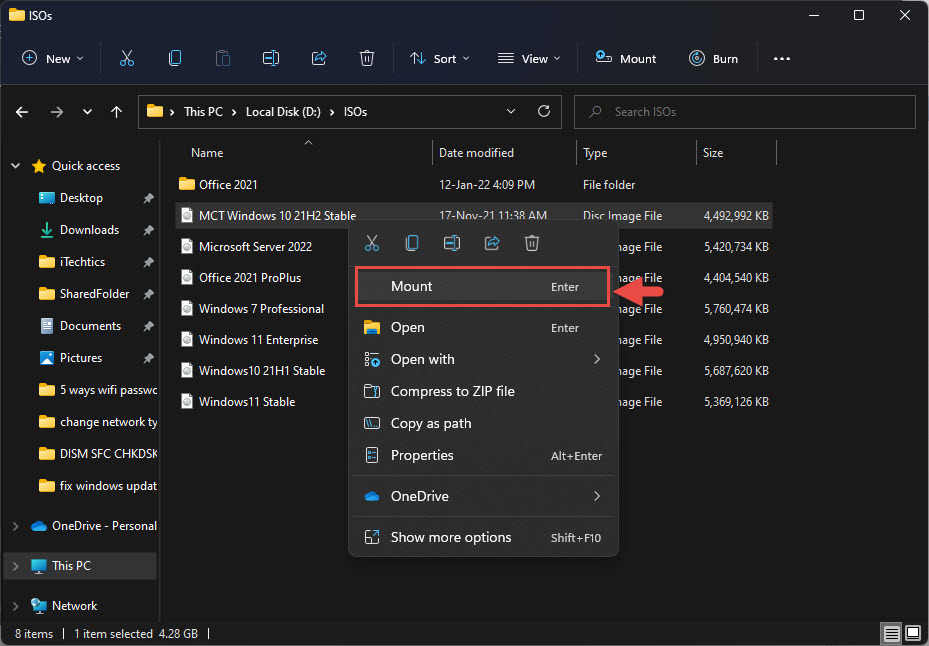
Overview
PIN (Windows Hello) යටතේ Remove button එක greyed out වෙලා තියෙනවා නම්, ඒක බොහෝවිට Windows Microsoft accounts වලට Windows Hello sign-in එක require කරන්න set කරලා තියෙන නිසා. මේ guide එකෙන් ඒ setting එක off කරලා PIN එක remove කරන ආකාරය, සහ "I forgot my PIN" එකෙන් reset කරන ආකාරය පෙන්නනවා.
Greyed-out Remove PIN option එකට හේතුව බොහෝවිට sign-in requirement එකක්.
Key Takeaways
- "Require Windows Hello sign-in" on වෙලා තියෙනකොට Remove option එක grey වෙනවා.
- Sign-in options එකේ ඒ toggle එක off කරලා Remove enable කරන්න.
- ඕන නම් "I forgot my PIN" එකෙන් PIN එක reset කරන්නත් පුළුවන්.
- Local sign-in වලට PIN එකක් password එකට වඩා secure — තියාගන්න එක සලකා බලන්න.
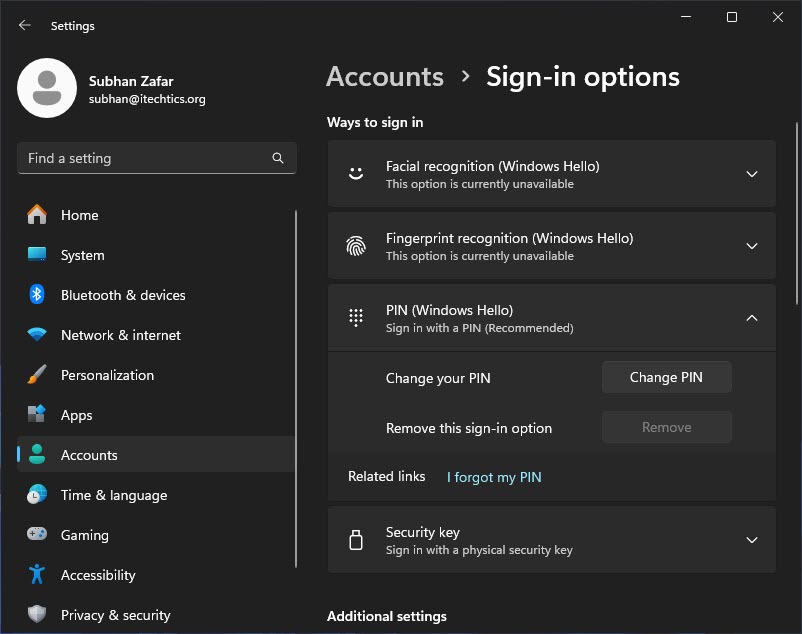
Remove PIN option එක greyed out විදිහට පෙන්නනවා.
ඇයි Greyed Out වෙලා?
Windows එකේ setting එකක් තියෙනවා: "For improved security, only allow Windows Hello sign-in for Microsoft accounts on this device." ඒක on වෙලා තියෙනකම්, PIN එක remove කරන්න බෑ — මොකද sign in වෙන්න Windows Hello (PIN) එක ඕන. ඒක off කළාම Remove option එක ආපහු එනවා.
Method 1 — Windows Hello Requirement එක Disable කරන්න
1. Settings > Accounts > Sign-in options open කරන්න.
2. "For improved security, only allow Windows Hello sign-in for Microsoft accounts on this device" හොයන්න.
3. මේ toggle එක Off කරන්න.
4. ආපහු PIN (Windows Hello) වලට යන්න — දැන් Remove button එක තියෙනවා. Remove click කරලා confirm කරන්න.
Method 2 — "I Forgot My PIN" එකෙන් PIN එක Reset කරන්න
1. Settings > Accounts > Sign-in options > PIN (Windows Hello) open කරන්න.
2. "I forgot my PIN" click කරන්න.
3. ඔබේ identity verify කරන්න (Microsoft account password හෝ වෙන method).
4. අලුත් PIN එකක් set කරන්න — නැත්නම් reset කළාට පස්සේ, Windows Hello requirement එක off වුණාම remove කරන්න.
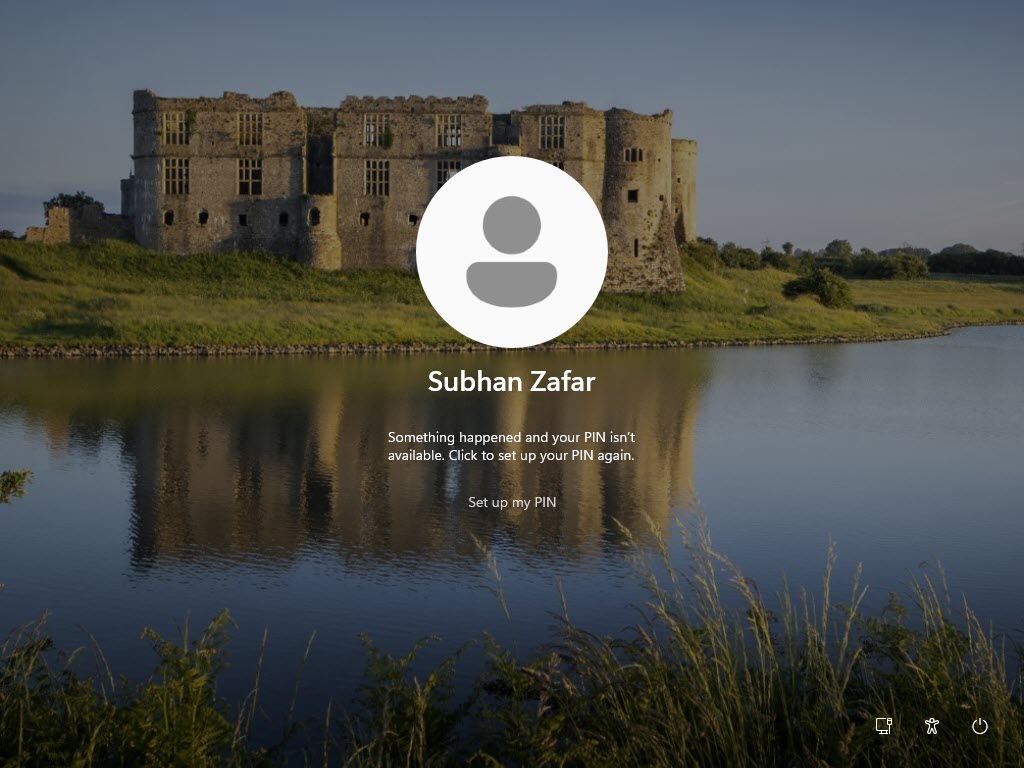
Option එක fix කළාට පස්සේ PIN එක set/reset කරන්න පුළුවන්.
Troubleshooting
Problem: Toggle එක නෑ.
Solution: ඔබ පාවිච්චි කරන්නේ Microsoft account එකක්ද local account එකක්ද බලන්න (Settings > Accounts > Your info). Toggle එක බොහෝවිට Microsoft accounts වලට apply වෙන්නේ.
Problem: Toggle එක off කළාට පස්සෙත් Remove greyed out.
Solution: PC එක restart කරලා ආපහු try කරන්න, managed devices වල organisation policy එකක් Windows Hello enforce කරන්නේ නැති බව confirm කරන්න.
Problem: Work/school account එකක් block කරනවා.
Solution: ඔබේ organisation එක policy එකෙන් PIN එකක් require කරන්න පුළුවන්. IT administrator එක්ක කතා කරන්න.
Problem: Secure sign-in තියාගන්න ඕන.
Solution: PIN එකක් device-specific, password එකට වඩා secure. සම්පූර්ණයෙන් remove කරනවා වෙනුවට reset කරන එක සලකා බලන්න.
Conclusion
Greyed-out Remove PIN button එක fix වෙන්නේ Sign-in options එකේ Windows Hello sign-in requirement එක off කළාම. ඊට පස්සේ PIN එක remove හෝ reset කරන්න පුළුවන් — හැබැයි එදිනෙදා security වලට PIN එකක් බොහෝවිට හොඳම තේරීම.
About TechHub
මේ guide එක TechHub Knowledge Base එකේ කොටසක්. තව step-by-step IT guides සහ support වලට techhub.com.lk එකට යන්න.