Overview
"Steam needs to be online to update" error එකෙන් internet එක වැඩ කරද්දිත් Steam launch වෙන එක නවත්තනවා. ඒක බොහෝවිට network block එකක් (firewall, antivirus, proxy, හෝ DNS) හෝ corrupted Steam file එකක් නිසා. මේ guide එකෙන් fixes හරහා යනවා.
Steam වැරදියට offline කියලා report කරලා update කරන්න refuse කරන්න පුළුවන්.
Key Takeaways
- හේතුව බොහෝවිට network block එකක් හෝ corrupted Steam file එකක්.
- Steam එක firewall/antivirus හරහා allow කරලා ඕනෑම proxy එකක් disable කරන්න.
- Steam එක TCP protocol එකට switch කරන එකෙන් ගොඩක් cases fix වෙනවා.
- Steam's files refresh කරන එකෙන් (ඔබේ games තියාගෙන) corruption clear වෙනවා.
Fix 1 — Proxy Disable කරලා Network Software Check කරන්න
1. Windows key + R press කරලා inetcpl.cpl type කරලා, Connections tab > LAN settings open කරලා, ඕනෑම proxy එකක් untick කරන්න.
2. Third-party antivirus එකයි Windows Firewall එකයි තාවකාලිකව disable කරලා test කරන්න.
3. Steam වැඩ කරනවා නම්, security off තියනවා වෙනුවට Steam allowed app එකක් විදිහට add කරන්න.
Fix 2 — Steam Administrator විදිහට Run කරන්න (සහ Compatibility Mode)
1. Steam shortcut එක right-click කරලා Run as administrator තෝරන්න.
2. තවම තියෙනවා නම්, Properties > Compatibility open කරලා, "Run this program in compatibility mode for" tick කරලා, පරණ Windows version එකක් තෝරන්න.
3. ඕන නම් ඔබේ account එකට Steam folder එකේ Full control දෙන්නත් පුළුවන්.
Fix 3 — Steam එක TCP Protocol එකට Switch කරන්න
1. Steam shortcut එක right-click කරලා Properties තෝරන්න.
2. Target field එකේ, අගට space එකක් සහ -tcp add කරන්න (…\steam.exe" -tcp).
3. OK click කරලා Steam launch කරන්න — UDP block වෙන තැන TCP success වෙන්න පුළුවන්.
Fix 4 — Steam Files Refresh කරන්න
1. Steam සම්පූර්ණයෙන් close කරන්න.
2. Steam install folder එක open කරන්න (default C:\Program Files (x86)\Steam).
3. steam.exe සහ steamapps folder එක (ඔබේ games තියෙන) හැර ඔක්කොම delete කරන්න.
4. Steam relaunch කරන්න — ඒක fresh client files ආපහු download කරනවා.
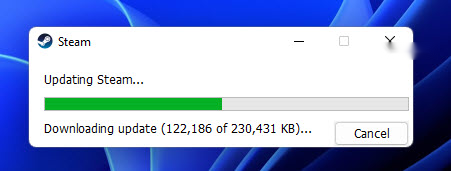
Steam fresh client files ආපහු download කරනවා.
Fix 5 — DNS Switch කරන්න
1. Network Connections (ncpa.cpl) open කරලා ඔබේ adapter එකේ Properties open කරන්න.
2. Internet Protocol Version 4 (TCP/IPv4) edit කරලා DNS එක 8.8.8.8 සහ 8.8.4.4 (Google) හෝ 1.1.1.1 (Cloudflare) කරන්න.
3. Apply කරලා, DNS flush කරලා (ipconfig /flushdns), Steam retry කරන්න.
Troubleshooting
Problem: Antivirus off කරාම Steam වැඩ කරනවා.
Solution: Protection disable කරලා තියනවා වෙනුවට steam.exe එකයි Steam folder එකයි antivirus එකේ exclusions විදිහට add කරන්න.
Problem: -tcp එකෙන් උදව් වුණේ නෑ.
Solution: ඒක අයින් කරලා DNS change එකයි Steam files refresh එකයි try කරන්න; VPN එකක් interfere නොකරන බවත් බලන්න.
Problem: තවම offline කියනවා.
Solution: Date/time හරිද verify කරලා, Winsock reset කරලා (netsh winsock reset), host file entry එකක් Steam servers block නොකරන බව බලන්න.
Problem: Games නැති වේවි කියලා බය.
Solution: steamapps folder එක තියාගන්න — ඔබේ installed games ඒකේ store වෙනවා, client files refresh කරනකොට preserve වෙනවා.
Conclusion
මේ error එක බොහෝවිට network block එකක් හෝ corrupted client file එකක්. Proxy/firewall/antivirus blocks clear කරලා, -tcp launch option එක try කරලා, Steam's files refresh කරලා, DNS switch කරන්න — මේවායින් එකකින් Steam ආපහු online වෙලා update වෙනවා.
About TechHub
මේ guide එක TechHub Knowledge Base එකේ කොටසක්. තව step-by-step IT guides සහ support වලට techhub.com.lk එකට යන්න.