How to Install Remote Server Administration Tools (RSAT) on Windows
Add RSAT to manage Windows Server roles and Active Directory from your PC.
Overview
RSAT (Remote Server Administration Tools) lets you manage Windows Server roles and features — Active Directory, DNS, DHCP, Group Policy, and more — from a Windows client. This guide shows how to install and access it.
Remote Server Administration Tools (RSAT).
Note: On modern Windows 10/11, install RSAT via Features on Demand (built in) rather than downloading legacy installers.
Key Takeaways
- RSAT provides server-management consoles on a client PC.
- Windows 10 1809+ and Windows 11 install it via Optional Features.
- Older Windows used a downloadable RSAT package.
- Includes ADUC, DNS, DHCP, GPMC, and more.
Install on Windows 10 (1809+) and Windows 11
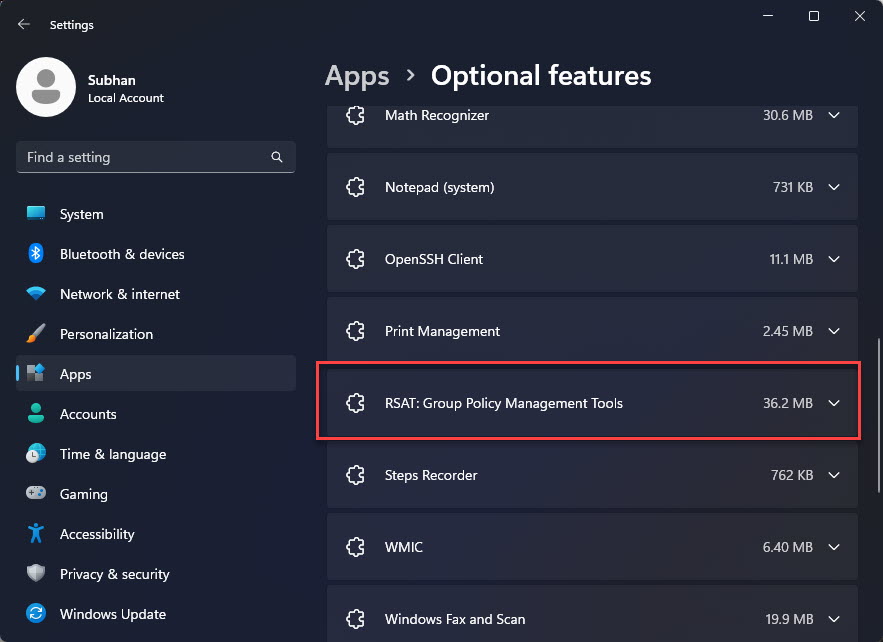
1. Open Settings > Apps > Optional features > Add an optional feature.
2. Search "RSAT".
3. Select the tools you need (e.g., Active Directory DS/LDS Tools, DNS, Group Policy Management).
4. Click Install and wait; a reboot may be needed.
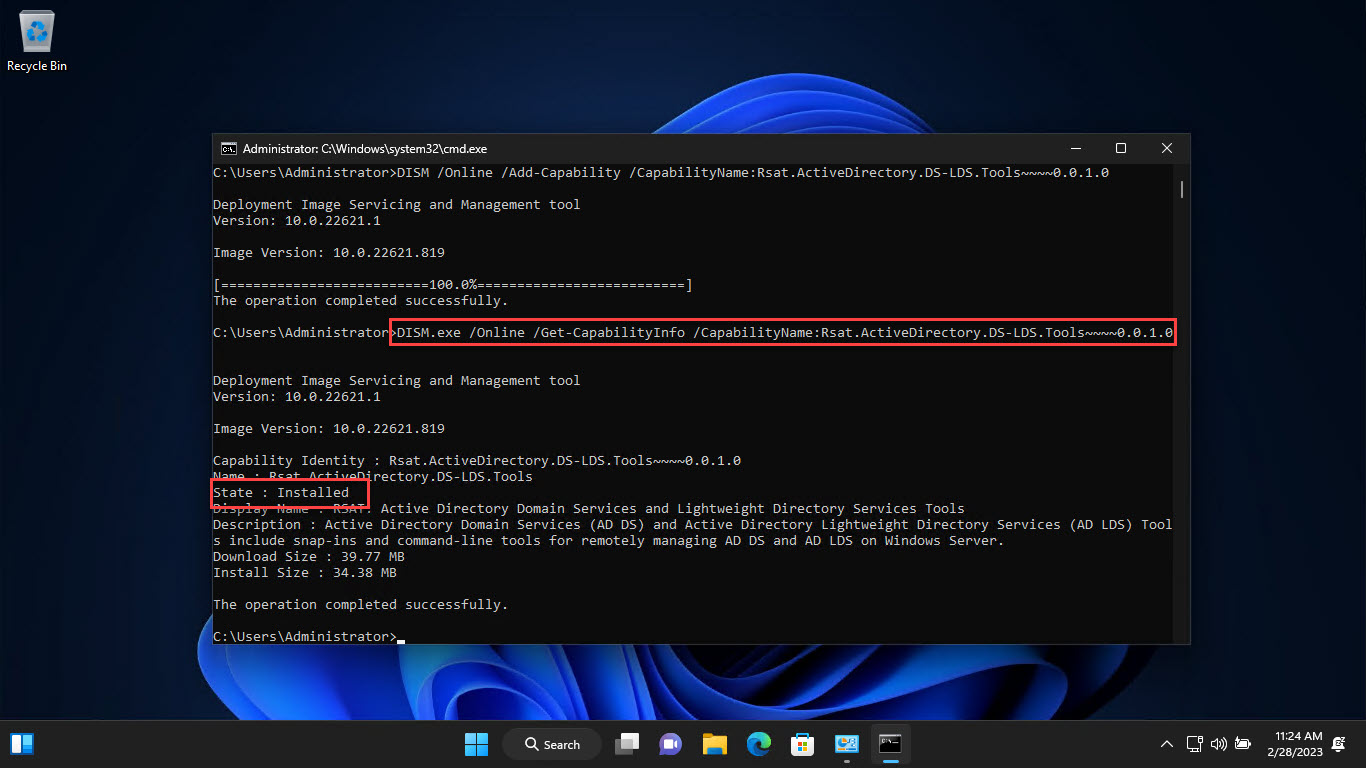
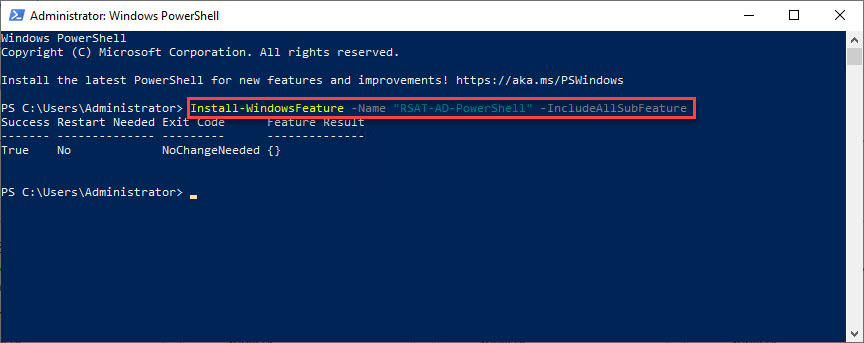
Install via PowerShell
1. Open PowerShell as administrator.
2. List RSAT features: Get-WindowsCapability -Online -Name RSAT*
3. Install one: Add-WindowsCapability -Online -Name "Rsat.ActiveDirectory.DS-LDS.Tools~~~~0.0.1.0"
4. Install all: Get-WindowsCapability -Online -Name RSAT* | Add-WindowsCapability -Online
Older Windows (Downloadable RSAT)
1. For Windows 10 1803/earlier, 8.1, or 8, download the RSAT package matching your version from Microsoft’s official site.
2. Run the installer and enable the tools in Windows Features.
3. Match the RSAT version exactly to your Windows version.
Access RSAT Tools
1. Open the Start menu > Windows Tools / Administrative Tools.
2. Launch the console you need (e.g., Active Directory Users and Computers).
3. Or run them directly (dsa.msc, dnsmgmt.msc, gpmc.msc).
Troubleshooting
Problem: RSAT features won’t install.
Solution: Ensure Windows Update access (Features on Demand come via Windows Update) and run as administrator.
Problem: Tool missing after install.
Solution: Check Windows Tools/Administrative Tools, or run the .msc directly (e.g., dsa.msc).
Problem: Wrong version on older Windows.
Solution: Download the RSAT package that matches your exact Windows version.
Problem: Can’t connect to the server/domain.
Solution: Confirm network access, credentials, and that the PC can reach a domain controller.
Conclusion
RSAT brings server-management consoles to your Windows client. On Windows 10 1809+ and Windows 11, add it through Optional Features or PowerShell; older versions use a matching downloadable package. Then launch tools like ADUC and GPMC to manage your servers remotely.