How to Manage Local Users in Windows (Home and Pro)
Add, remove, and change user accounts and types via Settings, Control Panel, and the command line.
Overview
Managing user accounts — adding users, changing account types, resetting passwords — is straightforward in Windows, even on Home edition. This guide covers the Settings app, Control Panel, and command-line methods.
Managing local users in Windows.
Key Takeaways
- Settings > Accounts manages users on all editions.
- You can add local (offline) or Microsoft accounts.
- Change account type to Administrator/Standard.
- net user manages accounts from the command line.
Method 1: Settings App
1. Open Settings > Accounts > Other users (Family & other users).
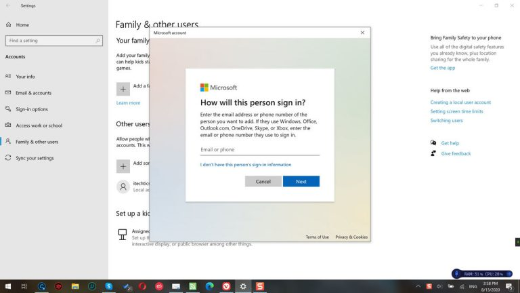
2. Click "Add account".
3. For a local account, choose "I don’t have this person’s sign-in information" > "Add a user without a Microsoft account".
4. Set username/password; change type via "Change account type".
Method 2: Control Panel
1. Open Control Panel > User Accounts > Manage another account.
2. Add a user, change the account name/type, or reset the password.
3. Useful for quick local-account changes.
Method 3: Command Line (net user)
1. Open Command Prompt as administrator.
2. Create a user: net user "Name" "Password" /add
3. Make admin: net localgroup Administrators "Name" /add
4. Delete: net user "Name" /delete
5. Reset password: net user "Name" *
Method 4: netplwiz
1. Run netplwiz for the classic User Accounts dialog.
2. Add/remove users and set group membership.
3. Configure automatic sign-in (if appropriate) here.
Troubleshooting
Problem: Can’t add a local account.
Solution: Choose "I don’t have this person’s sign-in information" then "Add a user without a Microsoft account".
Problem: net user access denied.
Solution: Run the prompt as administrator.
Problem: Account type won’t change.
Solution: Use an admin account; you can’t remove the last administrator.
Problem: Forgot a local password.
Solution: Reset it from another admin account (net user Name *) or use the security questions on Windows 10/11.
Conclusion
Windows makes user management easy on every edition: use Settings > Accounts for the common tasks, Control Panel or netplwiz for classic options, and net user/localgroup for scripting and quick admin changes.