Overview
A misconfigured registry or broken registry permissions (ACLs) can cause errors, failed updates, and even blue screens. There is no single "reset registry" button, but you can restore default permissions with SubInACL, roll back with System Restore, or reset Windows. This guide covers each approach.
Resetting registry permissions can fix update failures and access errors.
Warning: The registry is critical to Windows. Create a System Restore point and back up the registry (regedit > File > Export) before making changes.
Key Takeaways
- Broken registry permissions cause "access denied" errors and failed updates.
- SubInACL (a Microsoft tool) resets registry and file permissions to defaults.
- System Restore reverts the registry to an earlier working state.
- Resetting Windows restores the registry as part of a clean reinstall.
Method 1 — Reset Registry Permissions With SubInACL
1. Download SubInACL from Microsoft (official) and install it.
2. Open Notepad and create a batch script that runs subinacl on the registry hives (HKLM, HKCU, HKCR) and key folders with /grant for administrators and SYSTEM (full control).
3. Save it as a .bat file.
4. Right-click the file and Run as administrator; let it reset the ACLs.
5. Restart the PC.
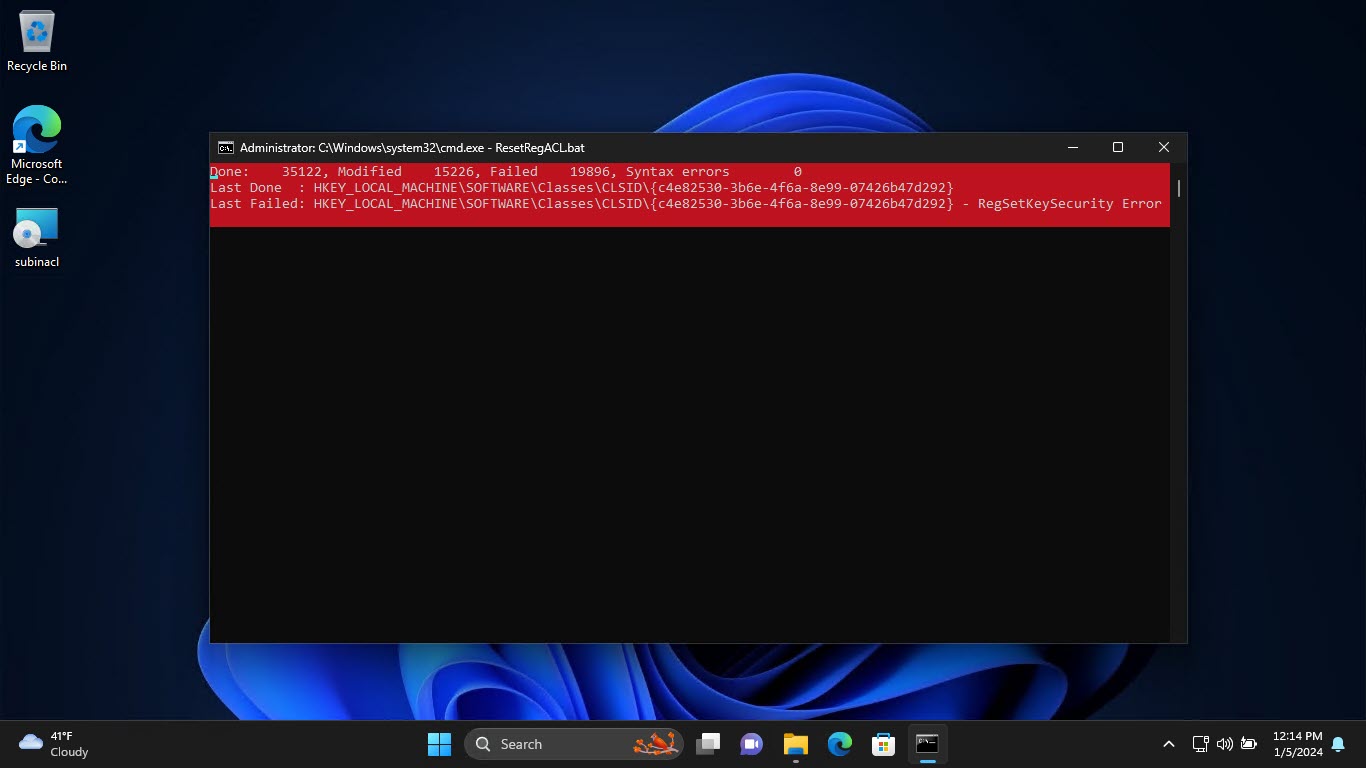
SubInACL resets registry permissions to their defaults.
Method 2 — Restore the Registry With System Restore
1. Press Windows key + R, type rstrui, and press Enter.
2. Choose a restore point from before the problems began.
3. Confirm and let Windows roll back, which also restores the registry to that point.
4. The PC restarts into the earlier state.
Method 3 — Reset Windows
1. Open Settings > System > Recovery > Reset this PC.
2. Choose Keep my files to reinstall Windows while keeping personal data.
3. Follow the prompts — this rebuilds the registry as part of the reinstall.
Note: Try System Restore first; it is the least disruptive way to undo registry damage if a suitable restore point exists.
Troubleshooting
Problem: You get "access denied" editing the registry.
Solution: Reset permissions with SubInACL, or right-click the key in regedit > Permissions and grant your account/Administrators full control.
Problem: No restore points are available.
Solution: System Protection may be off. Use SubInACL for permissions, or reset Windows; enable System Protection afterward to create future restore points.
Problem: Updates keep failing.
Solution: Broken ACLs often block updates. Run SubInACL to reset registry and file permissions, then retry Windows Update.
Problem: The system is unstable after edits.
Solution: Roll back with System Restore to a point before your changes, then proceed more cautiously.
Conclusion
You cannot reset the whole registry in one click, but SubInACL fixes permission problems, System Restore reverts bad changes, and a Windows reset rebuilds it entirely. Always back up and create a restore point first.
</w:pBdr><w:spacing w:before="220" w:after="40"/></w:pPr><w:r><w:rPr><w:b/><w:bCs/><w:color w:val="0B5394"/><w:sz w:val="21"/><w:szCs w:val="21"/><w:rFonts w:ascii="Calibri" w:cs="Calibri" w:eastAsia="Calibri" w:hAnsi="Calibri"/></w:rPr><w:t xml:space="preserve">About TechHub
This guide is part of the TechHub Knowledge Base. For more step-by-step IT guides and support, visit techhub.com.lk.