Overview
වැරදියට configure වුණු registry එකක්, හෝ කැඩුණු registry permissions (ACLs) නිසා errors, failed updates, ඇතුමට blue screens පවා එන්න පුළුවන්. එකම "reset registry" button එකක් නෑ, නමුත් ඔයාට SubInACL එකෙන් default permissions restore කරන්න, System Restore එකෙන් roll back කරන්න, හෝ Windows reset කරන්න පුළුවන්. මේ guide එකෙන් එක එක approach එක ආවරණය කරනවා.
Registry permissions reset කරන එකෙන් update failures සහ access errors fix කරන්න පුළුවන්.
Warning: Registry එක Windows වලට critical. වෙනස් කරන්න කලින් System Restore point එකක් හදලා registry එක back up කරන්න (regedit > File > Export).
Key Takeaways
- කැඩුණු registry permissions නිසා "access denied" errors සහ failed updates වෙනවා.
- SubInACL (Microsoft tool එකක්) එකෙන් registry සහ file permissions defaults වලට reset කරනවා.
- System Restore එකෙන් registry එක කලින් වැඩ කරපු state එකකට ආපහු ගේනවා.
- Windows reset කිරීමෙන් clean reinstall එකක කොටසක් විදිහට registry එක restore වෙනවා.
Method 1 — Reset Registry Permissions With SubInACL
1. Microsoft වෙතින් (official) SubInACL download කරලා install කරන්න.
2. Notepad open කරලා, registry hives (HKLM, HKCU, HKCR) සහ key folders මත subinacl run කරන batch script එකක් හදන්න, administrators සහ SYSTEM (full control) වලට /grant එක්ක.
3. ඒක .bat file එකක් විදිහට save කරන්න.
4. File එක මත right-click කරලා Run as administrator කරන්න; ACLs reset වෙන්න දෙන්න.
5. PC එක restart කරන්න.
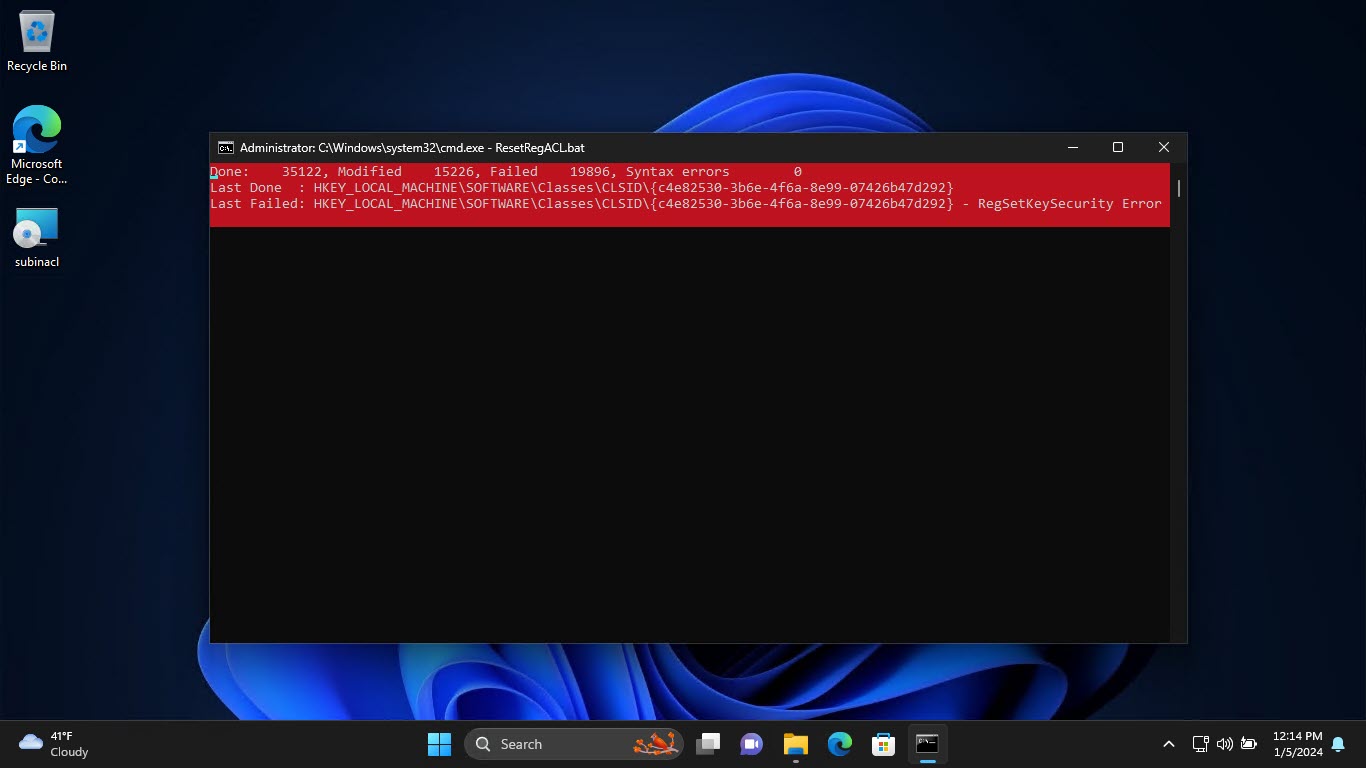
SubInACL එකෙන් registry permissions ඒවායේ defaults වලට reset කරනවා.
Method 2 — Restore the Registry With System Restore
1. Windows key + R press කරලා, rstrui කියලා type කරලා, Enter press කරන්න.
2. ප්රශ්න පටන් ගන්න කලින් තිබුණු restore point එකක් තෝරන්න.
3. Confirm කරලා Windows roll back වෙන්න දෙන්න, ඒකෙන් registry එකත් ඒ point එකට restore වෙනවා.
4. PC එක කලින් state එකට restart වෙනවා.
Method 3 — Reset Windows
1. Settings > System > Recovery > Reset this PC open කරන්න.
2. Personal data තියාගෙනම Windows reinstall කරන්න Keep my files තෝරන්න.
3. Prompts follow කරන්න — ඒකෙන් reinstall එකේ කොටසක් විදිහට registry එක නැවත හදනවා.
Note: මුලින්ම System Restore try කරන්න; සුදුසු restore point එකක් තියෙනවා නම් registry damage එක undo කරන්න අඩුම බාධාකාරී ක්රමය ඒකයි.
Troubleshooting
Problem: Registry එක edit කරද්දී "access denied" එනවා.
Solution: SubInACL එකෙන් permissions reset කරන්න, හෝ regedit එකේ key එක මත right-click > Permissions කරලා ඔයාගේ account/Administrators වලට full control දෙන්න.
Problem: Restore points නෑ.
Solution: System Protection off වෙලා තියෙන්න පුළුවන්. permissions වලට SubInACL පාවිච්චි කරන්න, හෝ Windows reset කරන්න; ඊට පස්සේ අනාගත restore points හදන්න System Protection enable කරන්න.
Problem: Updates දිගටම fail වෙනවා.
Solution: කැඩුණු ACLs නිසා බොහෝ විට updates block වෙනවා. registry සහ file permissions reset කරන්න SubInACL run කරලා, Windows Update නැවත try කරන්න.
Problem: Edits වලට පස්සේ system එක unstable.
Solution: ඔයාගේ වෙනස්කම් වලට කලින් point එකකට System Restore එකෙන් roll back කරලා, ඊට පස්සේ වඩා පරිස්සමින් ඉදිරියට යන්න.
Conclusion
මුළු registry එකම එක click එකකින් reset කරන්න බෑ, නමුත් SubInACL එකෙන් permission problems fix කරනවා, System Restore එකෙන් නරක වෙනස්කම් undo කරනවා, Windows reset එකෙන් ඒක සම්පූර්ණයෙන්ම නැවත හදනවා. හැමවෙලේම මුලින්ම back up කරලා restore point එකක් හදන්න.
About TechHub
මේ guide එක TechHub Knowledge Base එකේ කොටසක්. තව step-by-step IT guides සහ support වලට techhub.com.lk එකට යන්න.