How to Always Run Command Prompt and PowerShell as Administrator
Launch elevated terminals quickly, and set them to always open with admin rights.
Overview
Many commands need administrator rights. This guide shows the quick ways to open Command Prompt and PowerShell elevated, plus how to make a shortcut always run as administrator.
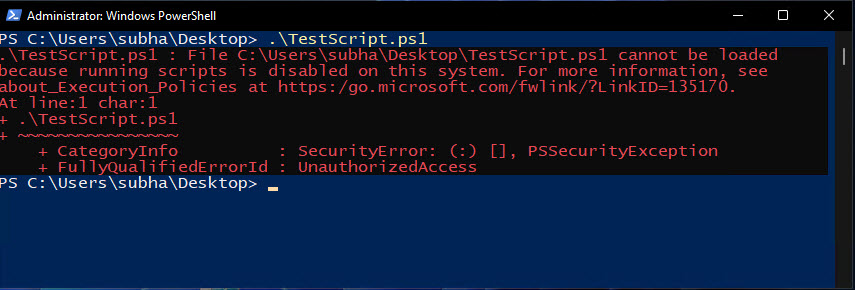
Running the terminal with administrative rights.
Warning: Only run elevated terminals when a task requires it, and be careful with commands — admin rights can make system-wide changes.
Key Takeaways
- Right-click > Run as administrator is the standard method.
- Ctrl + Shift + Enter opens a search result elevated.
- A shortcut can be set to always run as administrator.
- Windows Terminal can default profiles to elevated.
Method 1: Search + Run as Administrator
1. Press Start and type "cmd" or "PowerShell".
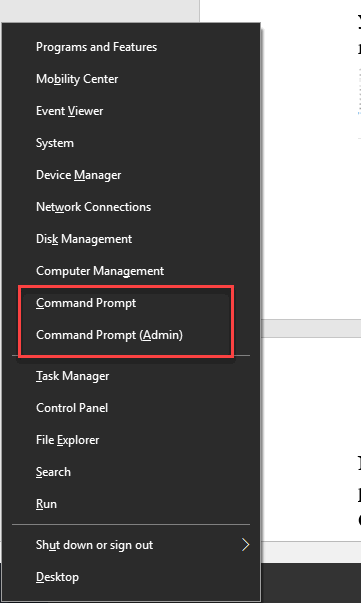
2. Right-click the result and choose "Run as administrator".
3. Accept the UAC prompt.
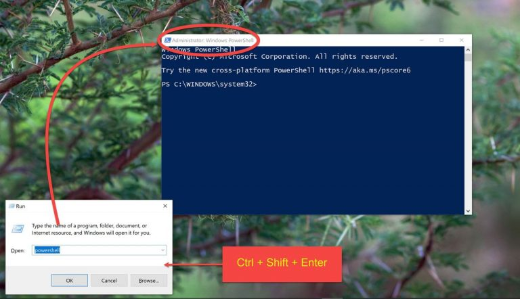
Method 2: Keyboard Shortcut
1. Type the app name in Start search.
2. Press Ctrl + Shift + Enter to launch it elevated.
3. Confirm the UAC prompt.
Method 3: Always Run a Shortcut as Admin
1. Create or locate a shortcut to cmd.exe or powershell.exe.
2. Right-click it > Properties > Shortcut tab > Advanced.
3. Tick "Run as administrator" and click OK.
4. The shortcut now always opens elevated (with a UAC prompt).
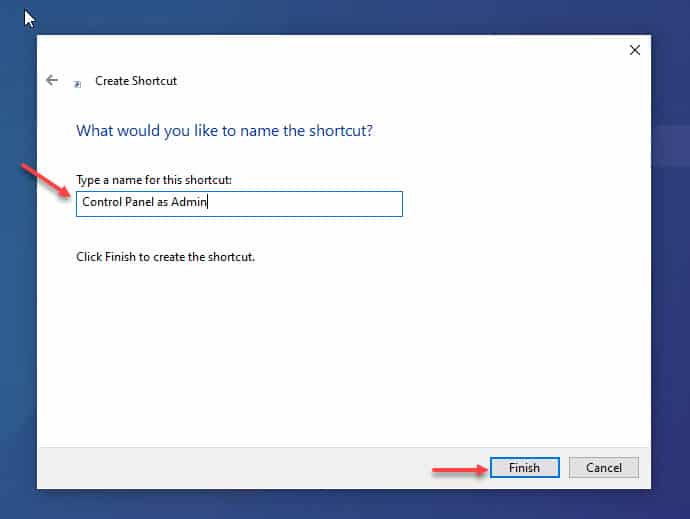
Set a shortcut to always run as administrator.
Windows Terminal
1. Open Windows Terminal.
2. Open a tab elevated: Ctrl + Shift + click the profile, or use "Run as administrator" from Start.
3. In Settings, you can adjust profiles and default behaviour.
Troubleshooting
Problem: No "Run as administrator" option.
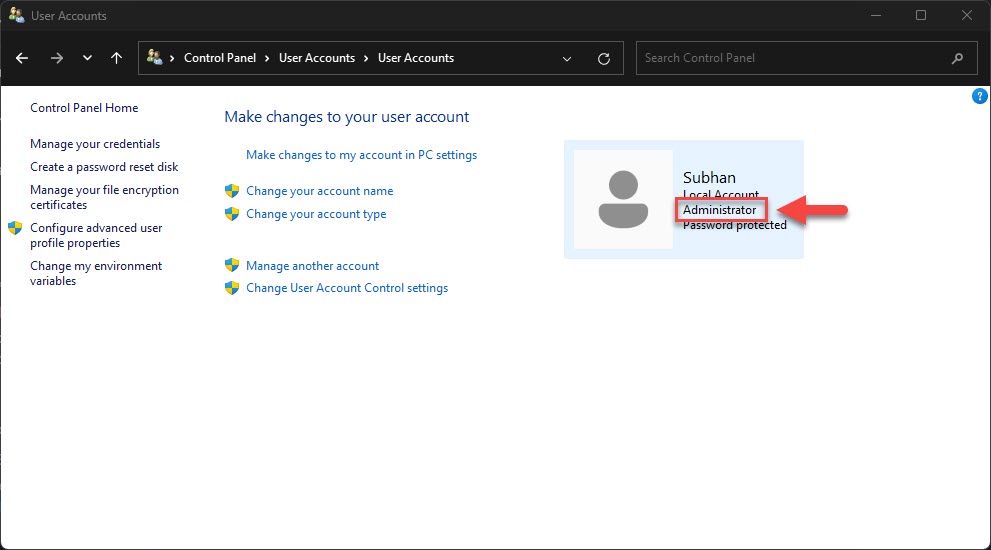
Solution: Use an admin account, or Ctrl + Shift + Enter on the search result.
Problem: UAC prompt every time.
Solution: That’s by design for elevation; keep UAC on for security rather than disabling it.
Problem: Shortcut won’t elevate.
Solution: Re-check "Run as administrator" under Properties > Advanced; some pinned tiles ignore it.
Problem: Commands still "access denied".
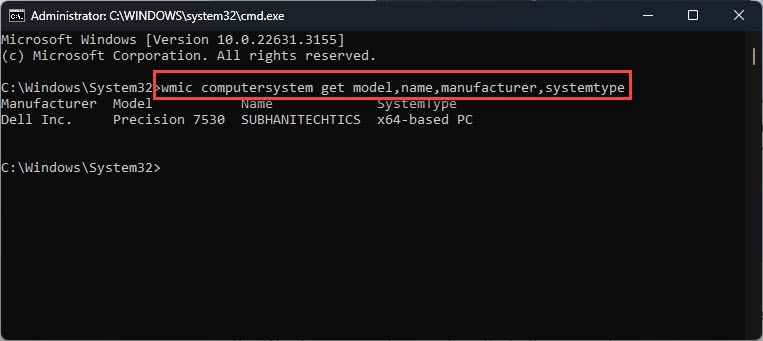
Solution: Confirm the title bar says "Administrator"; if not, relaunch elevated.
Conclusion
Open elevated terminals via right-click > Run as administrator or Ctrl + Shift + Enter, and set a shortcut to "Run as administrator" for one you use often. Keep UAC enabled and only elevate when the task genuinely needs it.