Command Prompt සහ PowerShell හැම වෙලේම Administrator විදිහට Run කරන්නේ කොහොමද
Elevated terminals ඉක්මනට launch කරන්න, ඒවා හැම වෙලේම admin rights එක්ක open වෙන්න set කරගන්න.
Overview
ගොඩක් commands වලට administrator rights ඕන. මේ guide එකෙන් Command Prompt සහ PowerShell elevated විදිහට ඉක්මනට open කරන ක්රම, ඒ වගේම shortcut එකක් හැම වෙලේම administrator විදිහට run වෙන්න හදන්නේ කොහොමද කියලයි පෙන්නන්නේ.
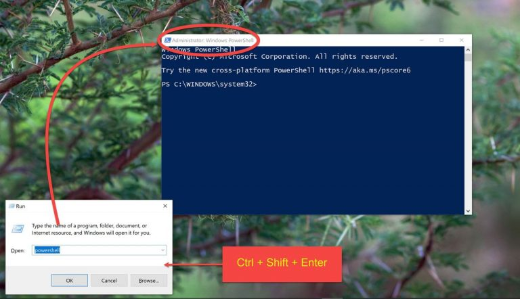
Terminal එක administrative rights එක්ක run කරමින්.
Warning: Task එකකට අවශ්ය වුනොත් විතරක් elevated terminals run කරන්න, commands එක්ක පරිස්සමින් වැඩ කරන්න — admin rights වලින් system-wide වෙනස්කම් කරන්න පුළුවන්.
Key Takeaways
- Right-click > Run as administrator කියන්නේ standard method එකයි.
- Ctrl + Shift + Enter වලින් search result එකක් elevated විදිහට open කරනවා.
- Shortcut එකක් හැම වෙලේම administrator විදිහට run වෙන්න set කරන්න පුළුවන්.
- Windows Terminal එකට profiles default විදිහට elevated කරන්න පුළුවන්.
Method 1: Search + Run as Administrator
1. Start press කරලා "cmd" හෝ "PowerShell" කියලා type කරන්න.
2. Result එක right-click කරලා "Run as administrator" තෝරන්න.
3. UAC prompt එක accept කරන්න.
Method 2: Keyboard Shortcut
1. Start search එකේ app එකේ නම type කරන්න.
2. Elevated විදිහට launch කරන්න Ctrl + Shift + Enter press කරන්න.
3. UAC prompt එක confirm කරන්න.
Method 3: Always Run a Shortcut as Admin
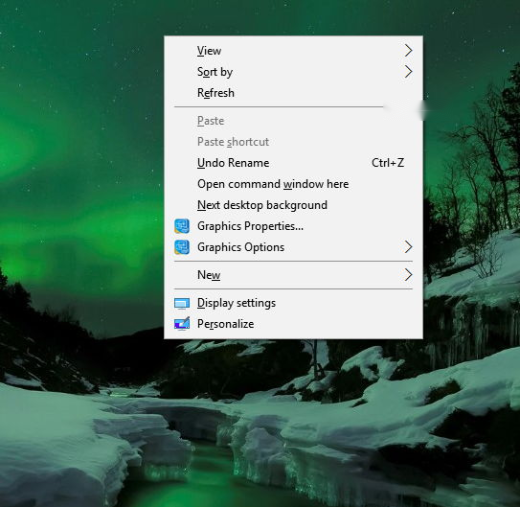
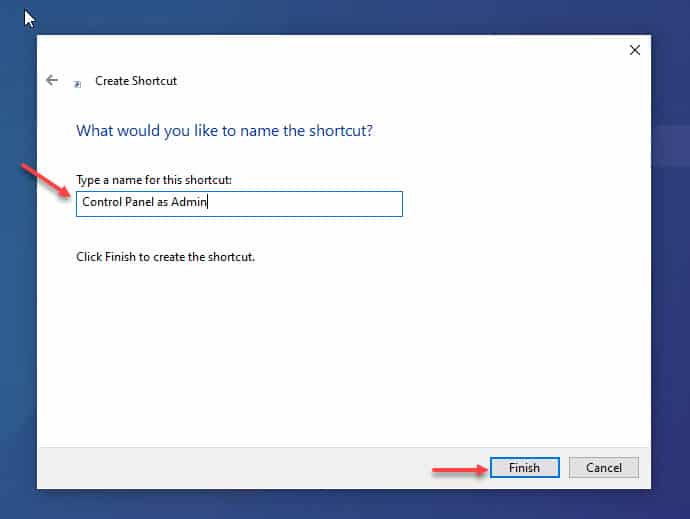
1. cmd.exe හෝ powershell.exe වලට shortcut එකක් හදන්න හෝ හොයාගන්න.
2. ඒක right-click කරලා > Properties > Shortcut tab > Advanced.
3. "Run as administrator" tick කරලා OK click කරන්න.
4. දැන් shortcut එක හැම වෙලේම elevated විදිහට open වෙනවා (UAC prompt එකක් එක්ක).
Shortcut එකක් හැම වෙලේම administrator විදිහට run වෙන්න set කරන්න.
Windows Terminal
1. Windows Terminal open කරන්න.
2. Tab එකක් elevated විදිහට open කරන්න: profile එක Ctrl + Shift + click කරන්න, නැත්නම් Start එකෙන් "Run as administrator" පාවිච්චි කරන්න.
3. Settings වල, ඔයාට profiles සහ default behaviour එක adjust කරන්න පුළුවන්.
Troubleshooting
Problem: "Run as administrator" option එකක් නෑ.
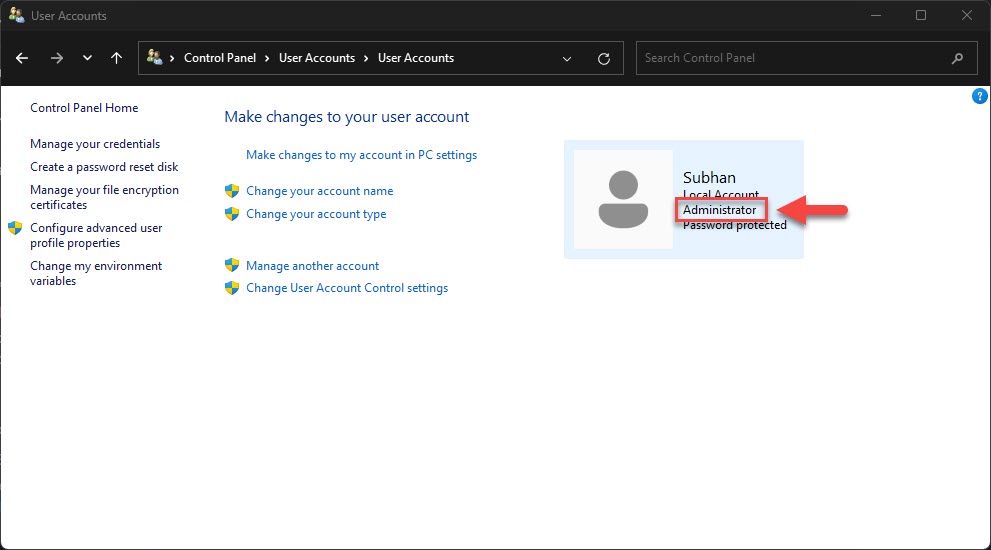
Solution: Admin account එකක් පාවිච්චි කරන්න, නැත්නම් search result එකේ Ctrl + Shift + Enter කරන්න.
Problem: හැම වෙලේම UAC prompt එකක්.
Solution: Elevation එකට ඒක design කරලා තියෙන්නේ ඒ විදිහටයි; UAC එක disable කරනවා වෙනුවට security එකට ඒක on තියාගන්න.
Problem: Shortcut එක elevate වෙන්නේ නෑ.
Solution: Properties > Advanced යටතේ "Run as administrator" එක නැවත check කරන්න; සමහර pinned tiles ඒක ignore කරනවා.
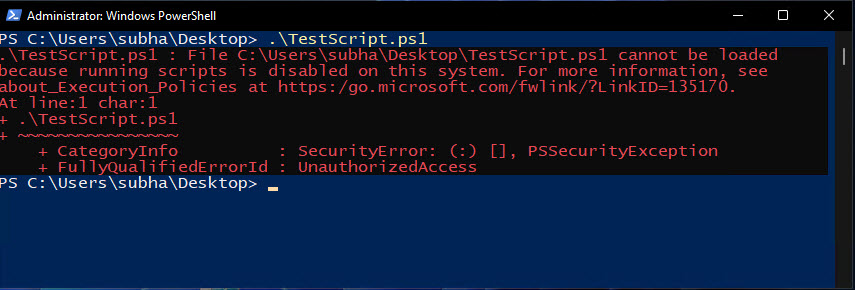
Problem: Commands තවම "access denied".
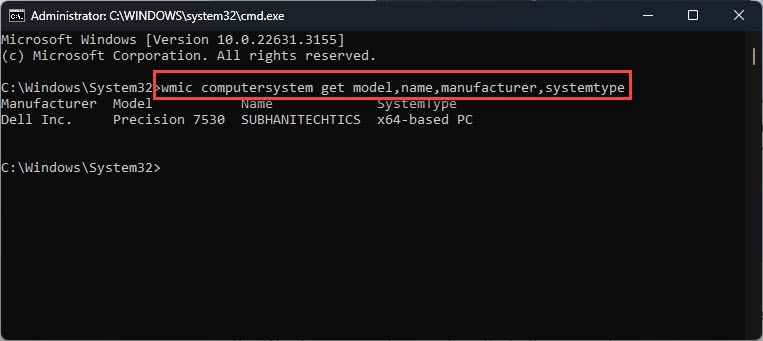
Solution: Title bar එකේ "Administrator" කියලා තියෙනවද කියලා තහවුරු කරගන්න; නැත්නම් elevated විදිහට relaunch කරන්න.
Conclusion
Elevated terminals right-click > Run as administrator හෝ Ctrl + Shift + Enter වලින් open කරන්න, සහ නිතර පාවිච්චි කරන එකකට shortcut එකක් "Run as administrator" විදිහට set කරගන්න. UAC එක enable තියාගෙන, task එකට ඇත්තටම ඕන වුනොත් විතරක් elevate කරන්න.
About TechHub
මේ guide එක TechHub Knowledge Base එකේ කොටසක්. තව step-by-step IT guides සහ support වලට techhub.com.lk එකට යන්න.