Overview
Restricted Mode is an optional YouTube filter that hides potentially mature content — useful for shared or family devices. This guide explains how it differs from age restrictions and how to turn it on or off on desktop and mobile.
Managing YouTube Restricted Mode.
Note: Restricted Mode is a content filter you can toggle. Age-restricted videos are separate: YouTube requires a signed-in account that meets the age requirement to view them, in line with its policies. This guide does not cover bypassing age verification.
Key Takeaways
- Restricted Mode hides potentially mature content.
- It’s optional and set per-device/browser (or enforced by a network/admin).
- Age-restricted videos require a signed-in, of-age account.
- Toggle Restricted Mode from your account menu.
Restricted Mode vs Age Restriction
- Restricted Mode: a user/admin content filter you can turn on/off.
- Age restriction: applied by YouTube to specific videos; viewing requires signing in and meeting the age requirement.
- Turning off Restricted Mode does not remove age restrictions.
Turn Restricted Mode On/Off (Desktop)
1. Open YouTube in your browser and sign in.
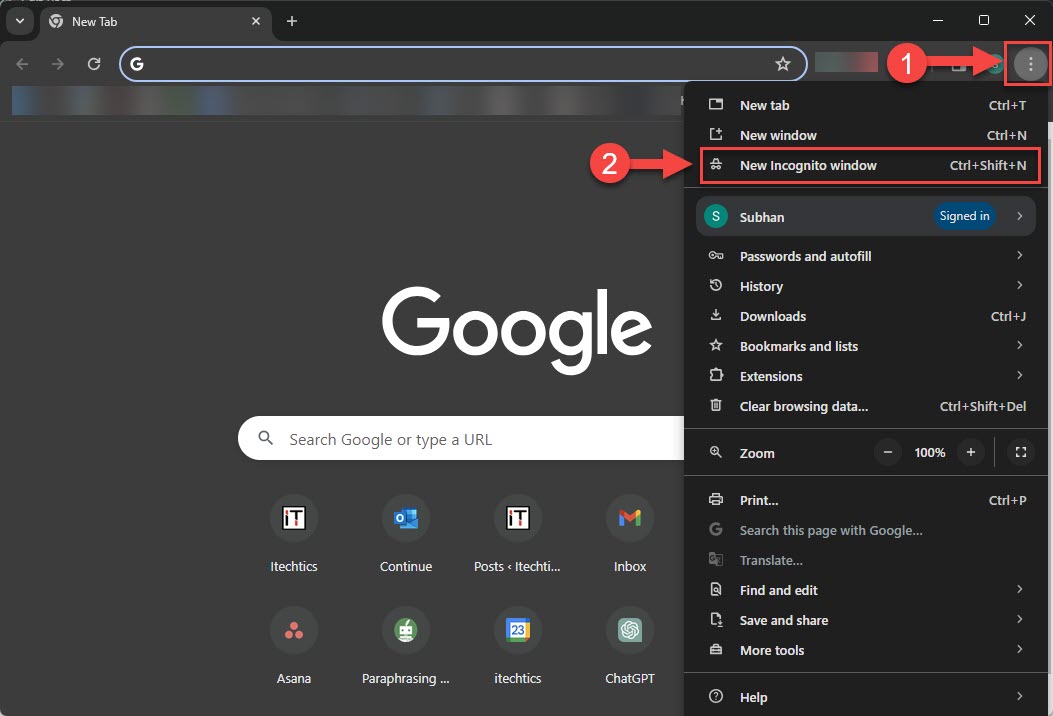
2. Click your profile picture (top right).
3. Scroll to "Restricted Mode" and click it.
4. Toggle it On or Off; the setting applies to this browser.
Turn Restricted Mode On/Off (Android/iPhone)
1. Open the YouTube app and tap your profile picture.
2. Go to Settings > General.
3. Toggle "Restricted Mode" on or off.
View Age-Restricted Videos (Legitimate Way)
1. Sign in to YouTube with an account that meets the age requirement.
2. Confirm your age on your Google account if prompted.
3. Age-restricted videos then play for eligible, signed-in users per YouTube’s policies.
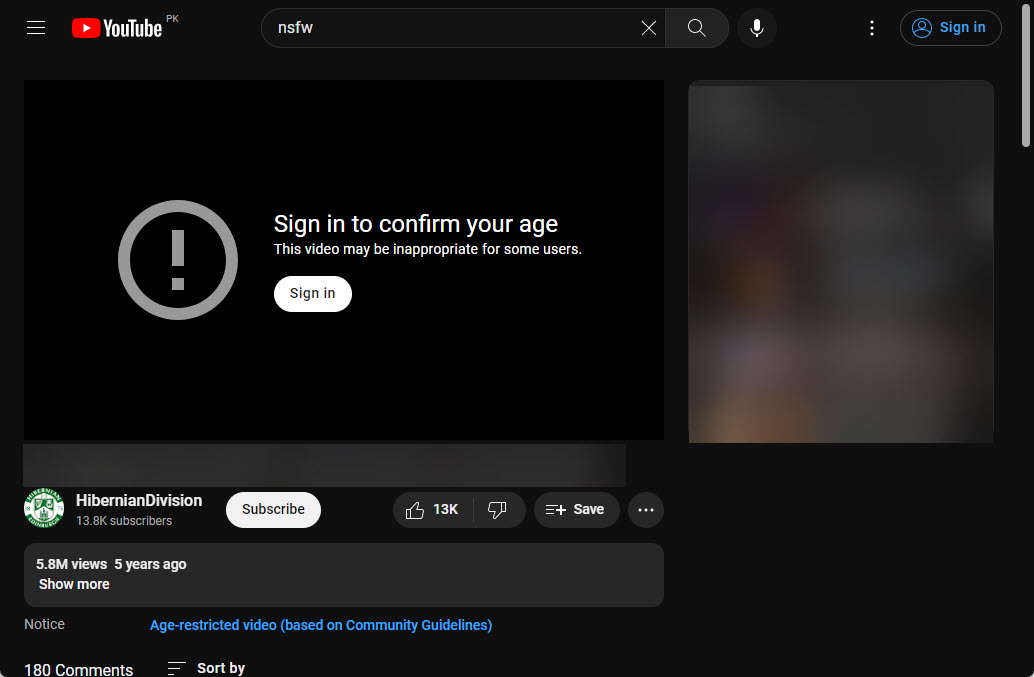
YouTube’s age prompt for restricted content.
Troubleshooting
Problem: Restricted Mode is locked/greyed out.
Solution: A network administrator, school, or parental control may enforce it — contact the administrator.
Problem: It re-enables itself.
Solution: It’s set per browser/device; clear cookies or check for an enforcing network policy or supervised account.
Problem: Age-restricted video won’t play.
Solution: Sign in with an of-age account and verify your age on your Google account.
Problem: Filter too strict/loose.
Solution: Restricted Mode uses automated signals; toggle it to suit the device’s audience.
Conclusion
Restricted Mode is a simple, per-device content filter you can toggle from your YouTube account menu. Age restrictions are separate and enforced by YouTube — the proper way to view such videos is to sign in with an account that meets the age requirement.
</w:pBdr><w:spacing w:before="220" w:after="40"/></w:pPr><w:r><w:rPr><w:b/><w:bCs/><w:color w:val="0B5394"/><w:sz w:val="21"/><w:szCs w:val="21"/><w:rFonts w:ascii="Calibri" w:cs="Calibri" w:eastAsia="Calibri" w:hAnsi="Calibri"/></w:rPr><w:t xml:space="preserve">About TechHub
This guide is part of the TechHub Knowledge Base. For more step-by-step IT guides and support, visit techhub.com.lk.