How to Check the .NET Framework Version Using the Command Line
Find which .NET Framework versions are installed via the Registry, PowerShell, and the file system.
Overview
Apps often require a specific .NET Framework version. This guide shows how to check the installed .NET Framework version from the command line — via the Registry, PowerShell, and the Windows folder.
Checking the .NET Framework version.
Key Takeaways
- The Registry stores the exact .NET Framework release number.
- PowerShell can read and map the Release value to a version.
- The Microsoft.NET folder shows installed version folders.
- This is for .NET Framework (4.x); .NET 5+ uses "dotnet --info".
Method 1: Registry
1. Open Command Prompt.
2. Run: reg query "HKLM\SOFTWARE\Microsoft\NET Framework Setup\NDP\v4\Full" /v Release
3. Match the Release number to a version (e.g., 528040+ = 4.8).
4. A higher Release value means a newer 4.x version.
Method 2: PowerShell
1. Open PowerShell.
2. Run: (Get-ItemProperty "HKLM:\SOFTWARE\Microsoft\NET Framework Setup\NDP\v4\Full").Release
3. Compare the number to Microsoft’s release-to-version table.
4. Script it to check requirements before installing an app.
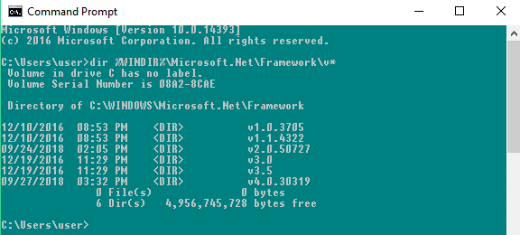
Method 3: Windows Folder
1. Open C:\Windows\Microsoft.NET\Framework (and Framework64).
2. The version-numbered folders (e.g., v4.0.30319) show installed runtimes.
3. Note: the folder is v4.0.30319 even for 4.5–4.8 — use the Registry Release value for the exact version.
For .NET 5 and Later
1. Modern .NET (5/6/7/8) is separate from .NET Framework.
2. Check it with: dotnet --info or dotnet --list-runtimes
3. These list the installed .NET (Core) runtimes and SDKs.
Troubleshooting
Problem: Release value not found.
Solution: Older systems may only have .NET 3.5 — check the NDP\v3.5 key, or install .NET 4.x.
Problem: Folder version is misleading.
Solution: The v4.0.30319 folder is shared by 4.5–4.8 — rely on the Registry Release number.
Problem: App needs .NET 6/7/8.
Solution: That’s modern .NET, not Framework — check with dotnet --list-runtimes and install from Microsoft.
Problem: Need 3.5 specifically.
Solution: Enable ".NET Framework 3.5" in Windows Features if an app requires it.
Conclusion
To find the .NET Framework version, read the Release value under the NDP\v4\Full Registry key (via reg query or PowerShell) and map it to a version. For modern .NET 5+ apps, use dotnet --list-runtimes instead.