Overview
Windows 11 version 25H2 is Microsoft’s 2025 annual feature update, released on 30 September 2025. Rather than a large rebuild, 25H2 ships as a small enablement package on top of the 24H2 servicing branch, so the update is quick to install. This guide explains what changed in 25H2, how to download the official ISO, and how to install or upgrade.
Windows 11 version 25H2 is the 2025 annual feature update.
Key Takeaways
- 25H2 was released on 30 September 2025 and shares its servicing branch with 24H2.
- It installs via a small enablement package (about 200 KB) on eligible 24H2 systems, so the upgrade is fast.
- 25H2 focuses on security and enterprise management rather than major new consumer features.
- Installing 25H2 resets the support lifecycle clock for your device.
What Changed in Windows 11 25H2
25H2 does not introduce major new consumer features. The most notable changes are:
- Security — improved vulnerability detection during development, and hardening against smart-card authentication vulnerabilities.
- Feature removals — PowerShell 2.0 and the legacy WMIC (Windows Management Instrumentation command-line) are removed for security reasons.
- Enterprise additions — Wi-Fi 7 support, the ability to remove pre-installed Microsoft Store apps via Group Policy or Intune on Enterprise/Education editions, and enhanced management controls.
- Support lifecycle reset — installing 25H2 restarts the support window (24 months for Home/Pro, 36 months for Enterprise/Education).
Note: Because 25H2 uses an enablement package on the 24H2 branch, eligible PCs update in minutes with a single restart — there is no full OS reinstall.
Method 1 — Download the ISO From Microsoft
1. Go to Microsoft’s official Windows 11 download page (microsoft.com/software-download/windows11).
2. Under "Download Windows 11 Disk Image (ISO) for x64 devices", select Windows 11 (multi-edition ISO).
3. Click Download, choose your product language, and confirm.
4. Click the 64-bit Download button to save the 25H2 ISO.
Warning: Download Windows 11 only from microsoft.com. Avoid unofficial or "pre-activated" images, which can be unsafe.
Method 2 — Media Creation Tool and Installation Assistant
- Media Creation Tool — download it from the same Microsoft page to write 25H2 directly to a USB drive or save an ISO.
- Installation Assistant — download it from Microsoft to upgrade a compatible PC in place, keeping your files and apps.
Method 3 — Install via Windows Update
1. Open Settings > Windows Update.
2. Turn on "Get the latest updates as soon as they’re available" if you want it sooner.
3. Click Check for updates; if your PC is eligible, the 25H2 feature update is offered.
4. Click Download and install, then restart when prompted.
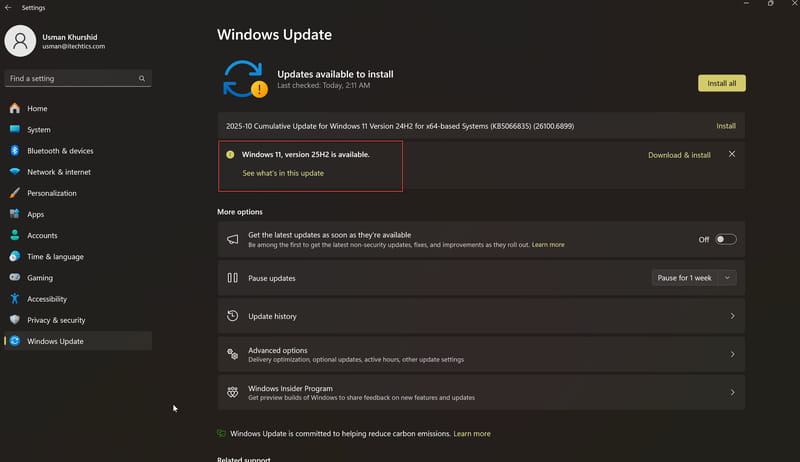
Eligible PCs are offered Windows 11 25H2 through Windows Update.
System Requirements
- Processor: 1 GHz or faster with 2+ cores on a supported 64-bit CPU.
- Memory: 4 GB RAM minimum.
- Storage: 64 GB or larger.
- Firmware: UEFI with Secure Boot, plus TPM 2.0.
- Graphics: DirectX 12 compatible with a WDDM 2.0 driver.
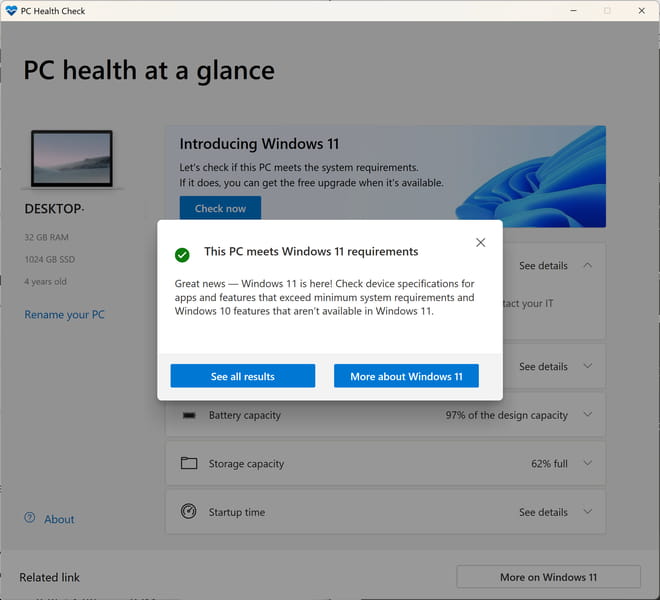
Use the PC Health Check tool to confirm 25H2 compatibility.
Install From the ISO
- In-place upgrade — open (mount) the ISO in File Explorer and run setup.exe to upgrade while keeping files and apps.
- Clean install — create a bootable USB with the Media Creation Tool, Rufus, or Ventoy, boot from it, and choose Custom to install fresh.
Troubleshooting
Problem: 25H2 is not offered in Windows Update.
Solution: Make sure your PC is fully updated to 24H2 and meets the requirements. Enable "Get the latest updates as soon as they’re available", or use the Installation Assistant or ISO.
Problem: A script or tool stopped working after upgrading.
Solution: 25H2 removes PowerShell 2.0 and WMIC. Update scripts to PowerShell 5.1/7 and replace WMIC commands with the equivalent CIM/PowerShell cmdlets.
Problem: The PC does not meet requirements.
Solution: Enable TPM 2.0 and Secure Boot in UEFI firmware if supported, then re-run PC Health Check.
Problem: In-place upgrade fails from the ISO.
Solution: Mount the ISO and run setup.exe from within Windows rather than booting from it, and ensure you have enough free disk space.
Conclusion
Windows 11 25H2 is a light, security-focused update that installs quickly on 24H2 systems and resets your support clock. For most users, Windows Update is the easiest path; for clean installs or repairs, download the official ISO from Microsoft.
</w:pBdr><w:spacing w:before="220" w:after="40"/></w:pPr><w:r><w:rPr><w:b/><w:bCs/><w:color w:val="0B5394"/><w:sz w:val="21"/><w:szCs w:val="21"/><w:rFonts w:ascii="Calibri" w:cs="Calibri" w:eastAsia="Calibri" w:hAnsi="Calibri"/></w:rPr><w:t xml:space="preserve">About TechHub
This guide is part of the TechHub Knowledge Base. For more step-by-step IT guides and support, visit techhub.com.lk.