Overview
ඔබ කලින් Wi-Fi network එකකට connect වෙලා තියෙනවා නම්, Windows ඒකේ password එක store කරලා, ඔබට ආපහු බලන්න පුළුවන් — share කරන්න හෝ අලුත් device එකක් set කරන්න ඕන වුණාම handy. මේ guide එකෙන් ඔබේම PC එකේ current සහ saved Wi-Fi passwords ඔක්කොම, එක්කම macOS සහ Android වල, හොයන ආකාරය පෙන්නනවා.
ඔබේ device එක දැනටමත් save කරපු Wi-Fi passwords recover කරන්න.
Warning: Passwords retrieve කරන්නේ ඔබ අයිති හෝ access කරන්න authorized networks වලට විතරයි.
Key Takeaways
- Active network එකේ password එක ඒකේ Wireless Properties (Show characters) එකේ බලන්න.
- Saved passwords ඔක්කොම Command Prompt එකේ netsh wlan එකෙන් list කරලා reveal කරන්න.
- PowerShell එකෙන් හැම saved network එකක්ම key එකක්ම එකවර dump කරන්න පුළුවන්.
- macOS Keychain පාවිච්චි කරනවා; Android Wi-Fi settings වල QR code/password පෙන්නනවා.
Active Wi-Fi Password එක බලන්න (Windows)
1. Windows key + R press කරලා ncpa.cpl type කරලා Enter කරන්න.
2. ඔබේ Wi-Fi connection එක right-click කරලා Status > Wireless Properties තෝරන්න.
3. Security tab එක open කරලා password එක reveal කරන්න "Show characters" tick කරන්න.
Command Prompt එකෙන් Saved Network එකක් බලන්න
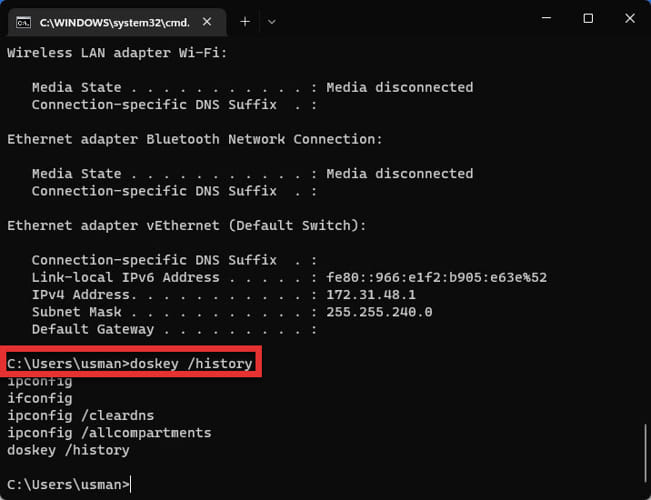
1. Command Prompt open කරන්න.
2. Saved networks ඔක්කොම list කරන්න: netsh wlan show profiles
3. එක network එකක password එක reveal කරන්න: netsh wlan show profile name="NETWORK_NAME" key=clear
4. Password එකට "Key Content" line එක බලන්න.
Saved Wi-Fi Passwords ඔක්කොම List කරන්න (PowerShell)
1. PowerShell open කරන්න.
2. Run: (netsh wlan show profiles) | Select-String "\:(.+)$" | %{ $name=$_.Matches.Groups[1].Value.Trim(); netsh wlan show profile name="$name" key=clear }
3. මේකෙන් හැම saved network එකක්ම ඒකේ key content එකක්ම print කරනවා.
macOS, Android, සහ iPhone
- macOS — Keychain Access open කරලා, network එක හොයලා, "Show password" tick කරන්න (ඔබේ Mac password එක ඇතුළත් කරන්න).
- Android — Settings > Network & internet > Wi-Fi > network එක > Share එකෙන් QR code එකයි password එකයි පෙන්නනවා.
- iPhone — Settings > Wi-Fi > network එක (i) > Password field එක tap කරලා reveal කරන්න.
Troubleshooting
Problem: netsh Key Content පෙන්නන්නේ නෑ.
Solution: Command Prompt එක administrator විදිහට run කරලා, profile name එක හරියටම match වෙනවා කියලා බලන්න (ඒක case-sensitive).
Problem: Show characters greyed out.
Solution: Administrator rights ඕන වෙන්න පුළුවන්; password එක reveal කරන්න admin account එකකින් sign in වෙන්න.
Problem: Network එක list වෙලා නෑ.
Solution: ඔබ කවදාවත් ඒක save කරලා නැති වෙන්න පුළුවන්, නැත්නම් forget කරලා. Device එක මතක තියෙන networks වලට විතරයි passwords recover කරන්න පුළුවන්.
Problem: Android එකේ Share option එකක් නෑ.
Solution: පරණ Android versions වෙනස්; ඔබේම networks වලට විතරයි rooted device එකක Wi-Fi viewer app එකක් පාවිච්චි කරන්න, නැත්නම් router එක බලන්න.
Conclusion
ඔබේ devices Wi-Fi passwords මතක තියාගන්නවා, ඒවා ආපහු බලන්න පුළුවන් — Windows එකේ Wireless Properties හෝ netsh, macOS එකේ Keychain, සහ phones වල Wi-Fi settings වලින් — ඔබට access කරන්න හිමිකම් තියෙන networks වලට.
About TechHub
මේ guide එක TechHub Knowledge Base එකේ කොටසක්. තව step-by-step IT guides සහ support වලට techhub.com.lk එකට යන්න.