Overview
App එකක් freeze වුණාම, නැත්නම් script එකකින් process එකක් end කරන්න ඕන වුණාම, command line එක Task Manager එකට වඩා වේගවත්, flexible. මේ guide එකෙන් Command Prompt (taskkill), PowerShell (Stop-Process), WMIC, සහ Sysinternals PsKill tool එකෙන් processes list කරලා kill කරන ආකාරය පෙන්නනවා.
Command line එකෙන් processes ඉක්මනට, scripts වලත් terminate කරන්න පුළුවන්.
Key Takeaways
- Command Prompt එකේ taskkill, නැත්නම් PowerShell එකේ Stop-Process පාවිච්චි කරන්න.
- මුලින්ම process එක name එකෙන් හෝ PID (process ID) එකෙන් identify කරන්න.
- Unresponsive processes end කරන්න force option එක (/F හෝ -Force) එකතු කරන්න.
- Command-line termination scripts සහ remote management වලට ideal.
ඇයි Command Line එක?
Command line එකෙන් processes name එකෙන් හෝ ID එකෙන් terminate කරන්න, processes කිහිපයක් එකවර end කරන්න, සහ ඒ action එක automation scripts වලට දාන්න පුළුවන් — graphical Task Manager එකට ඒ තරම් efficient විදිහට කරන්න බැරි දේවල්.
Method 1 — Command Prompt (taskkill)
1. Command Prompt එක administrator විදිහට open කරන්න.
2. Running processes list කරන්න: tasklist
3. Process ID එකෙන් kill කරන්න: taskkill /PID 1234 /F
4. Image name එකෙන් kill කරන්න: taskkill /IM notepad.exe /F (/F එකෙන් force කරනවා)
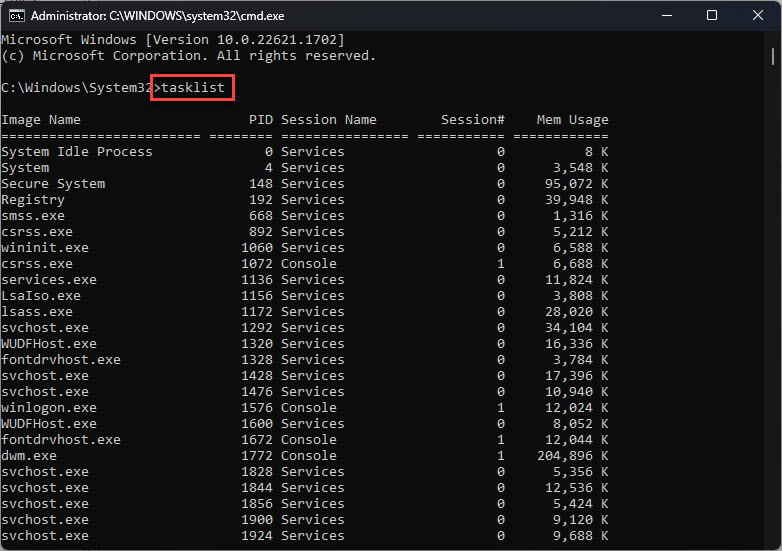
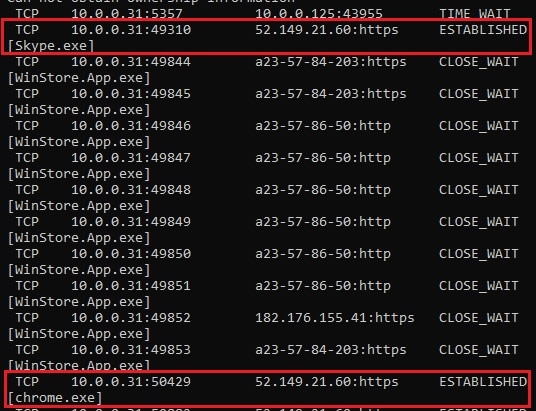
Kill කරන්න කලින් tasklist එකෙන් running processes list කරන්න.
Method 2 — PowerShell (Stop-Process)
1. PowerShell එක administrator විදිහට open කරන්න.
2. Processes list කරන්න: Get-Process
3. Name එකෙන් kill කරන්න: Stop-Process -Name "notepad" -Force
4. ID එකෙන් kill කරන්න: Stop-Process -Id 1234 -Force
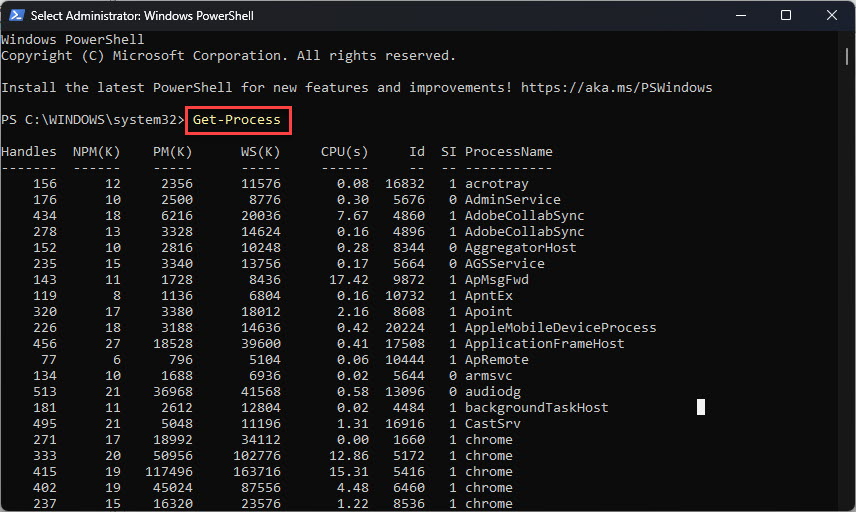
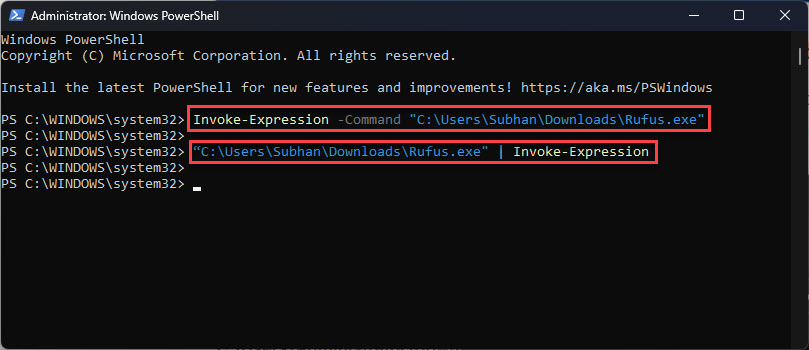
PowerShell එකේ Get-Process සහ Stop-Process පාවිච්චි කරන්න.
Method 3 — WMIC
1. Command Prompt එක administrator විදිහට open කරන්න.
2. Name එකෙන් kill කරන්න: wmic process where name="notepad.exe" delete
3. PID එකෙන් kill කරන්න: wmic process where processid=1234 delete
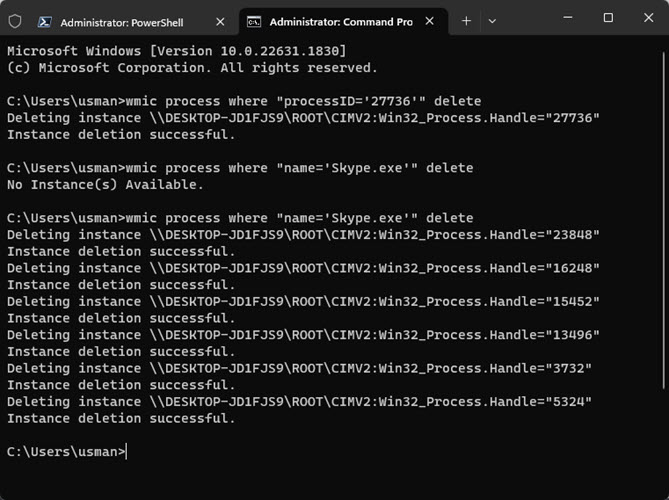
WMIC එකෙන් process එකක් name හෝ PID එකෙන් delete කරන්න පුළුවන්.
Note: අලුත් Windows versions වල WMIC deprecated; ඉදිරියට taskkill හෝ PowerShell prefer කරන්න.
Method 4 — Sysinternals PsKill
1. Microsoft Sysinternals (official) එකෙන් PsTools download කරලා extract කරන්න.
2. ඒ folder එකේ Command Prompt open කරන්න.
3. Name හෝ PID එකෙන් kill කරන්න: pskill notepad (හෝ pskill 1234).
4. PsKill එකෙන් remote computers වල processes ත් terminate කරන්න පුළුවන්.
Troubleshooting
Problem: Process එකක් kill කරනකොට "Access denied".
Solution: Command Prompt හෝ PowerShell එක administrator විදිහට run කරන්න. System processes තවම protected වෙන්න පුළුවන්.
Problem: Kill කළ ගමන්ම process එක ආපහු restart වෙනවා.
Solution: Service එකක් හෝ parent process එකක් ඒක relaunch කරනවා. අදාළ service එක stop කරන්න, නැත්නම් parent process tree එක end කරන්න (taskkill /T).
Problem: PID එක දන්නේ නෑ.
Solution: tasklist (හෝ Get-Process) run කරලා name/PID හොයාගෙන target කරන්න.
Problem: taskkill කියනවා process එක terminate කරන්න බැරි වුණා කියලා.
Solution: Force කරන්න /F එකතු කරලා, permission තියෙනවා කියලා confirm කරන්න. සමහර protected system processes end කරන්න බෑ.
Conclusion
Command line එකෙන් processes end කරන්න taskkill සහ PowerShell එකේ Stop-Process තමයි go-to ක්රම — name හෝ PID එකෙන්. Stuck apps වලට force flag එක එකතු කරන්න, remote machine එකකට යන්න ඕන වුණාම PsKill පාවිච්චි කරන්න.
About TechHub
මේ guide එක TechHub Knowledge Base එකේ කොටසක්. තව step-by-step IT guides සහ support වලට techhub.com.lk එකට යන්න.