Overview
Control Panel tasks වැඩිපුරම standard session එකක් යටතේ හොඳට වැඩ කරනවා, නමුත් සමහර applets වලට protected settings වෙනස් කරන්න administrator rights ඕන. Control Panel එකේ සරල Run as administrator entry එකක් නැති නිසා, ඔබට ඒක elevated context එකක launch කරන්න වෙනවා. මේ guide එකෙන් ඒක කරන්න තියෙන ප්රායෝගික ක්රම ආවරණය කරනවා.
Key Takeaways
- Control Panel එකටම කෙළින්ම Run as administrator right-click option එකක් නෑ.
- Elevated Command Prompt එකකින් හෝ Task Manager එකකින් ඒක launch කරන එකෙන් admin rights ලැබෙනවා.
- වෙන වෙනම .cpl applets control command එකෙන් elevated විදිහට open කරන්න පුළුවන්.
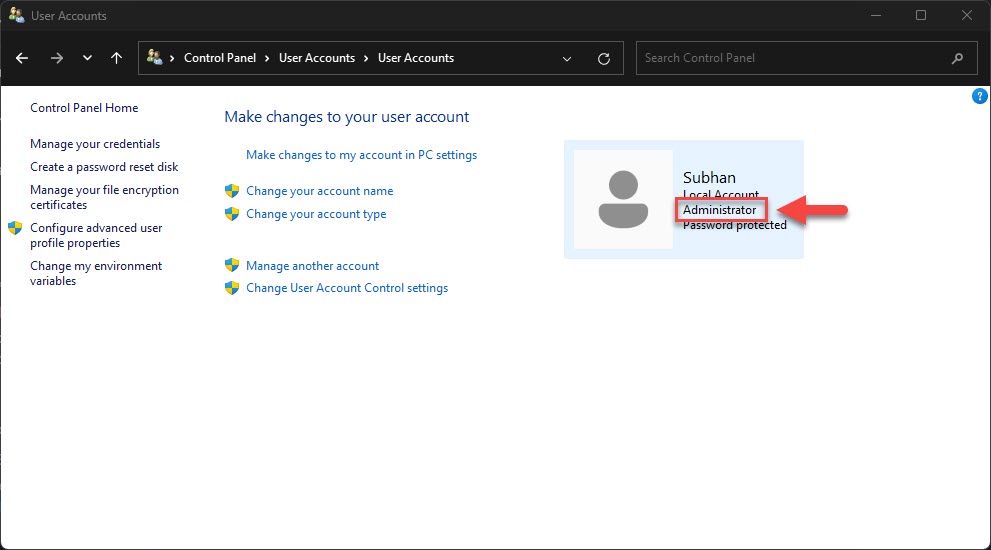
- ඔබ administrator account එකකින් sign in වෙලා ඉන්න ඕන, නැත්නම් admin password එකක් දැනගෙන ඉන්න ඕන.
Launch from an Elevated Command Prompt
1. Start button එක press කරලා, cmd type කරලා, Run as administrator තෝරන්න.
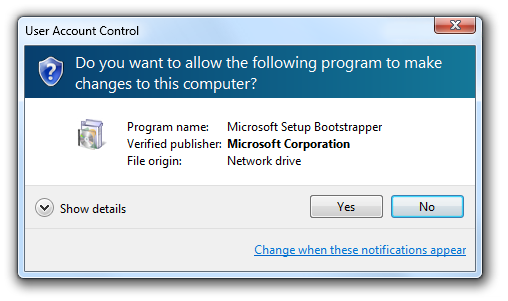
2. User Account Control prompt එක approve කරන්න.
3. control type කරලා Enter press කරන්න Control Panel එක administrator rights එක්ක open කරන්න.
4. නිශ්චිත applet එකක් open කරන්න, control ට පස්සේ ඒකේ නම දාන්න, උදාහරණයක් විදිහට control firewall.cpl.
Elevated Command Prompt එකකින් Control Panel එක open කරන එක.
Launch from Task Manager
1. Ctrl + Shift + Esc press කරන්න Task Manager එක open කරන්න.
2. Run new task click කරන්න (නැත්නම් File > Run new task).
3. Box එකේ control type කරන්න.
4. Create this task with administrative privileges check කරලා, OK click කරන්න.
Note: Control Panel එක elevated විදිහට run කරන එකෙන් බලපාන්නේ ඒ session එකට විතරයි. ඒක ඇතුළෙන් ඔබ open කරන applets elevated rights inherit කරගන්නවා.
Create an Elevated Shortcut
1. Desktop එක right-click කරලා New > Shortcut තෝරන්න.
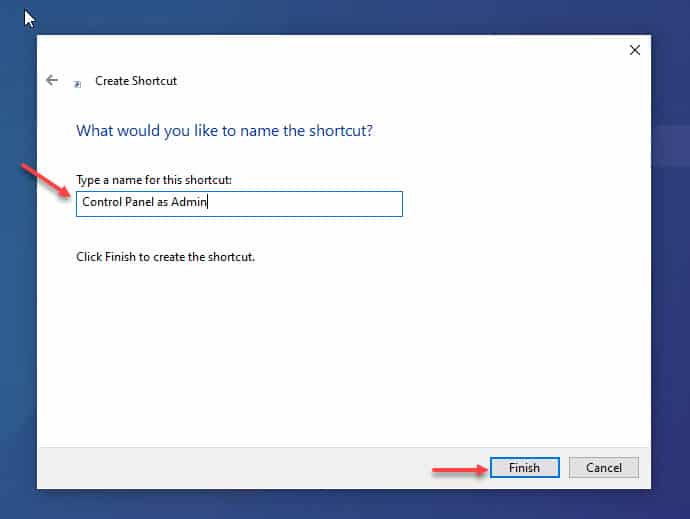
2. Location විදිහට control ඇතුළත් කරලා shortcut එකට නමක් දෙන්න.
3. හදාගත්ත shortcut එක right-click කරලා Properties > Advanced තෝරන්න.
4. Run as administrator tick කරලා, OK click කරලා, elevated access ඕන හැම වෙලාවෙම මේ shortcut එක පාවිච්චි කරන්න.
Tip: සුලභ applet commands අතරට control desk.cpl (Display), control ncpa.cpl (Network Connections), සහ control appwiz.cpl (Programs and Features) ඇතුළත් වෙනවා.
Troubleshooting
Problem: Run as administrator option එක නෑ.
Solution: Control Panel එකට කෙළින්ම elevation option එකක් නෑ; ඒ වෙනුවට elevated Command Prompt එකකින්, Task Manager එකකින්, හෝ elevated shortcut එකකින් launch කරන්න.
Problem: Elevation එකට prompt වෙන්නේ නෑ.
Solution: User Account Control enable වෙලද කියලත්, ඔබ administrator account එකක් පාවිච්චි කරනවද නැත්නම් ඇතුළත් කරන්න admin credentials තියෙනවද කියලත් confirm කරන්න.
Problem: Setting එකක් තාමත් greyed out වෙලා.
Solution: සමහර options Group Policy එකෙන් control වෙනවා; gpedit.msc check කරන්න, නැත්නම් managed device එකක ඔබේ administrator ට කතා කරන්න.
Problem: Applet එක admin rights නැතුව open වෙනවා.
Solution: මුලින්ම parent Control Panel එක elevated විදිහට open කරලා, ඊට පස්සේ applet එක ඒක ඇතුළෙන් launch කරන්න, එතකොට ඒක rights inherit කරගන්නවා.
Conclusion
Control Panel setting එකක් වෙනස් වෙන්න බැරි වුණාම, සාමාන්යයෙන් අඩුවෙන් තියෙන කොටස elevation එකයි. Control Panel එක elevated Command Prompt එකකින් හෝ Task Manager එකකින් launch කරන්න, නැත්නම් ඉක්මන් access එකට Run-as-administrator shortcut එකක් හදාගන්න, එතකොට protected settings හරියටම open වෙනවා.
About TechHub
මේ guide එක TechHub Knowledge Base එකේ කොටසක්. තව step-by-step IT guides සහ support වලට techhub.com.lk එකට යන්න.