Overview
Snipping Tool කියන්නේ screenshots capture කරලා annotate කරන Windows 11 එකේ built-in utility එක. මේ guide එකෙන් ඒක install කරන ආකාරය, available capture modes, සහ edit, save, uninstall කරන ආකාරය cover කරනවා.
Windows 11 එකේ Snipping Tool එක.
Key Takeaways
- Snipping Tool Windows 11 සහ 10 එක්ක එනවා.
- ඕන නම් Microsoft Store එකෙන් free reinstall කරන්න.
- ඒක rectangular, free-form, window, සහ full-screen captures support කරනවා.
- Clips annotate, crop, save කරන්න, හෝ clipboard එකට copy කරන්න පුළුවන්.
Microsoft Store එකෙන් Install / Reinstall කරන්න
1. Start menu එකෙන් Microsoft Store open කරන්න.
2. "Snipping Tool" search කරන්න.
3. Get / Install click කරලා download කරලා install කරන්න.
4. Install වුණාම Start menu එකෙන් launch කරන්න.
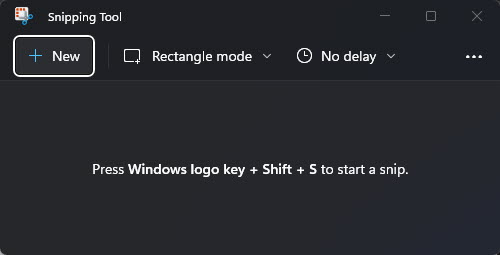
Snipping Tool install වෙලා run කරන්න ready.
Note: Fake හෝ bundled installers avoid කරන්න Snipping Tool download කරන්නේ official Microsoft Store එකෙන් විතරයි.
Screenshot එකක් Capture කරන්නේ කොහොමද
1. Windows + Shift + S press කරන්න, නැත්නම් Snipping Tool open කරලා New click කරන්න.
2. Mode එකක් තෝරන්න: Rectangular, Free-form, Window, හෝ Full-screen.
3. Area එක select කරන්න drag කරන්න; capture එක clipboard එකට copy වෙනවා.
4. Annotation වලට editor එකේ open කරන්න notification එක click කරන්න.
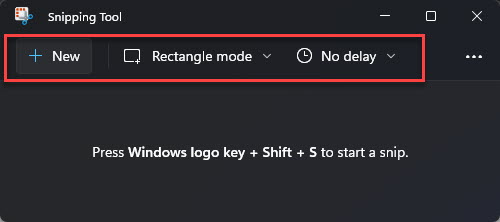
Capture mode එකක් සහ optional delay එකක් තෝරන්න.
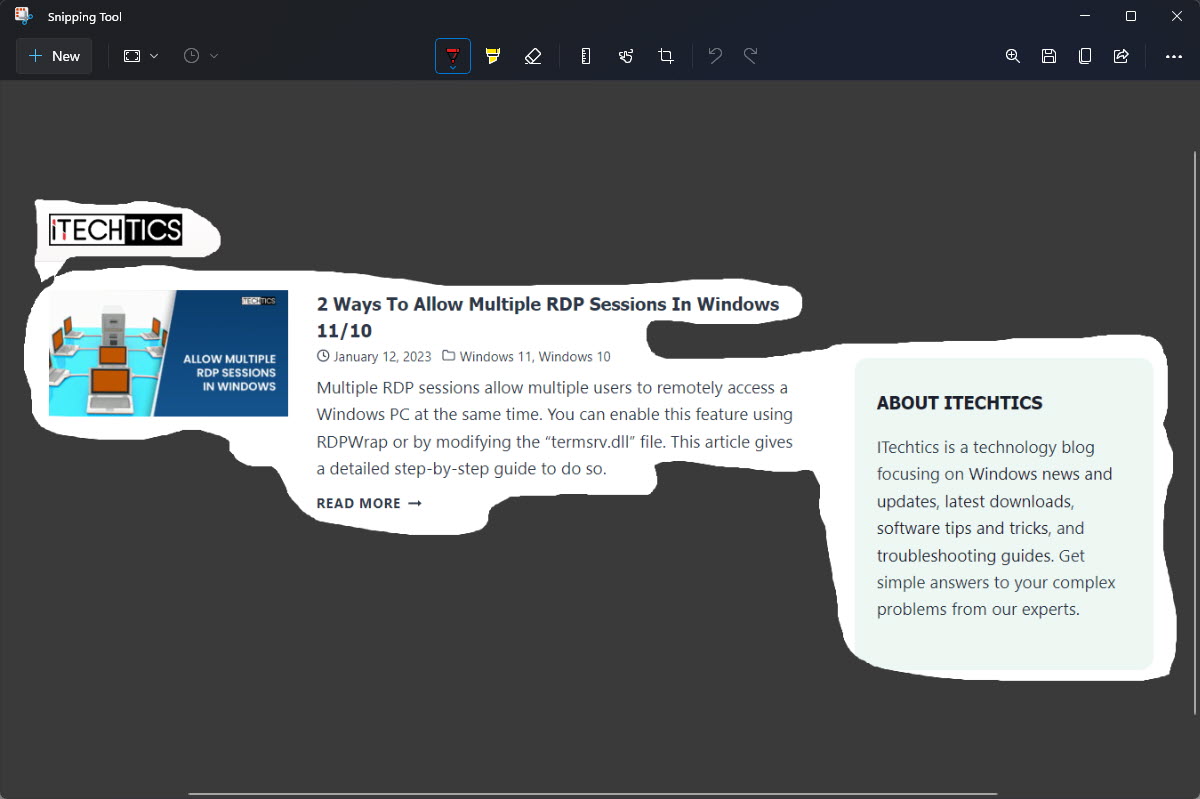
Free-form capture mode එක.
Edit කරලා Save කරන්න
1. Editor එකේ, annotate කරන්න pen, highlighter, සහ crop tools පාවිච්චි කරන්න.
2. PNG, JPG, හෝ GIF විදිහට save කරන්න Save icon එක (හෝ Ctrl + S) click කරන්න.
3. Paste කරන්න image එක clipboard එකට දාන්න Copy (හෝ Ctrl + C) click කරන්න.
Uninstall කරන්නේ කොහොමද
1. Settings > Apps > Installed apps open කරන්න.
2. Snipping Tool හොයලා, තිත් තුන click කරලා Uninstall තෝරන්න.
3. ඕන වෙලාවක Microsoft Store එකෙන් reinstall කරන්න පුළුවන්.
Troubleshooting
Problem: Windows + Shift + S එකෙන් මුකුත් වෙන්නේ නෑ.
Solution: Settings > Accessibility > Keyboard enable කරන්න, හෝ clipboard history on කරන්න; නෑ නම් Store එකෙන් Snipping Tool reinstall කරන්න.
Problem: Screenshots automatically save වෙන්නේ නෑ.
Solution: Captures default විදිහට clipboard එකට යනවා — editor එක open කරලා Save පාවිච්චි කරන්න, නැත්නම් Snipping Tool settings වල auto-save enable කරන්න.
Problem: Tool එක open වෙන්නේ නෑ.
Solution: Store එකෙන් Windows එකයි app එකයි update කරන්න, නැත්නම් Settings > Apps > Snipping Tool > Advanced options > Reset යටතේ reset කරන්න.
Problem: Delay capture වැඩ කරන්නේ නෑ.
Solution: New click කරන්න කලින් toolbar එකේ delay එක set කරන්න; timer එක mode එක තෝරාට පස්සේ පටන්ගන්නවා.
Conclusion
Snipping Tool කියන්නේ Windows 11 එකේ screen එක capture කරලා annotate කරන්න fast, free ක්රමයක්. Microsoft Store එකෙන් install කරලා, Windows + Shift + S shortcut එක ඉගෙනගත්තම, Windows එකේම capable screenshot workflow එකක් ලැබෙනවා.
About TechHub
මේ guide එක TechHub Knowledge Base එකේ කොටසක්. තව step-by-step IT guides සහ support වලට techhub.com.lk එකට යන්න.